Xbox Remote Play Not Working on iPhone Fixes
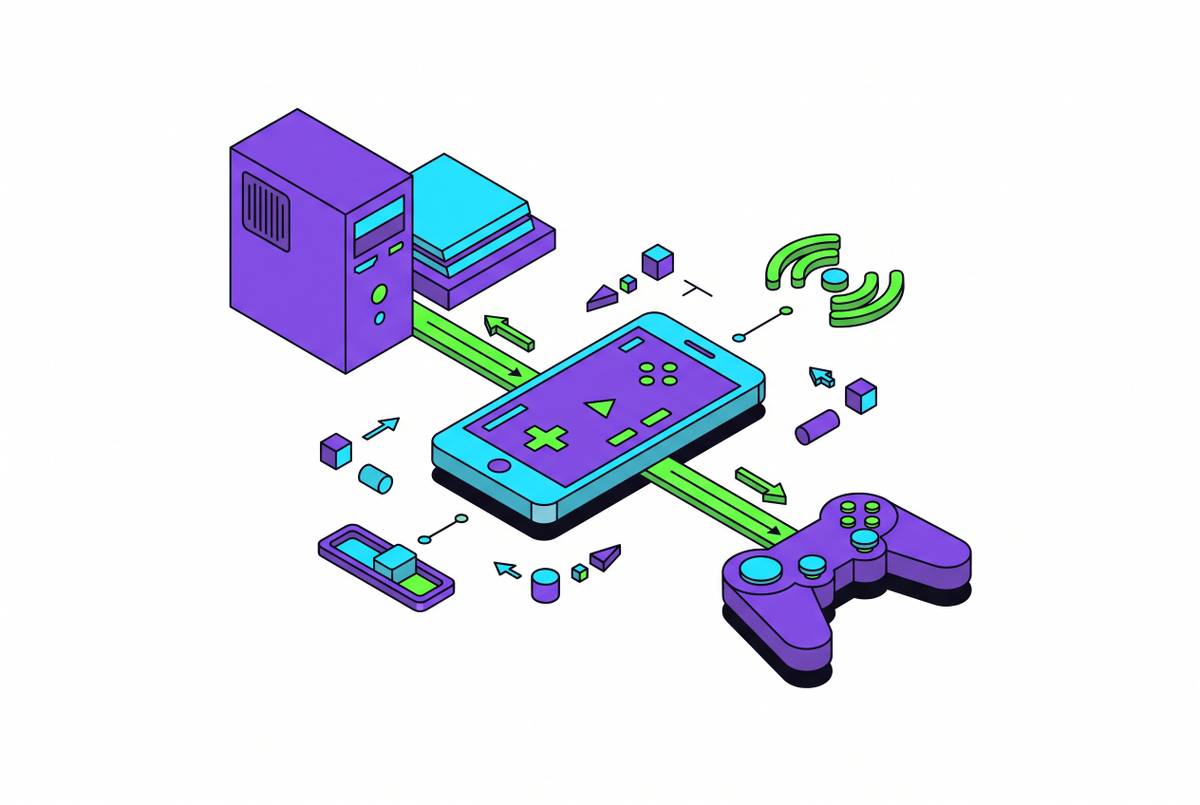
Microsoft moved Xbox Remote Play off the mobile app to the browser in April 2025.
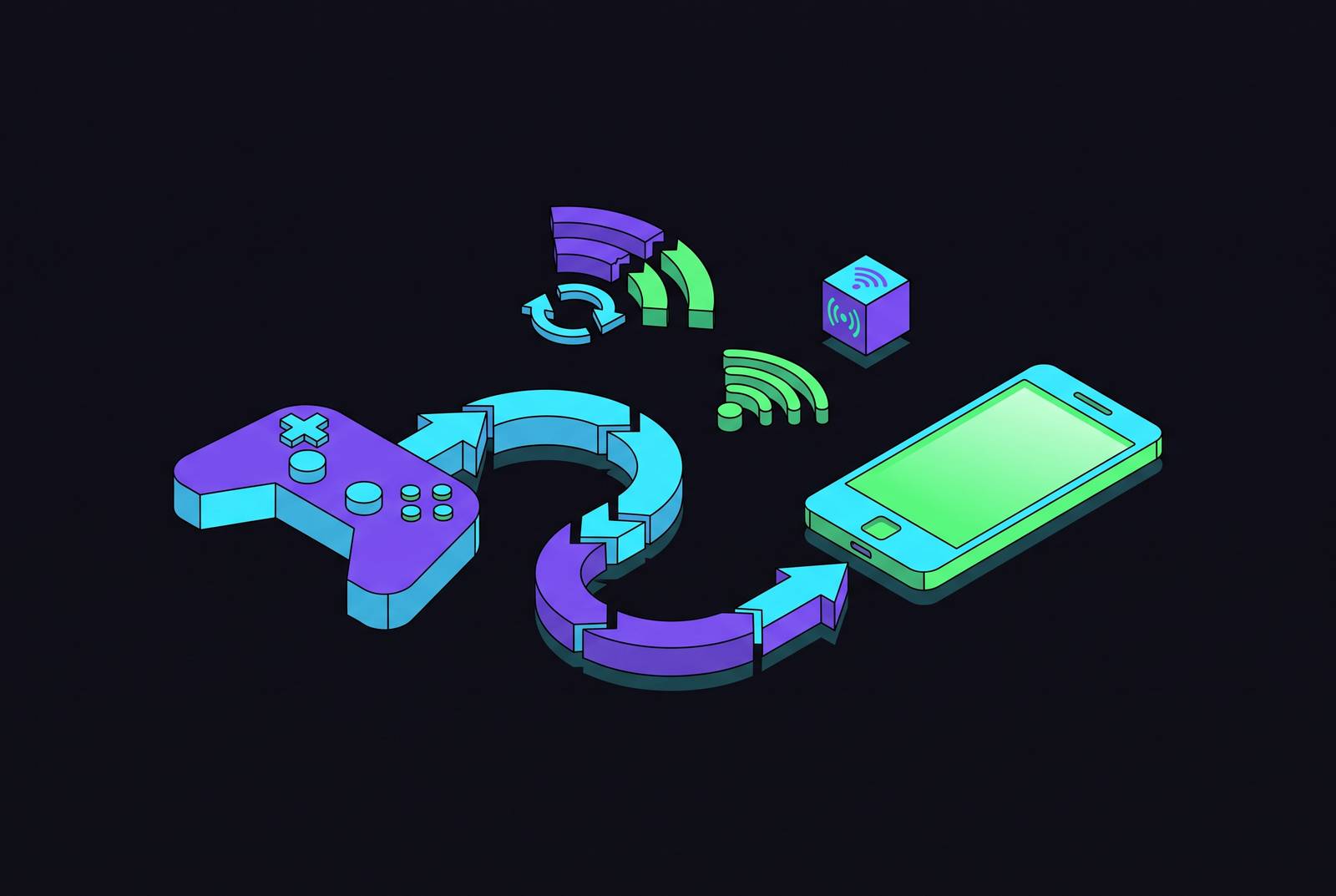
Xbox Remote Play didn't break for iPhone users. It moved, and Microsoft never bothered sending a forwarding address. In April 2025, the company pulled the Remote Play button out of the Xbox mobile app entirely, so every guide written before that month points at a door that's since been bricked over.
That one change explains most of the "why isn't this working" panic still circulating in forums. The feature works fine. It just lives somewhere else now, and this piece covers where that is, what stops it from connecting, and how it holds up against the alternative Microsoft would clearly rather everyone use instead.
How to start an Xbox Remote Play session on iPhone today
Skip the app, full stop. It doesn't have the button anymore, and no amount of tapping around the settings menu will summon it back. Open Safari, or any browser on the iPhone, and go to xbox.com/remoteplay. Sign in with the same Microsoft account tied to the console. A mismatched login is the fastest way to end up staring at a blank screen wondering what's wrong, and it happens constantly in households where two people share one Xbox and neither remembers whose gamertag is whose.
The console has to be on or sitting in Sleep Mode, which gets its own breakdown in the next section since it trips up more people than anything else here. Once signed in, there's a controller decision to make: a physical controller connected over USB-C or Bluetooth, or Microsoft's on-screen touch layout, the same overlay used for Xbox Cloud Gaming, which now covers over 100 cloud playable games, including Minecraft Dungeons, Psychonauts 2, and Sea of Thieves. Everything else defaults to a generic layout that's fine for menus and turn-based games, and rough for anything needing a trigger pull under pressure.
If the stream still won't start after all that, the browser isn't the problem. The console is.
Console settings that block Remote Play before the stream even starts
Remote Play isn't on by default, and it has a habit of quietly switching itself off after a system update or a factory reset. Press the Xbox button, go to Profile & System, then Settings, then Devices & Connections, then Remote Features, and check that "Enable remote features" is actually turned on.
Power mode causes just as much trouble, mostly because people assume "the console is off" counts as a fine baseline state. It doesn't. Remote Play needs Sleep Mode (Instant-on, on older firmware), because a console in full Shutdown can't hear the connection request at all. Sleep Mode is worth noting on an electric bill, but it isn't optional if the plan is streaming from the couch to a phone on the train.
Account mismatch deserves a second mention because it's so easy to miss in a house with more than one Xbox profile. The Microsoft account signed into the iPhone browser has to be the exact one on the console, not just any account with access to it.
Hardware matters too, and this is where a chunk of "it's just broken" complaints turn out to be a hardware ceiling instead of a bug. Remote Play runs on Xbox One and the Series X|S generation. It does not run on Xbox 360, so if the console gathering dust in the entertainment center is a 360, none of this applies, and there's no setting buried anywhere that fixes that. Before spiraling into network troubleshooting, run the built-in diagnostic under Remote Features called "Test remote play." It reports NAT type, bandwidth, latency, and power-mode status in one pass, and it usually points straight at the actual problem instead of leaving you to guess for twenty minutes.
Network conditions that cause lag, disconnects, and failed sessions
Bandwidth has a floor, and it's a specific one. The console needs at least 4.75 Mbps upload, the iPhone needs at least 5 Mbps download, and anything above 9 Mbps upload is where things start feeling genuinely good instead of just tolerable. Latency matters just as much: under 150 milliseconds is required when running Open NAT with at least 9 Mbps upload, and dropping under 60 ms is the recommended target for stable play.
NAT type is the quiet killer here, and it needs to read Open. Moderate or Strict NAT throttles or blocks the connection outright, and the diagnostics screen usually flags it with a "Double NAT detected" or "UPnP not successful" warning. Don't assume it's a router problem just because the warning sounds like one, the culprit might be sitting somewhere upstream that a router reset can't touch.
Wired beats wireless, and it isn't close. If there's one piece of advice worth actually acting on in this entire piece, it's running an Ethernet cable to the console. That single change does more for stability than every other fix combined. Wi-Fi works, technically, but it's at the mercy of every microwave, every neighbor's router fighting for the same channel, and every dead spot the apartment happens to have.
If the connection's still shaky, reset the router properly: unplug it, wait at least 30 seconds (not five, not ten, actually thirty), plug it back in, and give it two full minutes before testing again. Check what else is chewing through the network, too. A game downloading in the background on the Xbox, or a roommate's 4K stream, eats into the exact bandwidth margin Remote Play needs to stay smooth.
VPNs are usually the enemy here, since they reroute traffic and tack on latency between the phone and the console. One exception is worth knowing, though: on networks with brutal NAT restrictions, dorms, hotels, certain locked-down ISPs, a VPN can sometimes cut through that restriction and get the connection working when nothing else does. Counterintuitive, but worth trying once everything above has already failed. And if the connection is stable but just choppy, dropping the stream resolution inside the Remote Play settings cuts the bandwidth demand substantially, which can be the difference between a playable session and a slideshow.
App and device fixes when the network and console settings check out
Sometimes the console is fine, the network is fine, and the problem sits entirely in the iPhone's own software. Start with the obvious fix: update the Xbox app. A mismatch between app version and console firmware causes bugs that look like they have nothing to do with anything covered above, but do.
If that doesn't help, clear the app's cache, or just reinstall it outright. Corrupted cache data is a common, boring, and completely fixable reason the app can't bridge to the console properly. Pair that with a full restart: power the Xbox off completely, restart the iPhone, then reopen the app or browser and try again. Tedious, sure, but it clears up more phantom issues than it has any right to.
iOS version matters more than a lot of older guides admit. The current minimum is iOS 15.1. Anything citing iOS 13 or iOS 10 as sufficient is outdated advice from before Microsoft's own requirements changed, and if a phone is stuck below iOS 15.0, Remote Play through the current web flow isn't officially supported on it at all, no workaround changes that.
There's a permissions issue that's easy to miss, too. The Xbox app needs Local Network access on iOS just to detect the console on the same Wi-Fi. If that got declined during setup (an absent-minded tap on "Don't Allow" three months back, say), the app may fail to detect the console on the same Wi-Fi. Check Settings, then Xbox app, then Local Network, and turn it on.
One more diagnostic worth running: try Remote Play on a second device, a PC or tablet, on the same network and account. If it works there, the issue lives on the iPhone specifically. If it doesn't work anywhere, the console or the network is the actual culprit. And if a third-party streaming or capture app is running on the console itself, close it. External apps get blocked during Remote Play sessions, easy to forget if it was left open from something unrelated weeks ago.
When Remote Play stays unreliable: how it compares to Xbox Cloud Gaming on the same connection
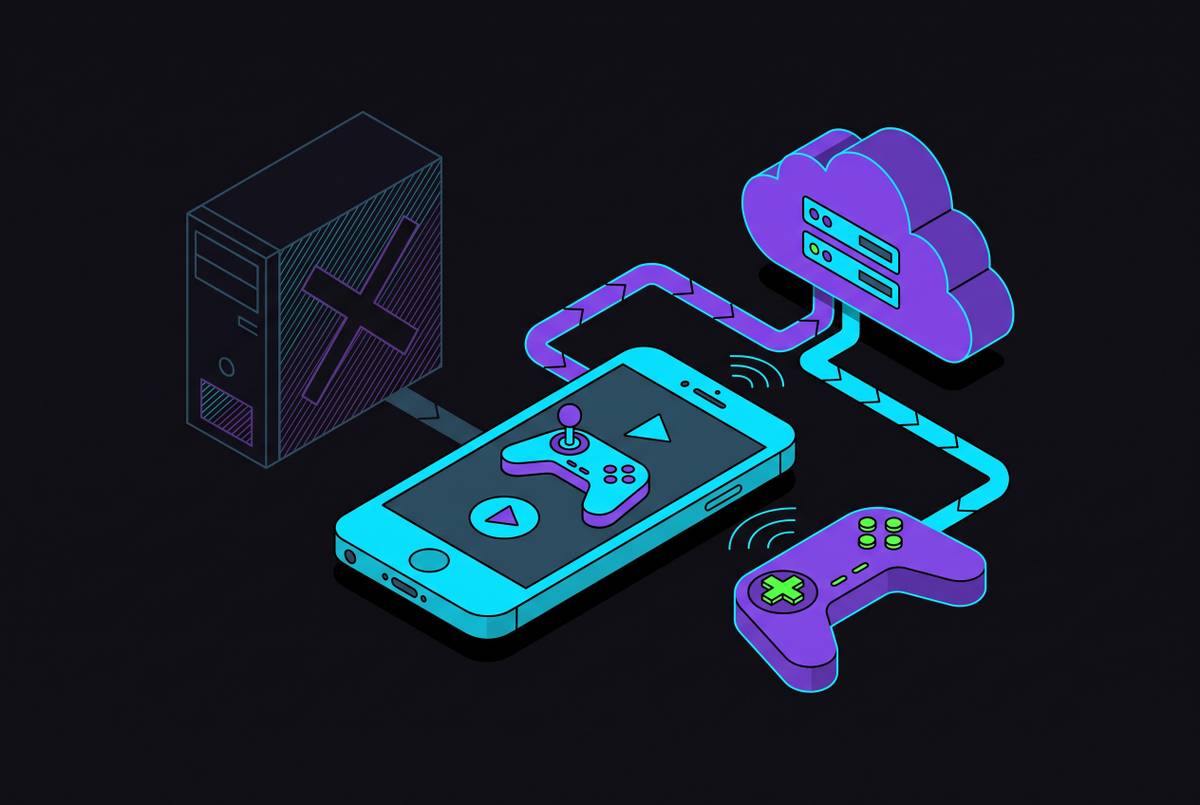
Remote Play and Xbox Cloud Gaming look similar on screen but work in completely different places. Remote Play uses the console sitting in the living room to render the game, encode the video, and beam it to the iPhone, so if that console or the home network is under any strain, the stream feels it immediately. Xbox Cloud Gaming runs the game entirely on console-class hardware inside Microsoft's own data centers. The home console never gets involved at all.
That difference produces a result worth sitting with, because it cuts against the instinct that "local" should always beat "cloud." According to Kotaku's testing in July 2025, Xbox Cloud Gaming actually held up more reliably than direct Remote Play on congested home networks, likely thanks to compensation built into Microsoft's server side that a home router just doesn't have. On a quieter connection, Remote Play performed well, which means the gap between the two narrows or flips entirely depending on how crowded the network happens to be at that exact moment. Cloud Gaming shows up as the more dependable fallback for the same title on a strained connection. None of that undermines Remote Play as a concept. It's a reminder that Remote Play's quality is hostage to the home network in a way Cloud Gaming simply isn't, and on a bad connection, that hostage situation tends to end badly for whoever's holding the controller.
So which one should actually get used? Anyone treating this as a "which is better" contest is asking the wrong question. It comes down to what's being played, not which platform sounds more impressive on paper. Remote Play unlocks the entire personal library, including backward-compatible original Xbox and Xbox 360 titles, expanded further by the April 2025 update, and it needs no subscription at all. Xbox Cloud Gaming is built around the Game Pass catalog, though since November 2024 it has also supported streaming select owned games outside that catalog, more than 100 titles as of April 2025, and it requires an active Game Pass subscription to use. If a specific owned game keeps failing on Remote Play even after every fix above, check whether that same game happens to sit in Game Pass. Switching lanes there is usually faster than debugging a NAT setting for the fourth time in one evening.
How controller choice affects the Remote Play experience on iPhone
Touch controls are fine for casual play, which is the nicest thing anyone can honestly say about them. Precision inputs and fast reaction games expose the limits of tapping glass almost immediately, and no amount of haptic feedback trickery changes the fact that a touchscreen doesn't have an analog stick. If the game leans on quick reflexes or fine aim, touch controls are the wrong call here, not a compromise worth defending.
A physical controller changes the whole equation, and the market has settled on one dominant form factor for it: a clamshell design that clips around the iPhone, turning the phone into something closer to a dedicated handheld. Look for clicky, responsive face buttons, thumbsticks that don't drift under pressure, a real D-pad instead of a mushy four-way nub, a 3.5mm headphone jack for wired audio, and USB-C passthrough so the phone charges while playing instead of dying mid-raid. Most clamshells ship with rubber adapters to fit around cases, which matters more than it sounds like, right up until the alternative is stripping the case off before every single session.
Bluetooth controllers are the other path, and the simpler one. Any standard Xbox Wireless Controller pairs to an iPhone without trouble and gets picked up by the browser session fine. The tradeoff is wireless latency, small but real, next to something wired straight into the phone's port.
Ergonomics matter more the longer a session runs. Holding a bare iPhone flat through an hour of anything competitive builds a fatigue that creeps up slowly and then hits all at once, specifically in the wrists and thumbs. A clamshell controller fixes that by giving the hands something actually shaped like a controller, instead of a slab of glass balanced awkwardly on fingertips.
Put the pieces together (the browser flow, the console settings, the network floor, the right controller) and the extra steps Microsoft added in April 2025 stop feeling like friction and start looking like the new front door. It's less convenient than a button inside an app, no argument there. But once it's open, Remote Play on iPhone still delivers something close to sitting in front of the console itself, which was presumably the entire point of building it this way to begin with.