How to Enable and Configure Steam Remote Play Together on Mobile
Stream PC games to friends' phones without them owning a copy.
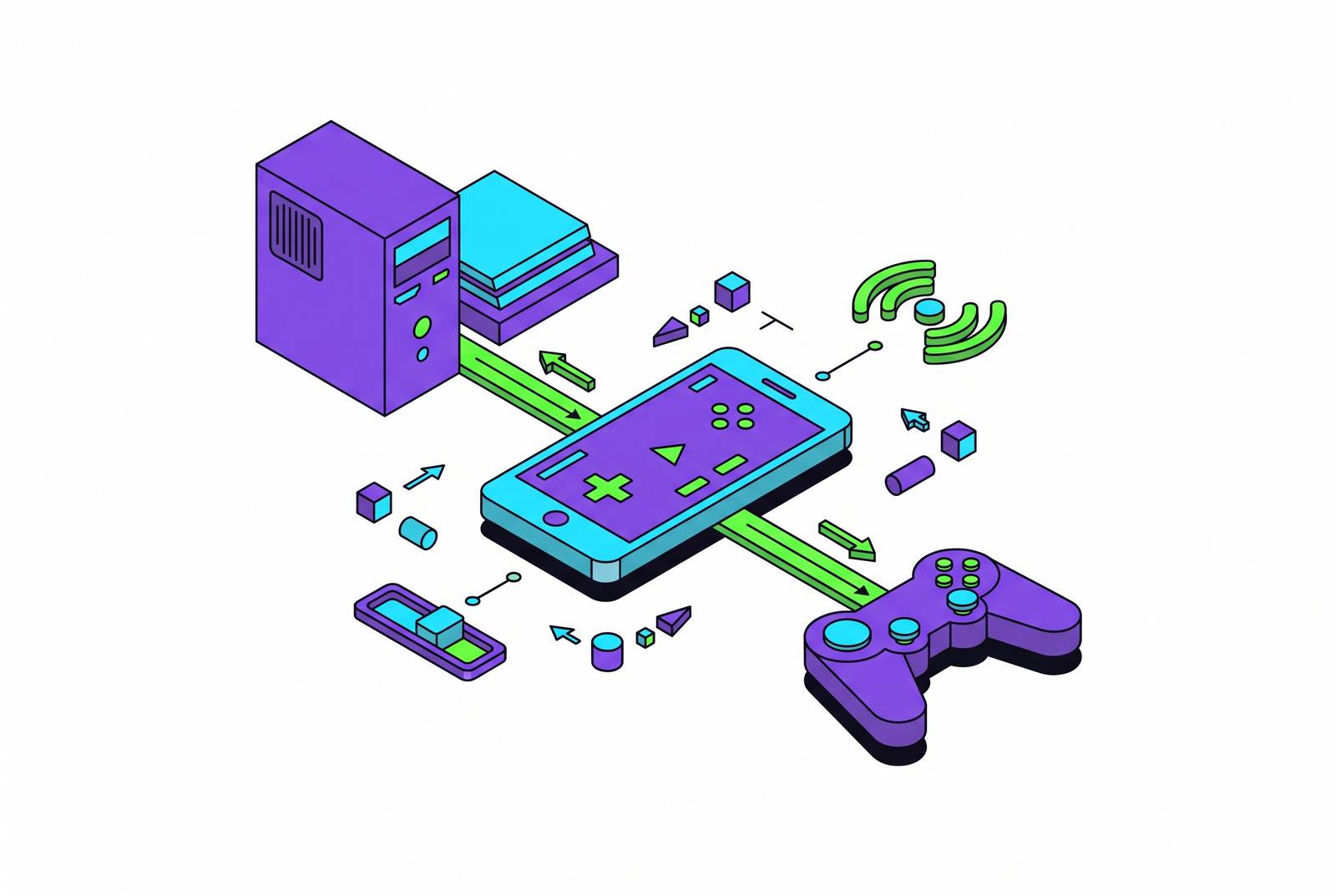
Steam Remote Play Together lets someone join a local co-op or split-screen game on a friend's PC without owning a copy of it, streamed straight to a phone. Valve has offered the feature for a few years now, so the concept itself isn't news. What actually trips people up is getting settings, network, and hardware lined up on the mobile side, so the stream doesn't turn into a slideshow of pixelated regret.
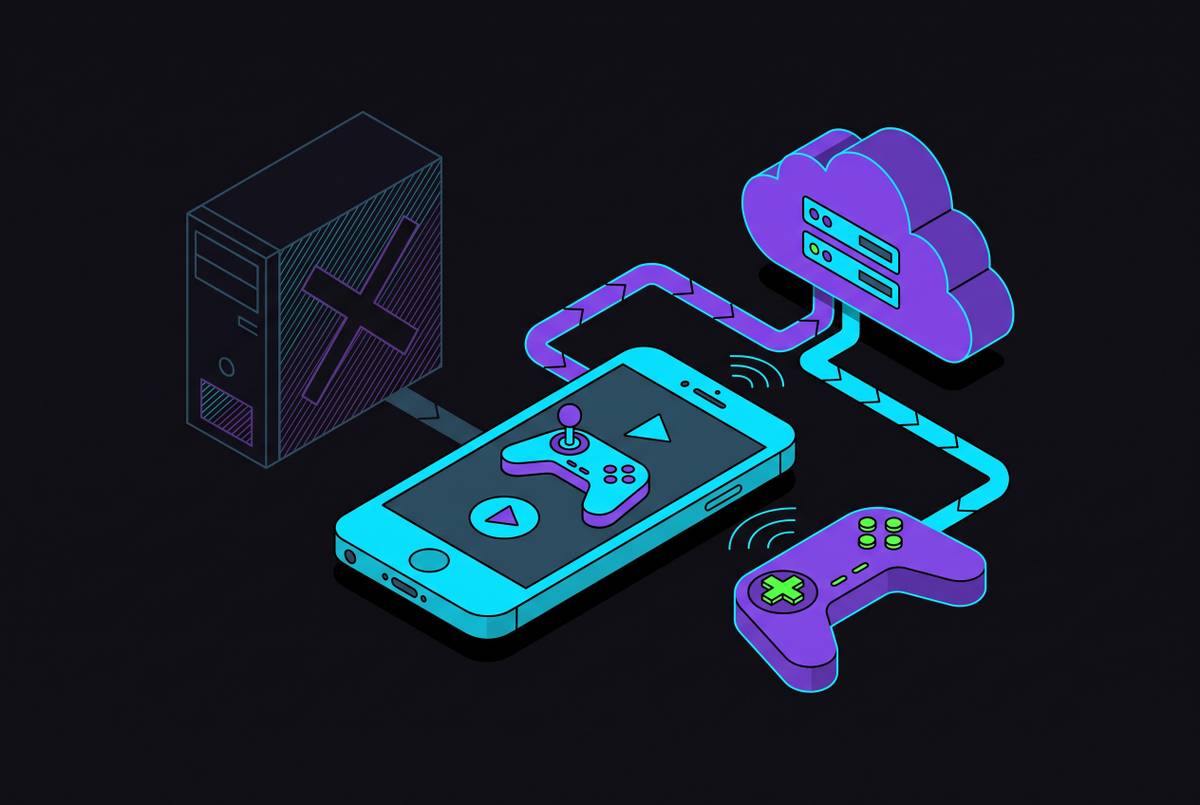
Get this part wrong and the whole troubleshooting session goes sideways: this is not cloud gaming. Services like GeForce Now or Xbox Cloud Gaming run the game on a server in a data center, then send the output to your screen. Remote Play Together skips the data center entirely. The host's own PC renders every frame, and that video, along with audio and voice chat, gets pushed out over the host's internet connection to whoever's joined in. One person owns and runs the game. Everyone else just watches the video feed and sends inputs back, never touching the host's desktop or files. It's the same idea as handing someone a controller on your couch, except the couch is now a Wi-Fi signal and the guest might be three states away.
Only the host earns achievements, by the way. No guest character finishing the final boss should wonder why Steam didn't throw a badge at them.
What you need before you start, host PC and mobile guest requirements
On the host side, the PC needs to run Steam on Windows, Mac, or Linux, with the app open and the user logged in. Remote Play has to be switched on inside Steam Settings, covered in the next section, but skipping that step is the single most common reason a session refuses to start. The firewall on the host machine also needs to let Steam's connections through. This one fails silently more often than any other setting, since nothing on screen tells you it's the culprit.
On Windows specifically, set the network type to Private rather than Public, and turn off any VPN running in the background. For the physical connection, wired Ethernet into the router gives the host the strongest and steadiest upload, with 5 GHz Wi-Fi as the next best option if a cable isn't practical.
On the guest's mobile side, iPhone and iPad need iOS 11.0 or later. Android devices need version 5.0 or newer, with hardware-accelerated H.264 decoding, a spec that basically every phone chipset sold in the last several years already covers. Install the Steam Link app from the App Store or Google Play, and also grab the Steam Chat mobile app, since that's where friend-list invites actually land (Invite Anyone links skip this step and go straight through Steam Link). A decent connection matters more on mobile than people expect, and Wi-Fi beats cellular for latency almost every time. Connect to the 5 GHz band where the router offers one, and charge the phone up first: a long co-op session drains battery fast between screen brightness and constant video decode.
One nice bit of news for anyone playing coordinator: guests using the Invite Anyone link don't need a Steam account at all. More on that below.
Enabling Remote Play on the host PC, the exact steps in Steam Settings
Open Steam, click Steam in the top menu bar, then Settings. From the side menu, select Remote Play and flip the toggle on. Technically, this is the whole requirement.
Worth poking around the Advanced Client Options while it's open, though. This is where bandwidth limits, framerate limits, and resolution limits live, alongside toggles for Hardware Decoding, HEVC Video, and Low Latency Networking. None of these need adjusting for a first attempt, and the defaults work fine to get things running. But it helps to know where the dials are for later, when the stream starts looking like a watercolor painting and someone needs to fix it fast.
If a connection later refuses to initialize, the fix is usually mundane: go back into Steam, Settings, Remote Play, and restart the background processes. It's the digital equivalent of turning it off and on again, and it works about as often as that cliché suggests.
Setting up the Steam Link app on the guest's phone and connecting it to the host
Install Steam Link (iOS 11.0 and up, Android 5.0 and up) and the Steam Chat app alongside it, since invites route through Chat rather than through Link itself. That single detail trips up more first-timers than anything else in this whole process, mostly because they go looking for a notification in the wrong app entirely.
Open Steam Link and it scans for a host PC on the same network, or offers the option to enter a pairing code by hand. On first launch, it shows the detected computer's name, any controller it recognizes, and a read on connection speed. A pairing code shows up on the phone, and typing that code into the host PC finishes the link.
From there, tapping Start Playing launches Steam's Big Picture mode on the host and kicks off the stream on the phone. Touch controls appear on screen automatically, but treat them as a backup plan rather than the main event. Most Steam games were built assuming a controller or a keyboard, not a thumb smearing across glass, so touch works in a pinch but nobody's winning a speedrun with it.
A lesser-known trick worth knowing: Steam Link can be used alongside a separate display, letting the game's picture play on a TV or monitor rather than the phone's screen.
How the host sends an in-game invite and how guests join from their phone
To invite a Steam friend, the host opens the in-game Overlay with a keyboard shortcut, pulls up the Friends List, right-clicks the friend's name, and selects Remote Play Together. A controller-with-Wi-Fi icon at the bottom of the Friends panel opens the same window more directly. Once the friend accepts, closing the Overlay drops both players into the game.
For guests without a Steam account, or without the game itself, which is the whole point, the host clicks Invite Anyone to Play inside that same Remote Play Together window. This spits out a shareable link, good for one guest, sendable through any messaging app. Additional players still need to come through the Friends List separately. Only send that link to people trusted with access, since in principle a link recipient could reach the host's save data, and that's a caveat worth taking seriously rather than skipping past. The link itself works across Windows, iOS, Android, and even Raspberry Pi, a strange but genuinely useful bit of cross-platform reach.
On the guest end, a Friends List invite shows up in Steam Chat mobile and opens directly in Steam Link on tap. An Invite Anyone link opens a browser page instead, prompting an install of Steam Link if it isn't already there, then handing off to the app to finish connecting.
Once everyone's in, the host controls who gets keyboard and mouse sharing, toggled per player from inside the Overlay. Ending things works the same way in reverse: open the Overlay, open Remote Play Together, remove the player, close the session. For games that split control schemes, Cult of the Lamb is one, per a 2025 tutorial from Chupacabra Tutorials that walks through exactly this setup, at least one participant needs an actual physical controller connected, since the host assigns control schemes per player and touch controls won't cover every role.
Finding games that support Remote Play Together and knowing which ones don't
Steam's library has a filter for this hiding in plain sight. Click the advanced filtering icon, go to Features, select Remote Play Together, and optionally save the result as a Dynamic Collection so it stays updated without repeating the search. Valve has said thousands of titles support the feature: local multiplayer games, co-op titles, and single-player games with shared-screen modes make up most of the list. Developers can also tag their own games as optimized for the feature through the Steamworks partner site, which is what surfaces them cleanly in search.
A few confirmed examples show the range. Civilization VI is tagged for both Remote Play on Tablet and Remote Play Together. Stardew Valley gets called out by Valve directly as a suggested pick for the Invite Anyone feature, presumably because farming sim co-op is exactly the low-stakes, chatty kind of game this feature was built for. Cult of the Lamb shows up as the working example in the Chupacabra Tutorials guide, requiring the keyboard-and-mouse-plus-controller split mentioned above.
Here's what most people get wrong, though, and it costs them the evening: the two games your group is most likely to already own together are exactly the ones this feature won't touch. Competitive titles, CS2 and Valorant among them, block Remote Play Together outright, because streaming a second player's screen into a match opens up an input-manipulation cheating vector that Valve isn't interested in policing. That's a reasonable call on Valve's part. It's also the reason to check a game's Steam store page under Features before building a night around it, since finding out mid-invite that the game refuses to cooperate isn't a fun surprise.
The cross-platform part deserves its own sentence. Guests can join from iOS, Android, Windows, macOS, or Linux, regardless of whether the game itself was ever built for those platforms or has any online mode at all. The host PC does all the heavy lifting, so the guest's device barely matters.
Network conditions that make or break the experience on mobile
Two separate problems hide under the word "lag," and they don't behave the same way. Low bandwidth shows up as blocky, blurry video and slow refreshes, the stream equivalent of watching through a foggy window. High latency, meaning ping, shows up as input delay: the gap between pressing a button and seeing anything happen on screen. A connection can have plenty of bandwidth and still feel terrible if the latency's bad, and vice versa.
Getting a clean 1080p/60 stream running takes real upload bandwidth on the host's end and matching download on the guest's end, landing somewhere in the tens of megabits per second. It's more a ballpark than a hard ceiling, which explains why a stream that looks fine on a fast home connection turns choppy the moment someone's on hotel Wi-Fi.
Skip cellular if the game involves reflexes, twitch aiming, or anything competitive. It technically works, but the input lag it adds only suits slower-paced games (Firewatch and Subnautica get named as reasonable fits), and it eats into a data plan the whole time it's running. 5 GHz Wi-Fi on both ends is the better path across the board. 2.4 GHz is noticeably worse and shows its age fast under a video stream this demanding.
Steam Link runs a connection test before a session starts, and it's worth watching it actually complete, since it auto-sets the bandwidth parameter for the client rather than guessing. If quality still looks rough afterward, dropping the resolution and stream quality settings inside Steam Link is a useful next step.
The silent failures are almost always one of four things. Windows set to Public instead of Private on the host, a VPN quietly running on either device, a firewall blocking Steam, or background processes gone stale (fixed via Steam, Settings, Remote Play, again). If none of that works, the classic troubleshooting order is refreshingly old-school: restart Steam, then restart the computer, then restart the router, in that order, before assuming something's actually broken.
Controller options for the guest playing on a phone
Don't lean on touch controls if there's any way around it. Steam Link puts them on screen automatically, but most Steam games assume a gamepad or a keyboard sitting behind them, not a thumb hovering over a translucent button. Treat touch as the option of last resort, and budget for a real controller if the game involves anything faster than farming or dialogue trees.
Wired controllers that connect directly to the phone's charging port solve this cleanly, skipping Bluetooth pairing entirely. That direct connection can matter more in fast, reflex-heavy games than in something slower-paced.
Bluetooth gamepads work too, and many Bluetooth controllers can pair with a phone running Steam Link. The tradeoff is a small amount of wireless latency compared to a wired clip-on, plus the fact that the phone now needs to be propped up somewhere since nothing's holding it physically. Fine for a laid-back farming sim, more noticeable in something twitchier.
Using the phone alongside a larger display lets screen size stop being a limiting factor when it actually matters to how well someone can see what's happening.
Whatever setup gets used, the host can manage keyboard and mouse sharing for connected players from inside the Remote Play Together Overlay. Handy for keeping one overenthusiastic guest from accidentally alt-tabbing everyone out of the game.
How Steam Remote Play Together compares to PS Remote Play, Xbox Remote Play, and cloud gaming services for mobile players
All three remote play systems, Steam's, Sony's, and Microsoft's, share the same basic model: the player's own hardware renders the game and streams it out, nothing touches a third-party server, and Steam's feature carries no additional cost beyond owning the game itself. Steam splits off from the pack on the one thing that actually matters for playing with friends, the part most people get backwards when they line these services up against each other.
PS Remote Play and Xbox Remote Play are designed around streaming to the account owner's own devices rather than extending access to friends who don't own the game, full stop. Steam Remote Play Together builds the entire feature around exactly that scenario instead, letting guests join without owning a copy, reaching across iOS, Android, Windows, Mac, and Linux regardless of what platform the game was built for. If the goal is playing with someone else, Steam is the only one of the three actually built for that. The console options are built for playing by yourself, just not on your TV, and pretending otherwise leads people to buy the wrong console app expecting features that were never designed in.
Cloud gaming services take the opposite structural bet entirely. No host hardware is needed at all, since the game runs on a data center server somewhere and streams down to whatever device is asking. Xbox Cloud Gaming comes bundled into Game Pass Ultimate, and its catalog is limited to Game Pass titles that rotate in and out over time, though some owned games outside that library can also be streamed if they're on the eligible list. GeForce Now works differently again, streaming titles already owned on supported storefronts, with a free tier alongside paid Performance and Ultimate tiers that improve session quality and cut down wait times to get into a session.
The tradeoff underneath all of it is straightforward once it's laid out. Remote Play Together and its console equivalents depend on someone's home hardware being capable and turned on, while cloud gaming depends on server proximity and the strength of the connection at the player's end instead. Neither approach is strictly better; they solve for different constraints. Steam Remote Play Together earns its keep when a capable PC is already running a local co-op game and the goal is pulling in a friend who's never even installed it. PS or Xbox Remote Play makes more sense solo, streaming a console library to a phone while away from the living room. Cloud gaming steps in when there's no host hardware in the picture at all, or when the player's away from home with no PC left running in the background to lean on.