Xbox Remote Play Resolution and Streaming Quality Settings
Insider testers can now stream Xbox games at 1440p, but most players are still stuck at 1080p.
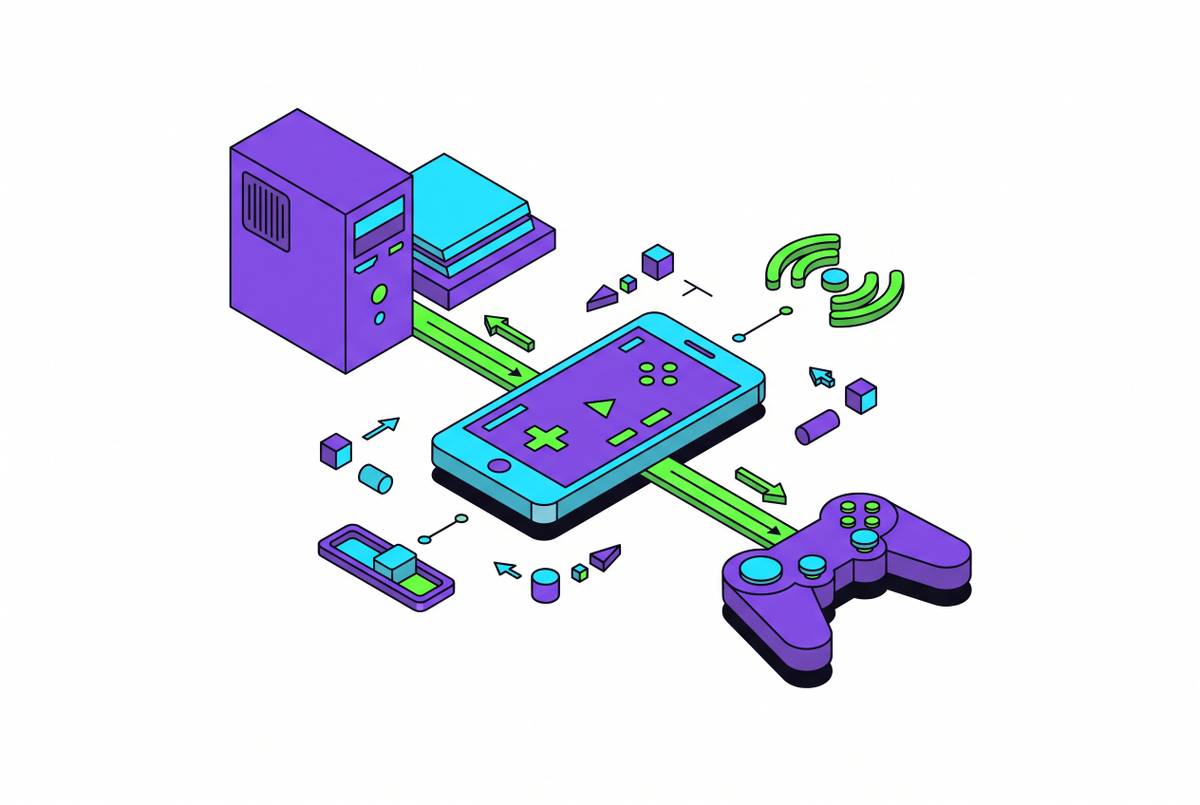
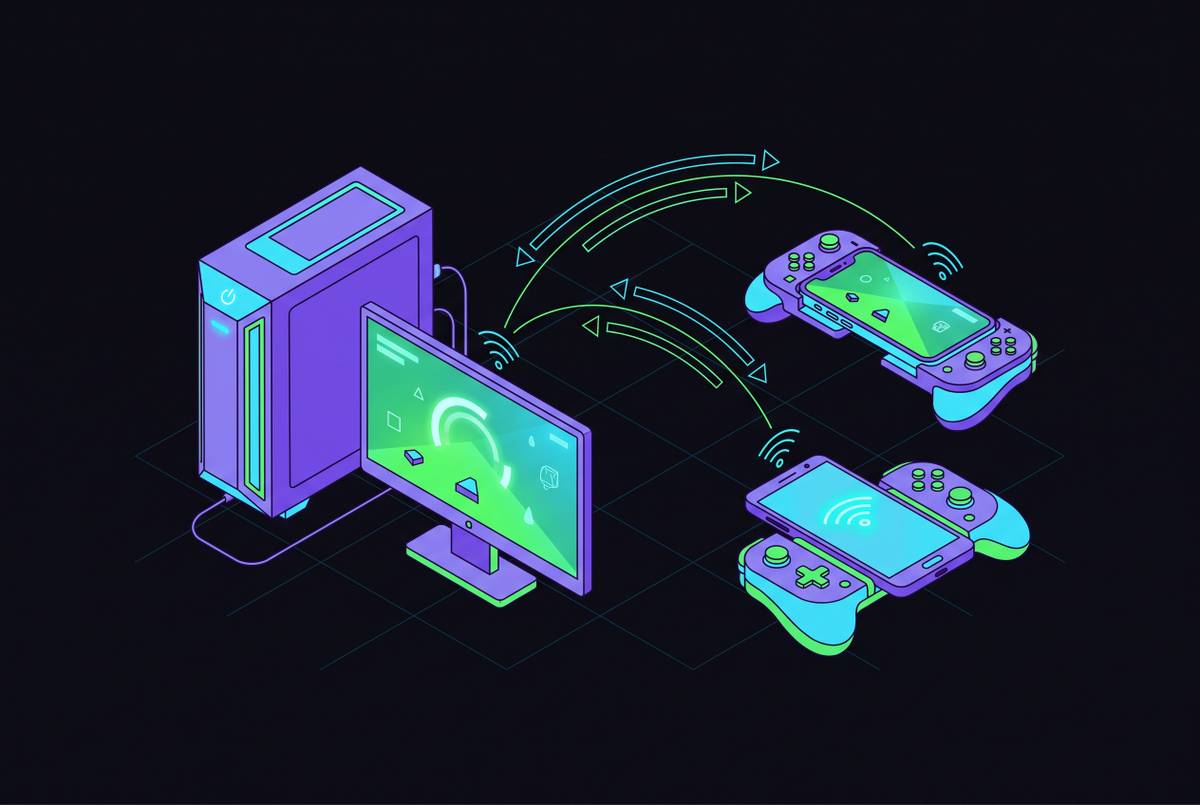
Xbox Remote Play streams the game running on your own console to whatever screen you're holding. That distinction sounds small until you realize it dictates almost everything else in this piece: what resolution you can hit, why your library shows up intact (disc games included, provided the disc is actually in the tray), and why the settings that matter live in three different places, the console, the network, and the app, instead of just one. Get any single layer wrong and the other two don't matter. This is the operating manual for all three.
The current resolution ceiling
Standard Remote Play, the version anyone with an Xbox can use today without joining any special program, tops out at 1080p. That's been true for a while and it's still true for most people reading this.
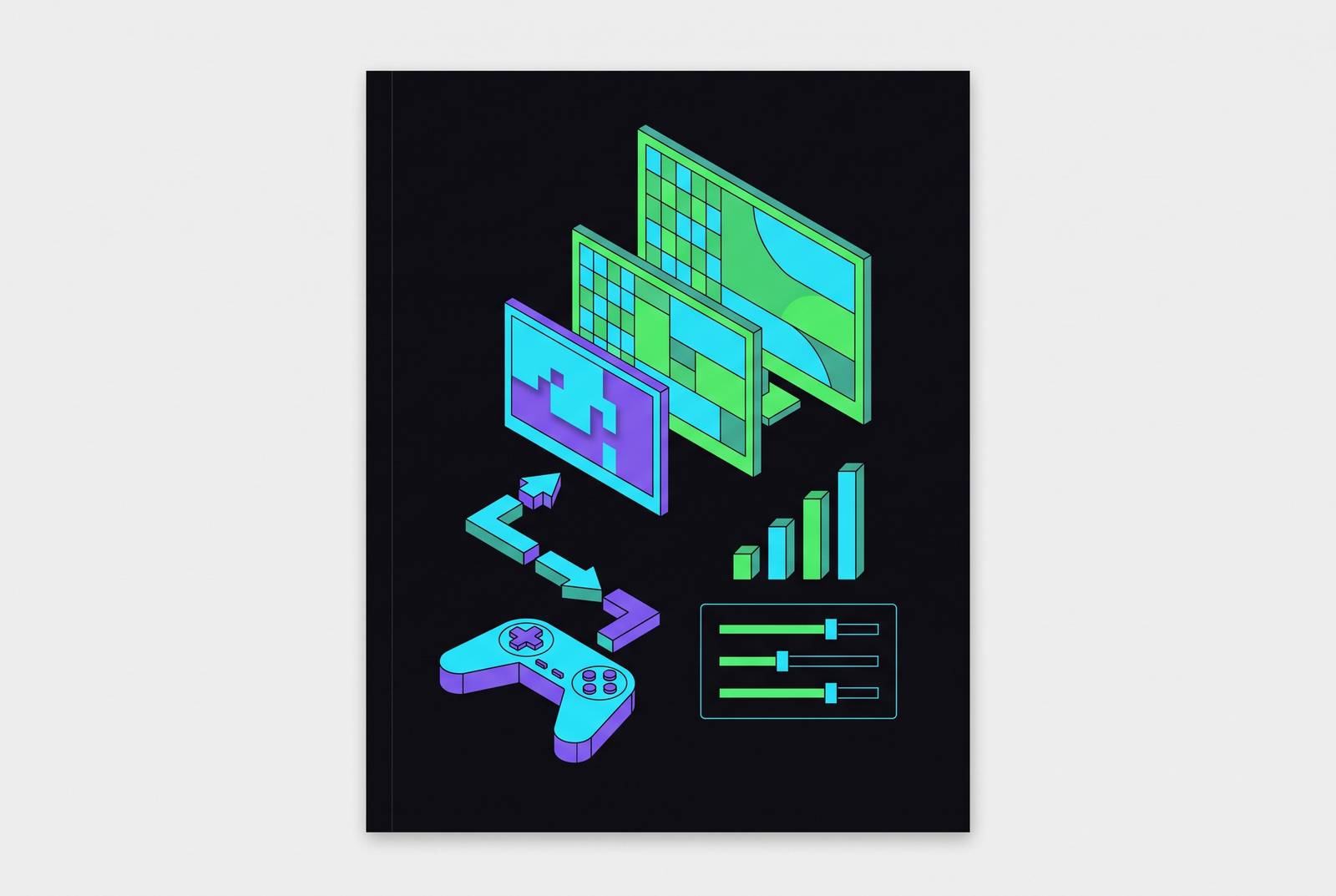
But something shifted on September 9, 2026. Xbox announced that Insiders in the Alpha and Alpha Skip-Ahead rings on Xbox Series X|S can now preview Remote Play at up to 1440p, with higher video bitrates to match. That's a real jump, not a marketing rounding error: 1440p carries substantially more pixels than 1080p, so the console has to push meaningfully more data per frame to make it look sharp instead of just bigger.
The catch, and there's always a catch with Insider previews, is that this only works on Series X|S. Your console's display resolution setting has to already be at 1440p or 4K UHD, and the device receiving the stream has to support the improved quality. No 4K option exists yet, in preview or otherwise, so anyone expecting a straight shot to the highest tier of resolution on their phone should recalibrate. 1440p is the ceiling being tested right now, and it's limited to those on an early-access testing program as of this writing. Most readers are optimizing for 1080p today; a smaller group on Insider rings has one extra toggle to flip before any of the 1440p advice applies to them. Know which camp you're in before changing a single setting.
Console settings that control what Remote Play can send
Everything downstream depends on what the Xbox itself is configured to output, so start there.
Go to Settings, then General, then TV & display options, then Display resolution. If you're chasing the 1440p Insider preview, this needs to be set to 1440p or 4K UHD, full stop, or the preview features simply won't engage. For standard 1080p streaming, keep it at 1080p or higher.
Next stop: Settings, Devices & Connections, Remote Features. The "Enable Remote Play" box needs to be checked, obviously, but the setting people skip is manual video quality. Set it to High or Very High. There's also a toggle for "Automatically adjust image quality," and turning that off is the move if you'd rather lock in quality and accept occasional buffering than let the system quietly downgrade your picture the moment your Wi-Fi sneezes.
Power mode matters more than people expect. Settings, General, Power options, Sleep mode: this needs to be set to Sleep (Instant-on) if you want to wake the console remotely from the app when you're away from home. A full shutdown makes remote wake impossible, and Energy-saver mode only helps if the console's already running when you start the session.
One more thing buried in Settings, General, Network settings: NAT type. Open NAT is what you want. Strict NAT can straight-up block connections initiated from outside the home network, which is a frustrating way to discover a setting exists.
The console is the upstream bottleneck in this whole chain. If these four things aren't right, a gigabit connection and a flagship phone won't save the stream.
Network conditions that determine whether those settings translate to good picture quality
Correct console settings are a promise, not a guarantee. The network is what decides whether that promise gets kept.
The console needs at least 4.75 Mbps of upload speed to function at all, though 9 Mbps or faster is where things start looking genuinely good. On the receiving end, a stable download connection is needed, with more headroom required for a reliable high-quality stream over time.
Speed and stability are not the same problem, and troubleshooting them the same way wastes time. If your stream drops every few minutes despite having plenty of bandwidth, that's almost always packet loss, not insufficient speed. Run a packet loss test. Anything above 1% is a strong signal to ditch Wi-Fi for Ethernet, at least on the console side.
The wiring hierarchy, in order of how good the picture will look: wire the Xbox to the router and wire or dock the receiving device too. If only one of them can be wired, wire the Xbox. It contributes more to stream stability than the device you're holding, which is a little counterintuitive until you remember the console is doing the actual rendering and encoding work. If wireless is the only option, use 5 GHz instead of 2.4 GHz. The 2.4 GHz band adds latency and picks up interference from every microwave, baby monitor, and neighbor's router within shouting distance, especially in apartment buildings where dozens of networks are stacked on top of each other.
Background bandwidth use is the silent killer here. Active downloads on the console, someone else streaming a movie, a video call running in another room, all of it competes for the same pipe and none of it announces itself as the culprit. Check router settings for QoS rules too, since some routers deprioritize gaming traffic by default, which causes lag that looks like a network problem but is actually a router being oddly overprotective of, say, someone's video call.
On input lag specifically: local network Remote Play typically runs 20 to 50 milliseconds, while over the internet that climbs to 80 to 150 milliseconds. Wired connections push toward the low end of whichever range applies.
App-side and client-side quality settings on PC and mobile
The Windows Xbox app gives you actual quality tiers to pick from: 720p for lower bandwidth situations, 1080p as the default, a "high quality" mode, and 1440p for Insiders running a compatible Series X|S console with a network that can support it. Set to Auto, the app grabs the highest resolution and bitrate your device and connection can handle, which works fine on a rock-solid connection and less predictably on one that fluctuates.
During this Insider preview window, some devices apparently don't yet show separate quality settings for Xbox Cloud Gaming versus Remote Play, a wrinkle Xbox itself has flagged as a temporary preview-period condition rather than a permanent design choice.
Mobile is a different story. The iPhone and Android apps have fewer manual dials to turn; quality there is governed mostly by whatever the console and network are already doing, with the app itself playing a smaller role. On iPhone, pairing an Xbox Wireless Controller happens through iOS Bluetooth settings before you open the Remote Play session, and once paired, it is ready for use in future sessions. Touch controls exist as a fallback, but calling them "suitable" for most games is generous. A twin-stick shooter played with two thumbs smearing across glass is not an experience anyone designed on purpose.
Which raises the obvious point: a physical controller is the single biggest upgrade available to mobile Remote Play, full stop. No resolution setting fixes imprecise input. You can have a flawless 1440p stream and still lose a boss fight because your thumb pad thinks "jump" means "crouch."
Troubleshooting the Most Common Quality Problems After Settings Are Correct
Assume the console and app settings are all correctly dialed in. What breaks next, and why?
Blurry or degraded image is usually a network instability problem wearing a resolution disguise. Fluctuating latency triggers Remote Play to quietly drop image quality even with "automatically adjust" switched off, because at some threshold the system prioritizes keeping the connection alive over keeping it sharp. Move the receiving device closer to the router, or better, get it wired. Double check that video quality is still set to High or Very High under Remote Features, since some updates have a habit of resetting preferences. And shut down anything else chewing bandwidth on the same network, HD video playback especially.
Input lag gets its own troubleshooting path. Wire the Xbox first; that's the highest-leverage fix. If lag persists, dropping Remote Play to 720p cuts bandwidth needs by roughly 40 to 50%, trading visual sharpness for responsiveness, which is a fair trade in a fast-paced game where a blurry edge matters less than a missed input. Close background apps on the phone or tablet too, and check the router for those QoS rules mentioned earlier.
Frequent drops, the kind that happen every few minutes like clockwork, point back to packet loss almost every time rather than raw speed. Run the test. Above 1% loss, switch to Ethernet.
And if remote wake just won't work at all, check that the console is actually in Sleep (Instant-on) mode. A fully shut-down console can't be woken remotely, no matter how good everything else looks.
Remote Play's Quality Picture Compared to Xbox Cloud Gaming on Mobile
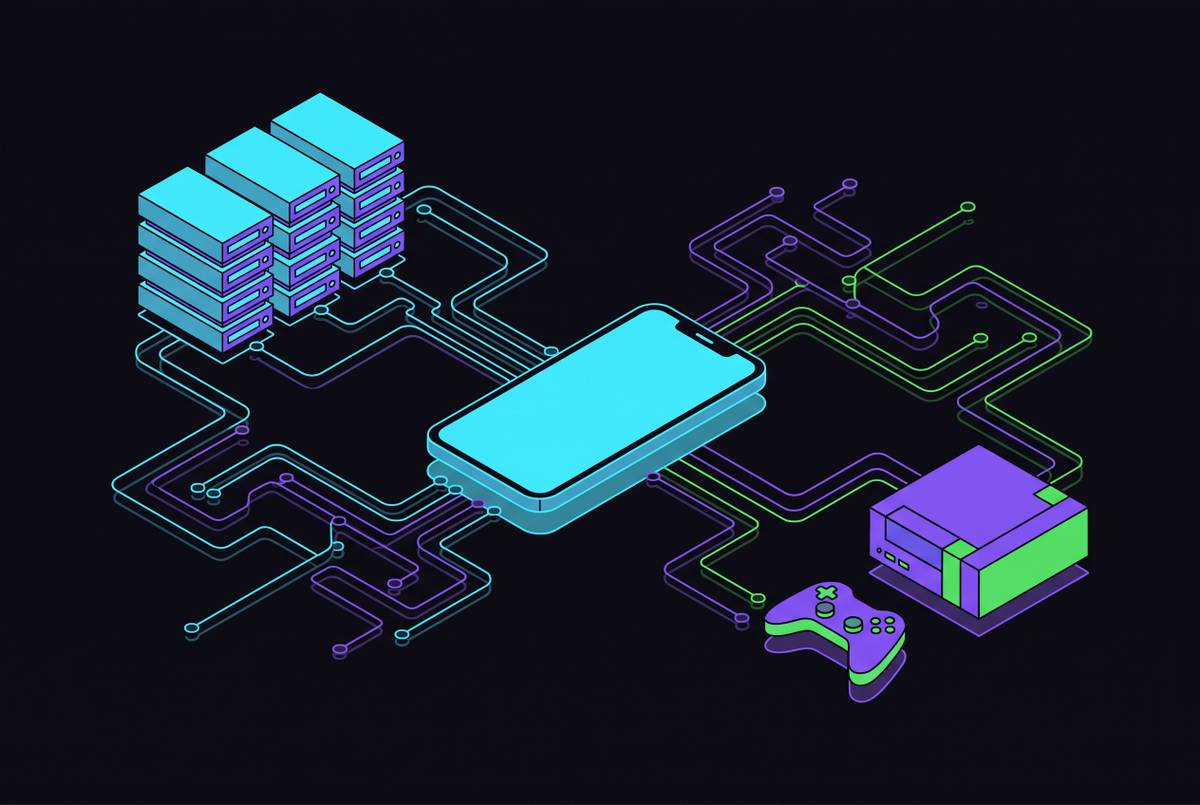
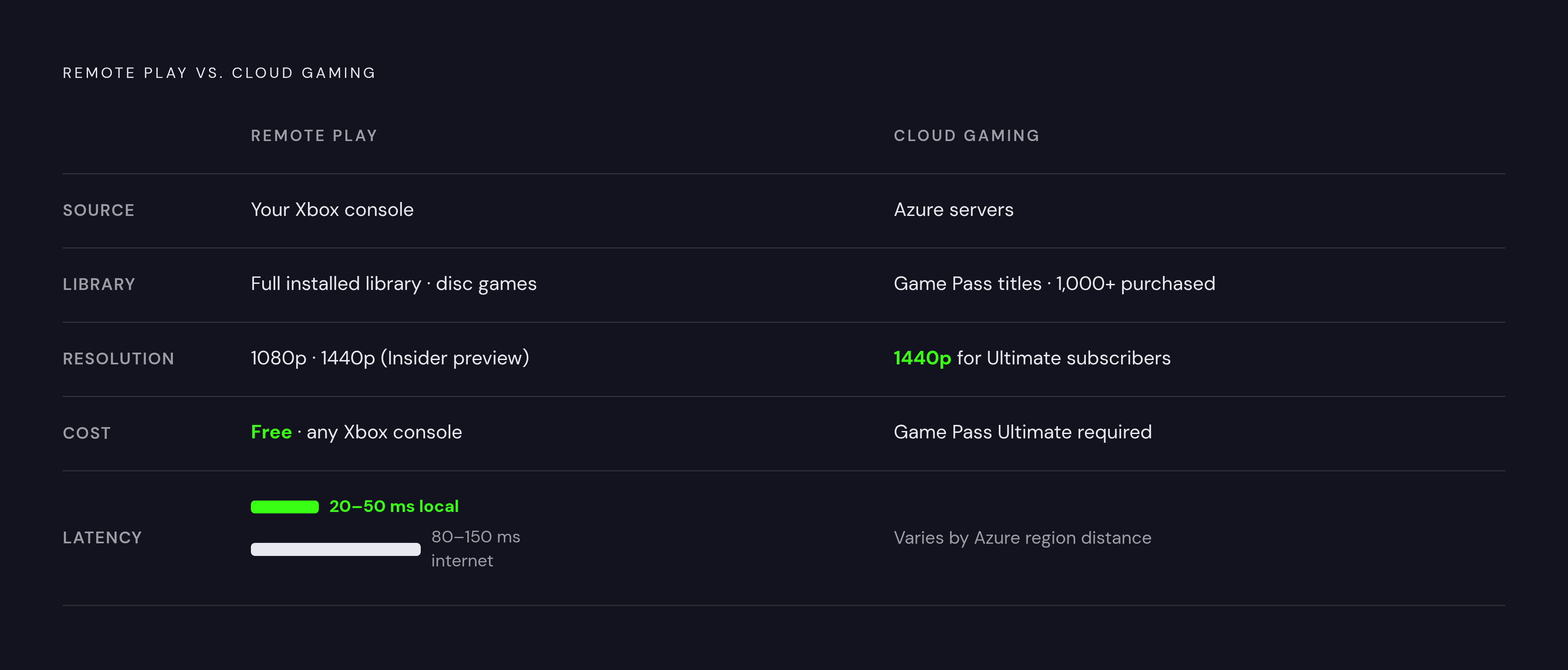
Remote Play and Xbox Cloud Gaming get lumped together constantly, which makes sense since both put an Xbox game on a phone screen, but each relies on completely different machinery: Remote Play streams from your own console, while Cloud Gaming streams from Microsoft's Azure servers, and that difference produces every distinction that follows. Remote Play streams your console. Cloud Gaming renders the game on Microsoft's Azure servers and streams that instead. That one architectural difference cascades into everything else.
Library access is the clearest split. Remote Play gives you your entire installed library, disc games included (with the disc physically in the console), plus anything you bought outside Game Pass. Cloud Gaming is built primarily around cloud-enabled Game Pass titles, though its 'Stream Your Own Game' feature extends to more than 1,000 purchased titles, not every game you own, but a substantial chunk of them.
On resolution, Remote Play currently is 1080p standard with 1440p in that Insider preview described earlier. Xbox Cloud Gaming's Ultimate tier already streams up to 1440p following an upgrade in October and November 2025, meaning Cloud Gaming got there first for subscribers willing to pay for it.
Cost is where Remote Play wins outright: it's free with any Xbox console, no subscription required, no cap on usage. Cloud Gaming needs an Xbox Game Pass Ultimate subscription.
Latency tips in Remote Play's favor on a local network, where the 20 to 50 millisecond range beats a round trip to an Azure data center. Over the open internet, that gap narrows to something that depends heavily on physical distance to the nearest server, and Remote Play's 80 to 150 millisecond range starts looking a lot less like an advantage.
One practical wrinkle: Cloud Gaming works with the console completely powered off, since it never touches your hardware. Remote Play needs the console on or in Sleep mode. So if the plan is to game from a train platform without a console sitting at home in some kind of readiness, Cloud Gaming is the tool built for that. Remote Play is the tool for players who already own the games and want access to that specific library from wherever they happen to be.
Getting the most out of Remote Play on a phone with a physical controller
Every setting covered above, console, network, app, is aimed at getting a clean image onto a screen. None of it matters if the input translating a thumb twitch into an in-game action is sloppy, and that is the whole argument for pairing a physical controller with the phone.
On iPhone, pair the controller through iOS Bluetooth settings before launching the session, not during it, and it'll auto-connect for every session after that first handshake. Android works the same way through its own Bluetooth settings, though Bluetooth is a straightforward wireless path on Android, though some accessory makers also offer plug-in USB-C controller options.
A controller that clips directly around the phone, keeping the screen centered and the whole rig balanced in two hands, removes a kind of friction that's easy to underestimate: juggling a phone in one hand and a separate controller in the other for twenty minutes gets old fast, and it gets old faster the longer the session runs, which matters given that internet Remote Play sessions are already sitting at the higher end of that 80 to 150 millisecond input lag range. Precise, short-travel buttons count for more when the connection itself is already working against you.
Put the whole stack together, console settings dialed in, network stable and wired where it counts, app quality set deliberately rather than left to Auto, and a real controller in hand instead of a thumb smudging glass, and there's genuinely nothing left unaddressed. That's the complete picture, and it's a lot less mysterious once you see it broken into its actual layers instead of one vague complaint about "why does this look blurry."
Sources
- Xbox Remote Play is Adding 1440p Streaming Support
- XBOX Support
- Xbox Remote Play 2026: Setup Guide for PC, Mac, & Mobile
- Blurred screen when accessing Xbox remote play - Microsoft Q&A
- Available for XBOX Insiders: More Ways to Customize, Play, and Connect
- Xbox is quietly testing a new Remote Play upgrade with 1440p stream quality
- Xbox Tests 1440p Remote Play and Custom Startup Animations
- XBOX Support