Steam Remote Play Setup Guide for iPhone and Android
Configure your PC first, then adjust network settings for the smoothest remote gaming performance.
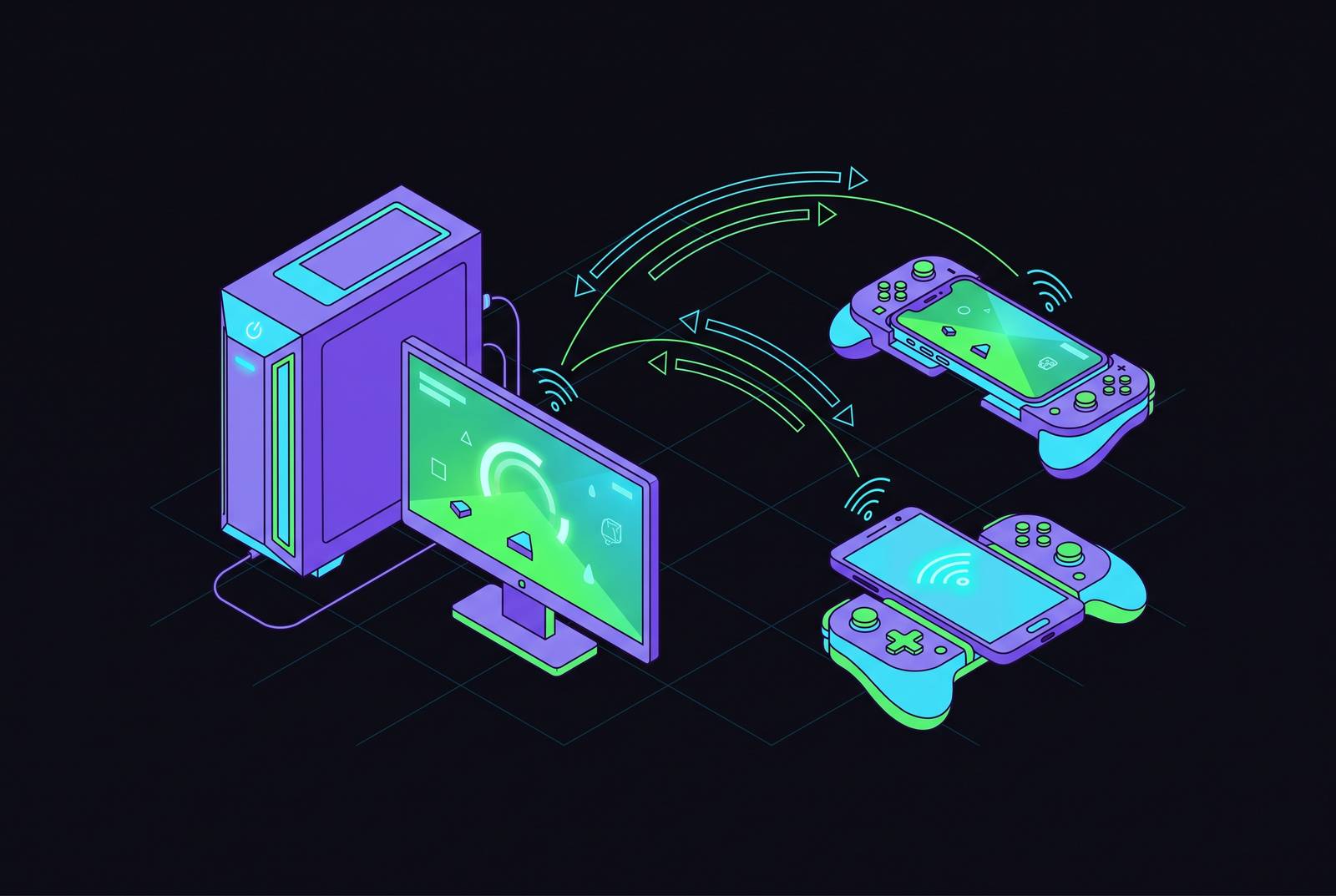
Steam Remote Play lets a phone become a screen for a gaming PC that's doing all the real work somewhere else in the house, or somewhere else entirely. No subscription, no data center queue, no catalog limits: the whole library comes along, mods and emulators and non-Steam titles included, because the PC is running the exact same install it always has. Getting it working is genuinely easy. Getting it working well, meaning low latency, sharp visuals, and a controller that doesn't feel like it's fighting you, takes a bit more attention to the settings most people skip past.
Valve used to call this In-Home Streaming, back when the name was at least honest about the limitation baked into it. It's Remote Play now because it works past the home network too, though the rebrand didn't change the physics: performance is capped by the host PC and the home network, not by some server farm doing the heavy lifting. That's the single fact that explains almost everything else in this guide. There's no cloud absorbing the workload here. The "pipe" is your router, your PC, and whatever Wi-Fi signal is bouncing around your living room.
Before going further, the baseline requirements: the host PC needs Windows 7, macOS 10.10, or Ubuntu 12.04 or newer, a GPU with hardware encoding support (AV1-capable GPUs, like an RTX 3060 or RX 6600 or newer, are a nice-to-have rather than a must), 4 GB of RAM minimum with 8 GB recommended, and at least 100 Mbps Ethernet to the router, gigabit if it's available. On the phone side, Android 6.0 or iOS 11.0 covers it. Both devices need to share a network for the first pairing, since automatic discovery only works over Wi-Fi, and mobile data requires typing in a code by hand. One more thing worth checking before getting attached to a plan: not every Steam game supports Remote Play. Check the store listing before assuming.
Configuring the host PC before touching the phone
Most Steam Link "failures" on mobile aren't Steam Link failures at all. They're host misconfigurations wearing a disguise. So start here, not on the phone, because a five-minute check on the PC saves twenty minutes of restarting apps and blaming your router.
Open Steam, go to Settings, click Remote Play, and check the box for Enable Remote Play. That's the easy part. The setting that actually matters is buried one layer down, in Advanced Host Options. Turn on hardware encoding. This offloads video compression to the GPU instead of the CPU, and skipping it means your processor handles video compression in software instead, which can noticeably drag down performance on anything short of a high-end chip. Its effect on input lag isn't as clean-cut, since that depends on the GPU and driver in play, but there's rarely a good reason to leave it off.
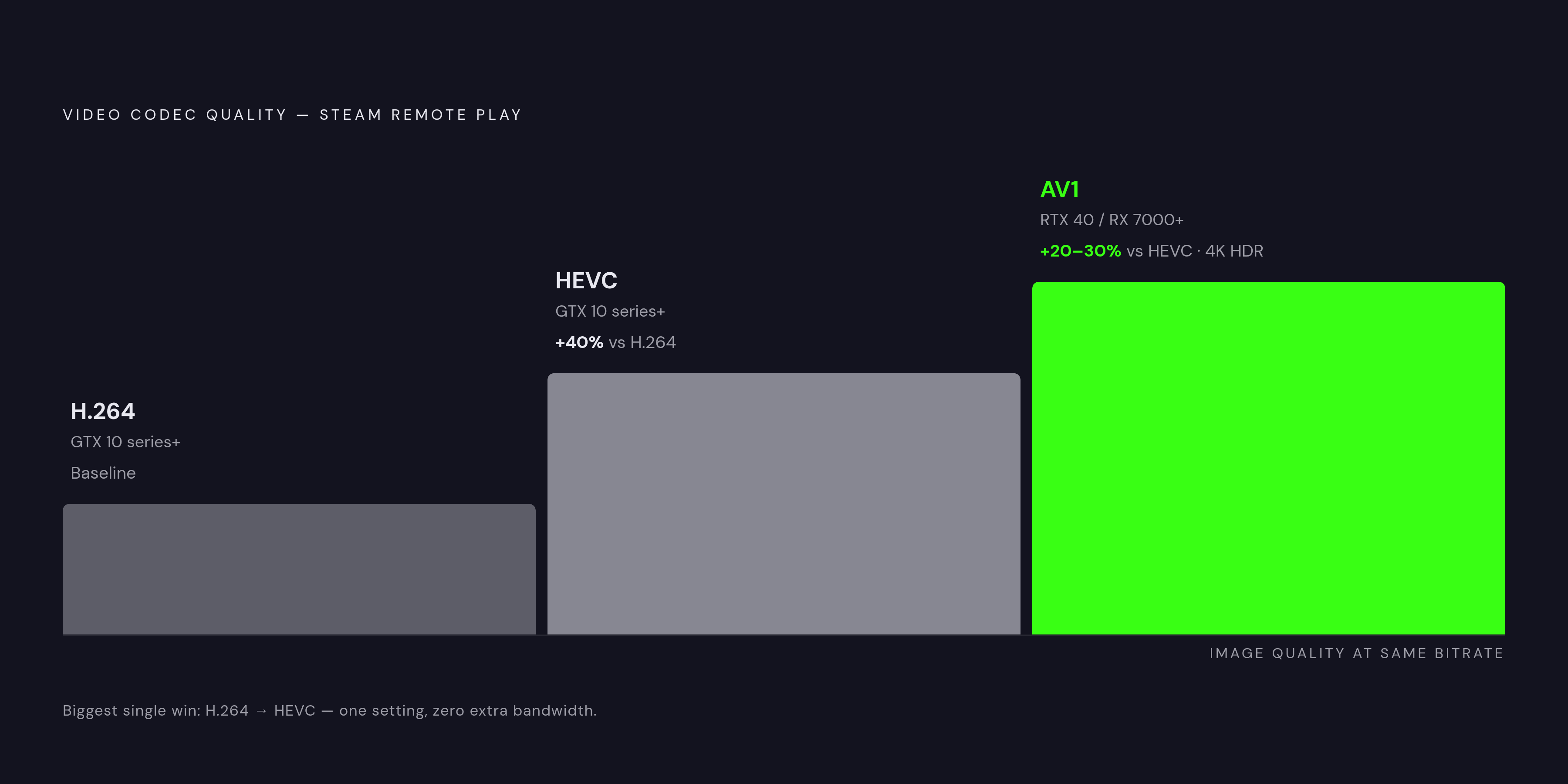
From there, enable HEVC encoding if the graphics card supports it: it delivers roughly 40% better image quality at the same bitrate compared to H.264, which is a meaningful jump for the same amount of bandwidth. If the GPU is new enough for AV1 (RTX 4000-series or RX 7000-series and up), turn that on too, since it adds another 20 to 30% quality advantage over HEVC. Set resolution to match the display you're actually streaming to. 1080p is the safe starting point, balancing clarity against bandwidth and latency, and it's a fine place to stay until there's a specific reason to push further.
Keep the host PC powered on and signed into Steam while streaming, and lock it down from local access since it's effectively unattended during a remote session. Steam will ask for firewall permission at some point. Accept it narrowly, and resist the urge to forward random ports or expose Remote Desktop as some kind of workaround; that's how a convenience feature turns into a security incident.
One quirk worth flagging: hardware encoding sometimes gets toggled off silently after a Steam update. If performance tanks out of nowhere and nothing else changed, that setting is the first place to look.
Installing Steam Link and pairing it with the host PC
Steam Link is a separate app from the regular Steam mobile app, easy to spot by its little controller icon, and it's what actually runs on the phone. Grab it from the Google Play Store or the App Store. The Android build sits at version 1.3.30 as of May 2026, with AV1 and HDR support still being refined in updates. On iOS, the changelog tells its own small story: version 1.3.15 added 120 FPS streaming in January 2025, version 1.3.17 fixed Apple Pencil support that March, and version 1.3.19 improved how the audio holds up under a shaky network back in November.
Pairing on the same network is close to foolproof. Open Steam Link, tap Get Started, accept the permissions it asks for, and it'll scan for PCs running Steam on the same Wi-Fi. Tap the one you want. A four-digit PIN shows up on the phone, and you punch that into Steam on the PC, under Settings, Remote Play, Pair Steam Link. Tap Start Playing and the host boots into Big Picture Mode like it's been waiting for you.
Different network, or streaming over mobile data? Automatic discovery won't find anything, so tap Other Computer instead, note the four-digit code that appears, and enter it manually on the PC side. Worth doing that very first pairing on the same Wi-Fi regardless, even if the long-term plan is streaming from outside the house. Subsequent sessions can run over mobile data or a remote connection once the initial handshake is done.
Before jumping into a game, run Steam Link's built-in connection test. It checks video, audio, and input all at once, and catching a broken piece here beats discovering it three minutes into a boss fight. If pairing won't cooperate, confirm both devices are actually on the same network, restart both apps, and try a different game that's known to support Remote Play, since an individual title's compatibility issue can masquerade as a pairing problem.
Getting the network right for low latency and sharp visuals
Once the host is configured properly, the network becomes the biggest lever left to pull. Valve's own minimum is 5 Mbps of stable Wi-Fi, with 10 to 30 Mbps recommended for 1080p at 60 FPS, and more for 4K. Latency matters just as much as bandwidth: anything under 20 milliseconds counts as ideal for responsive play, and anything meaningfully above that starts to feel like the game is thinking about your inputs before acting on them.
Wired Ethernet on the host PC is the single biggest upgrade available to anyone reading this. It removes the most unpredictable source of latency in the whole chain, full stop. If the PC is currently on Wi-Fi and there's a way to run a cable to it, that's worth doing before touching any other setting on this list.
Router band choice matters more than people expect. 5 GHz Wi-Fi is the right call for the mobile client, since it trades some range for a lot less interference. 2.4 GHz, on the other hand, tends to produce blurry visuals, laggy motion, and delayed input, which is a fairly specific set of symptoms for one frequency band to cause. If the setup allows for it, Wi-Fi 6 (802.11ax) with a clear line of sight to the router is the configuration Valve points to for 4K HDR streaming with AV1.
Can't run a cable? Powerline adapters are an acceptable substitute, though they tack on a bit of extra latency; other wired alternatives may perform similarly depending on the home setup. Minimizing competing network traffic on the router also helps, especially in a house where someone else is streaming video while you're trying to land a headshot.
Mobile data does technically work. Mobile data streaming can work in favorable conditions, but it's not something to build a setup around, since performance swings wildly by carrier and signal strength, and data caps have a way of making themselves known at the worst possible moment.
Choosing stream quality settings that match the game type
Steam Link uses adaptive bitrate streaming, meaning it adjusts video quality on the fly if the network gets shaky. That keeps things playable, but it also means the picture can visibly soften for a second or two right when conditions dip. Worth knowing that going in, so a brief blur doesn't get mistaken for a broken setup.
The resolution ceiling tops out at 4K at 60 frames per second, assuming the network and host GPU can both keep pace. Codec choice below that ceiling comes down to compatibility versus quality. H.264 works on basically anything and is the fallback when the client device is older or codec support is unclear. HEVC, again, adds roughly 40% better quality at the same bitrate. AV1 goes another 20 to 30% further, and it's the right call for 4K HDR whenever both host and client hardware support it. Audio-wise, stereo works everywhere, and 5.1 surround is available on devices that support it.
Matching the preset to the game matters more than chasing the highest number on the slider. Fast-paced competitive games, the ones where frame timing decides who wins, do best on the "Fast" preset with hardware encoding on, trading a bit of visual polish for lower latency. Single-player RPGs, strategy games, anything narrative-driven where split-second reaction time isn't the point, can push toward "Beautiful" or "Unlimited" at 100 Mbps and actually benefit from it. When in doubt, 1080p at 60 Hz is the safe middle ground: enough clarity to enjoy, not so much bandwidth demand that latency creeps in.
iOS picked up 120 FPS streaming in version 1.3.14, back in December 2024, though it needs enhanced 1080p or 4K settings and a host GPU strong enough to push that frame rate in the first place. It's a real difference in games where high frame rate is something you can actually feel, less so in a turn-based strategy title where 60 FPS was already plenty. The practical approach here is to change one setting at a time and re-run the connection test after each tweak, rather than flipping four sliders and trying to guess which one fixed, or broke, the stream.
Choosing a controller that doesn't become the weakest link
Touch controls exist, and they're fine for the handful of games actually designed around a touchscreen. For anything built around a physical controller, which is most of what's in a Steam library, touch controls turn a good game into a frustrating one within about five minutes. A real controller is the upgrade that matters most here, arguably more than any network tweak covered above.
Most standard controllers — Xbox, PlayStation, Switch Pro, and many third-party options — work without extra setup on either iOS or Android, since Steam handles controller input on the host PC side.
Connection type changes the feel more than most people expect. Wired USB-C removes a layer of latency and sidesteps pairing headaches entirely, at the cost of being physically tethered to the phone. A 2.4 GHz dongle keeps latency low without the leash, which makes it the sweet spot for couch or living-room setups. Bluetooth is the most convenient option and also the least consistent of the three when it comes to latency, so it's the right call for casual play and the wrong one for anything twitchy.
On iOS specifically, look for controllers with confirmed iOS compatibility to avoid pairing headaches. Among the compact options, compact controllers designed for travel can be a practical choice for mobile play. For anyone who'd rather have a bigger, more comfortable grip than a pocketable one, full-size controllers with broad platform support are a comfortable option for longer sessions. Other innovative clip-on controller designs exist for those who want a more integrated phone-and-controller form factor.
Using Remote Play Together to bring friends into a session from their phones
Remote Play Together takes local multiplayer, the kind that used to require everyone on the same couch, and spreads it across different locations while only one person owns the game. One copy, one host PC, and everyone else just needs a way to connect: Windows, macOS, iOS, Linux, and Android can all join the same session.
Inside a session, players get options like text chat, passing a single controller back and forth, or splitting controllers across players for proper co-op or head-to-head play. On mobile, joining is as simple as accepting the host's invite, which then kicks the game open in Steam Link on the guest's phone.
Not every game supports this, so it's worth checking the searchable list at store.steampowered.com/search/?category2=44 before promising a friend a co-op session that isn't actually available. Cuphead and Tekken 7 are both confirmed to work this way. What makes this feature worth the detour: games that used to get written off as "local only, sorry" become options for a friend two states away, without that friend needing to own a copy at all. Worth a scan through the library before assuming a title is off the table.
How Steam Remote Play compares to the alternatives when local streaming isn't enough
Three different models are competing for the same use case here, and they solve different problems. Steam Remote Play, along with Xbox Remote Play and PlayStation Remote Play, all work the same basic way: your own hardware runs the game, the phone just displays a stream of it. No subscription required, and performance is entirely a function of the home network doing its job.
GeForce Now flips that arrangement. It's compute rental, connecting to libraries already owned on Steam, Epic, Ubisoft Connect, GOG, Battle.net, the EA app, or Xbox PC, and running the actual game on NVIDIA's own servers instead of a home PC. As of the 2025 to 2026 window, the service carries a free tier alongside paid plans running up to $20 a month across more than 2,000 games. Starting January 1, 2026, nearly all subscribers, aside from legacy Founders Edition members, got hit with a 100-hour monthly play cap, which is a meaningful change for anyone treating it as an all-you-can-play buffet.
Xbox Cloud Gaming takes a third path: content rental, bundled into a Game Pass subscription that streams hundreds of titles without needing any host hardware at all. The tradeoff is that the catalog belongs to Microsoft, not the player, and it shrinks or grows at Microsoft's discretion. Microsoft actually cut the price of Game Pass Ultimate on April 21, 2026, after a 2025 price hike had driven subscribers away, which says something about how sensitive that particular market is to cost.
For anyone sitting on a library of PlayStation exclusives, PlayStation Plus Extra and Premium are the only services offering Sony's first-party catalog, things like Spider-Man, God of War, and the Horizon series, and 2025 saw that PS5 streaming lineup expand further.
Two more names worth knowing if Steam Link isn't cutting it. Moonlight is an open-source client built on NVIDIA's GameStream protocol, and it can outperform Steam Link in certain setups, though it demands an NVIDIA GPU on the host and a more hands-on setup process than most casual users will want to deal with. Parsec is a cross-platform remote desktop and game streaming tool with a free tier for basic use and a paid subscription unlocking the rest. Neither replaces Steam Link for a straightforward Steam library streamed to a phone, but both are worth knowing exist for setups that fall outside that box.