Sunshine and Moonlight Streaming Setup for Mobile Gamers
Free tools replace Nvidia's GameStream with a self-hosted gaming solution for phones.
Nvidia killed GameStream in early 2023, and for a few months, anyone who wanted to play PC games on a phone without a monthly cloud gaming subscription was out of luck. The open-source community filled the hole with two free tools, Sunshine and Moonlight, that together do everything GameStream used to do and, in some cases, more. This guide covers the whole setup: installing the host software, tuning the encoder, pairing a phone, and getting a usable stream whether the player is on the same couch as the gaming PC or three states away.
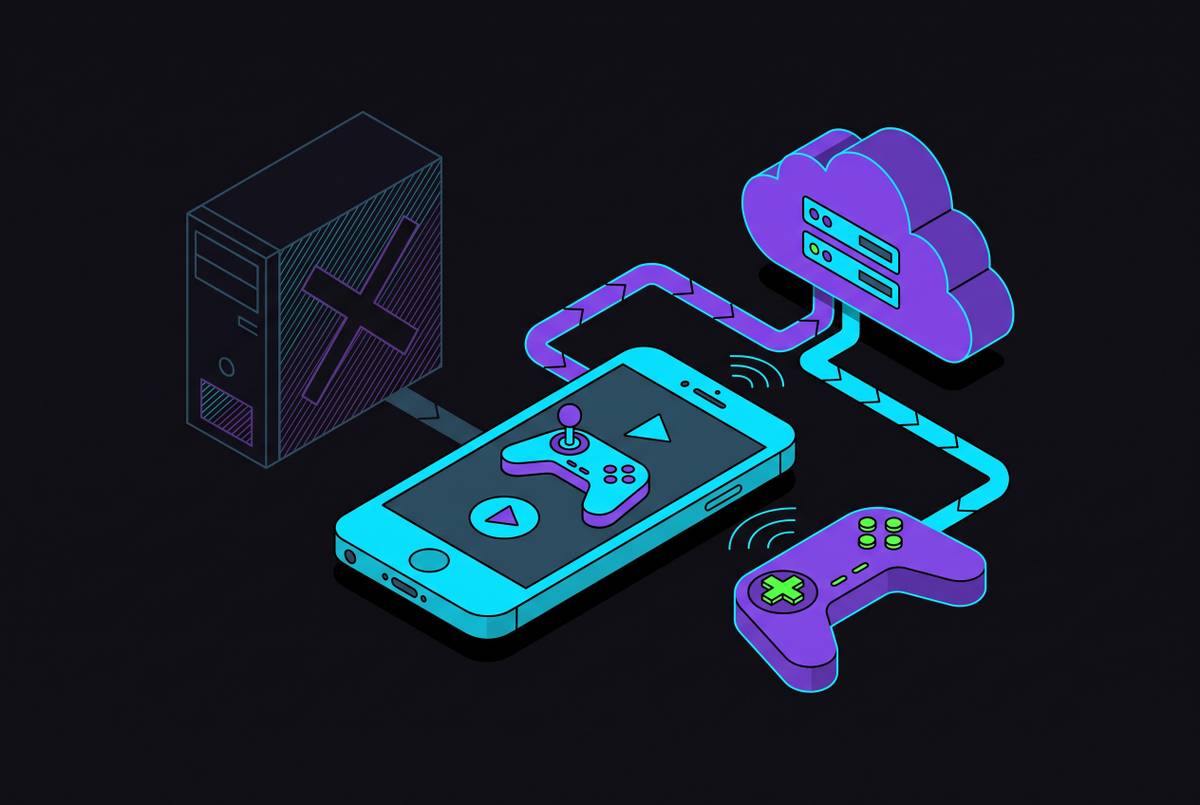
The pitch fits in one sentence. A phone already in a pocket, plus a gaming PC already sitting under a desk, equals a handheld console that costs nothing extra to run, so long as someone is willing to spend an evening on setup. Compare that to cloud gaming subscriptions that charge monthly fees and impose their own limits, factors that have pushed a fair number of players toward self-hosting instead. Sunshine sits at around 41,000 stars on GitHub, and Moonlight's Qt client has 18,246. Those numbers matter less as bragging rights and more as a proxy for how many people are actively testing, breaking, and fixing this stack: Sunshine ships on a near-weekly cadence with calendar-based version numbers, the newest stable build as of this writing being v2026.516.143833, dated May 16, 2026. Treat that number as a snapshot, because by the time this is read, there will be a newer one.
What each piece of the stack actually does before you install anything
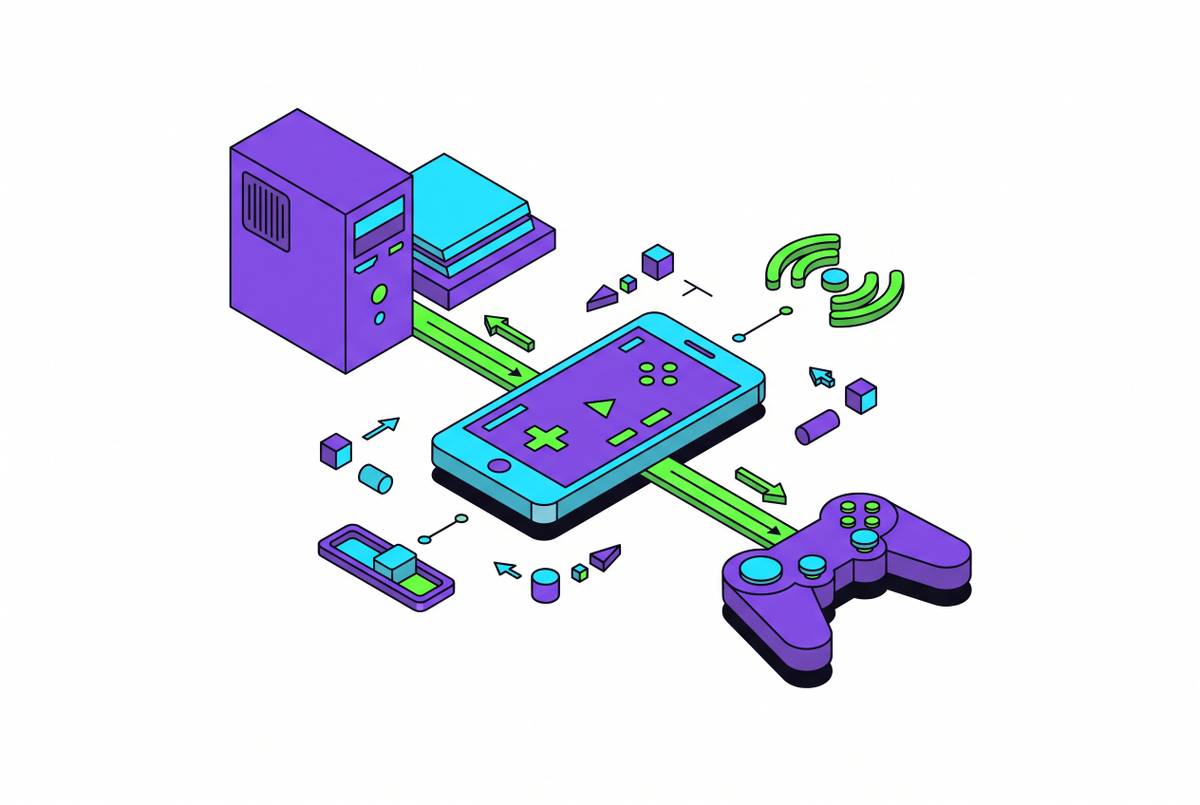
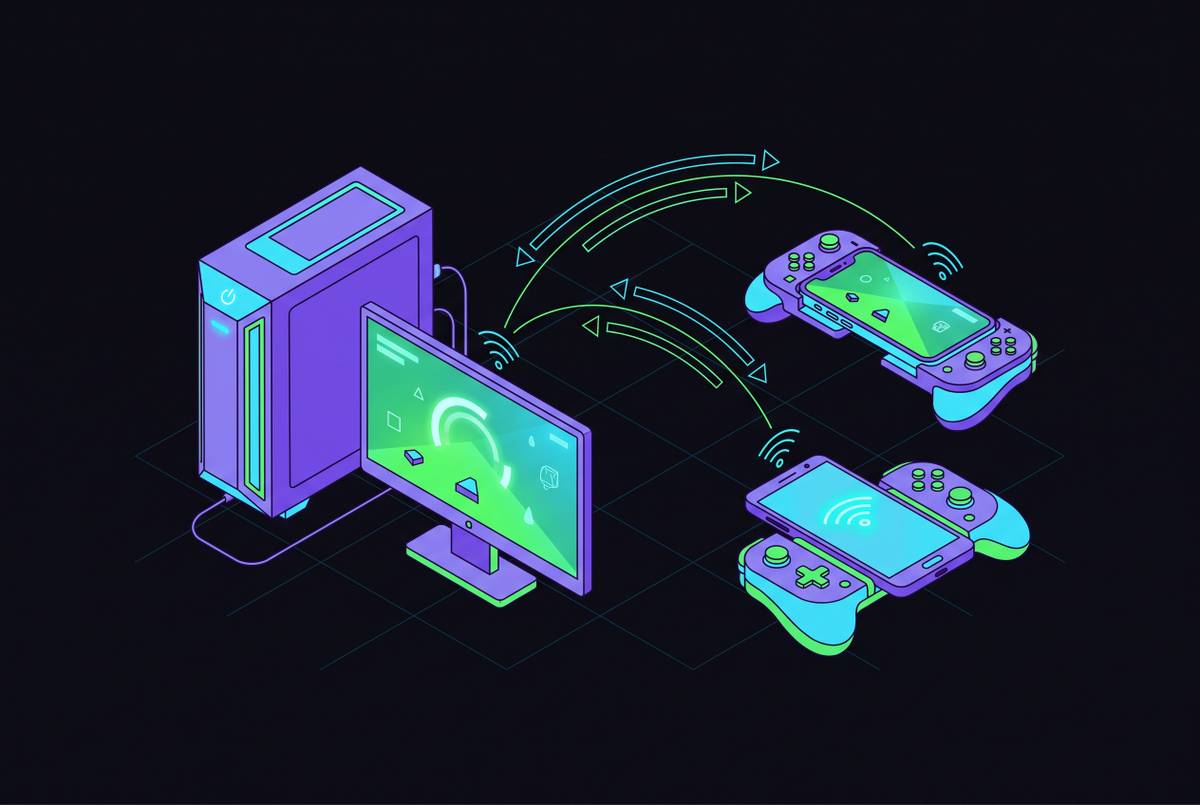
Sunshine lives on the gaming PC. It grabs the desktop, or a specific game window, and hands that image to the GPU's hardware encoder, which compresses it and ships it across the network. Moonlight lives on the phone, decodes what arrives, throws it full-screen, and sends every tap, swipe, or controller input back to the host. Nothing gets rendered on the phone itself. It's a window and a remote, nothing more, which is exactly why a five-year-old midrange Android device can stream a game that would melt if it tried to run the thing natively.
Most guides bury the encoder choice somewhere in the middle. That's backwards, because it decides almost everything about stream quality before anything else gets tuned. AV1 sits at the top for quality per bit, but it demands an RTX 40-series card, an Intel Arc GPU, or an AMD RX 7000-series card on the host end. HEVC is the workhorse: it's what most setups will actually run day to day, and it's the right default when AV1 isn't available. H.264 exists as the universal fallback, and calling it a fallback undersells how much worse it is: it's the least efficient of the three, and picking it out of caution when a phone can clearly decode HEVC just means watching a worse stream for no reason. There's also a software x264 path that kicks in when no hardware encoder exists at all, and it spikes CPU usage in a way that's hard to ignore on anything longer than a quick test session.
Two forks are worth knowing about, even for people who plan to run the mainline releases. Apollo is a Sunshine fork built around virtual displays, letting each connected client get its own native resolution instead of fighting over whatever the host's physical monitor is set to. Artemis is the matching Moonlight-Android fork designed to pair with it, adding its own client-side extras. Neither is required to get a working stream, but they solve a specific annoyance, resolution mismatches between host and multiple clients, that mainline Sunshine handles less gracefully.
One detail trips up more people than it should: a GPU needs a display attached, real or fake, to enable hardware encoding at all. A headless PC with no monitor plugged in often won't encode properly. The fix is a $5 to $10 HDMI dummy plug, which tricks the GPU into thinking a screen is connected. Cheap insurance against an afternoon of wondering why Sunshine refuses to start.
Everything else about configuring Sunshine happens in a browser. Point any browser at https://localhost:47990 on the host machine, and the whole dashboard, no command line required, sits right there waiting.
Host requirements and what to check before downloading anything
Sunshine officially supports Windows 11, Ubuntu 22.04 and newer, Fedora 43 and newer, Debian 13 and newer, FreeBSD 14.4 and newer, and macOS 14.2 and newer, with macOS explicitly labeled experimental. A Docker image covers headless Linux boxes for anyone who wants to run this on a server tucked in a closet.
GPU requirements are more forgiving than the spec sheet makes them sound. Any card with a hardware encoder technically works: any card from one vendor with the right encoding support, any card from another vendor with VCE 1.0 or better, any GPU from a third vendor with the appropriate driver-level support. For anything approaching a good HEVC stream, though, a relatively modern discrete GPU with solid hardware encoder support is the realistic floor. AV1 needs an RTX 40-series card, an Intel Arc GPU, or an AMD RX 7000-series card on the host end, full stop.
Network quality is where most tutorials go quiet, and it's exactly where most streams fall apart. Wired Gigabit Ethernet on the host is strongly preferred; 5GHz Wi-Fi works but adds a variable nobody needs to introduce. Budget 20 Mbps for 1080p at 60fps, 35 to 50 Mbps for 1440p at 60fps, and 50 Mbps or more for 4K at 60fps, as upload starting points rather than hard ceilings. Streaming over the actual internet, rather than a home network, needs at least 80 Mbps of residential upload, a number that puts it out of reach for plenty of standard ISP plans built around download speed, which treat upload as an afterthought.
Here's the part worth surfacing, because almost nobody checks it first: the router matters as much as the GPU, arguably more. An aging ISP-supplied router will bottleneck a gigabit connection long before the line itself becomes the limit, and blaming the graphics card for a problem sitting inside a ten-year-old router is a common, entirely avoidable mistake. Check the router before touching a single encoder setting, not after. Administrator or root access on the host machine is required to install Sunshine and set up its firewall rules; the router's admin panel only matters for the port-forwarding route, which the last section argues against anyway.
Installing Sunshine on Windows and getting it running as a service
Grab the latest stable release from github.com/LizardByte/Sunshine/releases. On Windows, the fastest path is a single command: winget install LizardByte.Sunshine. Linux users can go through Flatpak with flatpak install flathub dev.lizardbyte.app.Sunshine, or use whatever package format their distro prefers.
During installation on Windows, two prompts matter more than the rest: accept the ViGEmBus virtual-controller driver, and accept the Windows service option. That service is what lets Sunshine boot up automatically and stay running even before anyone logs into Windows, which matters a lot if the gaming PC lives in another room and nobody wants to walk over and log in just to start a stream. Run the installer as Administrator to ensure it has the permissions it needs.
Once installed, Sunshine starts as a background service automatically and opens its dashboard in a browser. Navigate to https://localhost:47990, click past the certificate warning (the cert is self-signed, so the warning is expected and safe to ignore), and set a username and password on first launch. That's the whole account system, and it's refreshingly small.
One security wrinkle worth flagging: Sunshine v2026.516.143833, released in May 2026, added CSRF protection to the web dashboard, which switches on automatically the moment the dashboard gets accessed from anywhere other than localhost. Anyone planning to manage the dashboard remotely should expect that behavior without needing to flip a switch for it.
For anyone who would rather skip manual configuration entirely, there's Sunshine AIO, a community variant from the LeGeRyChEeSe GitHub repository, demonstrated in an April 2025 tutorial from Rattlehead Game&Tech. It installs and preconfigures Sunshine through a PowerShell script, and it automatically adjusts resolution, frame rate, and aspect ratio the moment a client connects, then reverts everything on disconnect. Worth a look for anyone who finds the manual dashboard route tedious.
Picking the right encoder settings in Sunshine's web dashboard
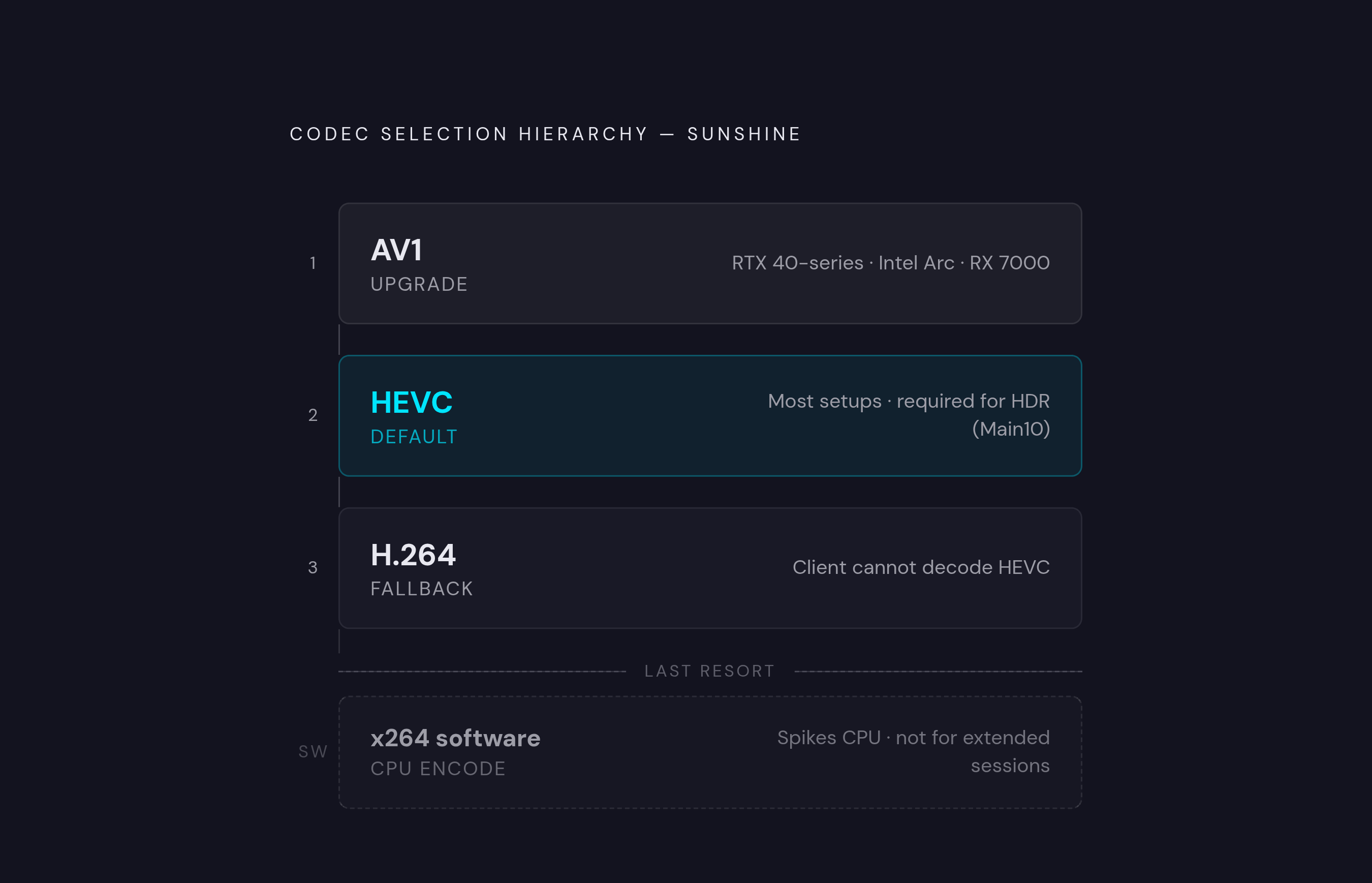
The Audio/Video tab is command center for everything that determines how the stream actually looks. Sunshine auto-detects available encoders in a fixed order: NVENC first, then AMD's AMF, then Intel Quick Sync, falling back to software x264 only if none of those exist on the host.
Codec choice comes down to a short decision tree, and it's easier than most guides make it sound. If the host GPU supports AV1, use it: it delivers noticeably better image quality than HEVC at matching bitrates, particularly in scenes with a lot of fine detail, like foliage, or fast camera motion where compression artifacts tend to show up first. HEVC is the right default for most people, and it's also required for HDR (specifically HEVC Main10). H.264 stays in the back pocket for client devices that genuinely can't decode HEVC, which does still happen on older hardware, and there's no good reason to reach for it otherwise.
On bitrate, start conservative and creep upward rather than maxing everything out on day one. 20 Mbps for 1080p at 60fps, 35 to 50 Mbps for 1440p at 60fps, 50 Mbps or higher for 4K at 60fps. Watch for packet loss and encoder queue buildup as the ceiling gets pushed; those are the two tells that a number has gone too high for the network to carry cleanly. For rate control, CBR (constant bitrate) is the sane starting point because it behaves predictably, though VBR with a cap is worth testing once the stream is stable. Keyframe interval should land around two seconds, which lets the stream recover faster after a dropped packet instead of sitting there garbled for a beat too long.
HDR is its own small project, and it only works if both ends agree to it. It needs HEVC Main10 on the host GPU and an HDR-capable screen or client app on the receiving end. Flip it on in Sunshine's Audio/Video tab, then toggle the matching setting in Moonlight's stream options. If either side of that connection doesn't support HDR, Moonlight quietly falls back to SDR instead of refusing to connect, so there's no real risk in just trying it. One useful trick: running the free HDR Calibration app from the Microsoft Store while actively streaming to the target display generates a color profile specific to that exact screen, rather than relying on generic defaults.
Linux users got a notable addition in April 2026, when Sunshine v2026.413.143228 introduced Vulkan Video encode support as an alternative to VA-API, giving Linux gaming setups another encoding path worth testing against the older default.
Installing Moonlight on a phone and pairing it with the host
Moonlight runs on nearly everything: Android 4.1 and up, iOS and iPadOS 12.0 and up, tvOS 12.0 and up, Apple TV fourth generation and newer, Windows, macOS, Linux, Chrome OS, and even the Steam Deck through the Discover Store in Desktop Mode.
For the first test, keep the phone and the gaming PC on the same home network. Wired or Wi-Fi doesn't matter much here, and that's the point: it sidesteps internet routing, carrier NAT, and port forwarding entirely, isolating the test to just the basic stream. Apple platforms have their own quirk worth flagging: initial pairing has to happen on the same local network, a requirement specific to Apple's platform, documented directly in Moonlight's own docs.
Pairing itself takes under a minute. Open Moonlight, and the host PC should show up automatically if both devices are on the same network. Tap it, and Moonlight throws up a PIN code on the phone screen. That PIN gets typed into Sunshine's dashboard under the PIN tab, or into the system tray popup on the host PC directly, whichever's closer. Name the device something sensible, and the pairing's done.
A short list of settings worth adjusting right after pairing, before the first real session: set resolution to the phone's native resolution, pick 60fps as the baseline (120fps if the hardware on both ends supports it), set video frame pacing to Balanced, enable stretch-to-fill for the video, and turn on "play audio on PC" to avoid the audio-sync glitches that crop up when audio tries to route through the phone instead.
Before touching anything related to remote access, confirm that games launch, audio plays, video looks right, and controller input actually registers. Getting this local test right first saves a lot of confused troubleshooting later, when a bad connection could be the network, the router, or a setting that was wrong from the start.
Mobile-specific tuning: getting the best stream on Android and iPhone
Android is a fragmented landscape of chipsets, and that fragmentation shows up directly in stream quality. On midrange Android devices, choppy playback at higher bitrates is usually a decoding problem, not a network problem. The fix is switching Moonlight's codec setting from HEVC down to H.264, which has far broader hardware decode support across the range of Android chipsets on the market. Most people chase this the wrong way, throwing bandwidth at a stutter that was never a bandwidth problem to begin with, then wondering why cranking the number to 80 Mbps didn't fix anything. Current flagship phones generally decode both HEVC and AV1 in hardware without a hitch, so the choice there comes down to whatever the host GPU is actually encoding with.
iPhones and iPads bring their own advantage: On devices with high-refresh displays, a 120fps stream can take full advantage of the hardware when both ends support it. The same local-network pairing requirement mentioned earlier applies here too.
There's a built-in diagnostic worth knowing about before assuming a stutter means the setup is broken. Pressing a specific key combination during any active stream toggles a real-time stats overlay showing bitrate, decode time, and network latency. That overlay answers the single most useful troubleshooting question in this entire hobby: is the stutter a network problem, or a settings problem? Chase the wrong one and an evening disappears into router menus for nothing.
Apple's decision to unify iPhone 15, 16, and 17 around USB-C quietly solved a real annoyance too. One controller now fits across nearly the entire recent phone lineup, no more juggling adapters depending on which phone happened to be in someone's pocket that week. Small thing, but anyone who lived through the older connector era will appreciate it.
Two settings matter enough to repeat here even though they came up during pairing: landscape orientation and full-screen stretch. Configure both before the first real session, because trying to play anything competitive in portrait mode with black bars on either side is an exercise in frustration nobody needs to sign up for.
Getting actual games to show up inside Moonlight requires adding them to Sunshine's library first. Anyone running a launcher like Playnite can use the Sunshine App Export extension to bulk-import an entire library in one pass; that export process triggers a one-time UAC prompt, but Sunshine itself doesn't need to run as Administrator permanently afterward. For a smaller library, the Applications tab in Sunshine's dashboard handles manual entry just fine.
Streaming outside your home network: Tailscale versus port forwarding
Getting a stream working on a home network is the easy 80 percent. Getting it working from a coffee shop, a friend's house, or an airport is where things get genuinely interesting, and where the choice of method actually matters. Pick wrong here and the whole setup turns into a liability rather than a convenience.
Port forwarding is the traditional route: open specific ports on the router, point them at the host PC, done. It works, but the mechanism is the problem, not an incidental risk attached to it. Forwarding a port exposes it to the entire internet, meaning anything scanning for open ports can find and probe them, and that scanning happens constantly and automatically, with no human on the other end deciding to target a specific gaming PC. That's not automatically a disaster, but it's a real attack surface sitting open around the clock for the sake of a stream someone might use for two hours a week. Most people would not leave their front door unlocked because the mail carrier only visits once a day; forwarding ports for occasional streaming runs the same math.
The better path for most people is a private mesh VPN, and Tailscale is the most commonly used option here, for good reason. Install Tailscale on both the host PC and the phone, and they join what Tailscale calls a Tailnet, a private network that only those specific devices can see. Under the hood, Tailscale runs on WireGuard, and it handles NAT traversal automatically, finding the most direct path between two devices without a human involved in the routing decisions. It's free for personal use on up to 100 devices, which covers basically anyone reading this. Once both devices are on the Tailnet, add the host in Moonlight using its Tailscale IP address instead of its local network address, and everything else about pairing and streaming works exactly like it did on the home network.
One pitfall worth knowing before blaming Sunshine for a bad remote stream: if the Tailscale connection routes through one of Tailscale's DERP relay servers instead of establishing a direct peer-to-peer tunnel, performance can drop noticeably. That's not a Sunshine problem, and it isn't really a Tailscale problem either, so much as a NAT traversal problem that didn't resolve cleanly. The Tailscale admin console shows whether a given connection is direct or relayed, which is the first place to check when a remote stream feels laggier than the numbers suggest it should.
For anyone who'd rather not use Tailscale specifically, NordVPN's Meshnet feature does something similar, linking devices across separate networks into a secure virtual LAN and handling CGNAT limitations along the way. Another vendor's tool shows up in a fair number of community tutorials solving this exact same problem, achieving the same effect of making a remote network look local through a different implementation. None of these require touching the router's admin panel, which, depending on how comfortable anyone is poking around router settings, might be the single best argument in their favor. Port forwarding is the path of least resistance right up until it isn't, and by then the router's admin panel is the least of anyone's problems.