Xbox Cloud Gaming on iPad Setup and Performance
Your router's stability matters more than your iPad's specs for smooth Xbox Cloud Gaming.
Mobile gaming now pulls in more revenue than console and PC gaming combined, which says something about where the money's actually going. Somewhere in that shift, the iPad turned into one of the better cloud gaming screens you can buy. This piece covers how Xbox Cloud Gaming actually runs on an iPad, what it costs, how to set it up without cursing at Safari, and why your router matters more than your tablet ever will.
How Xbox Cloud Gaming actually works on iPad — and why there's no app
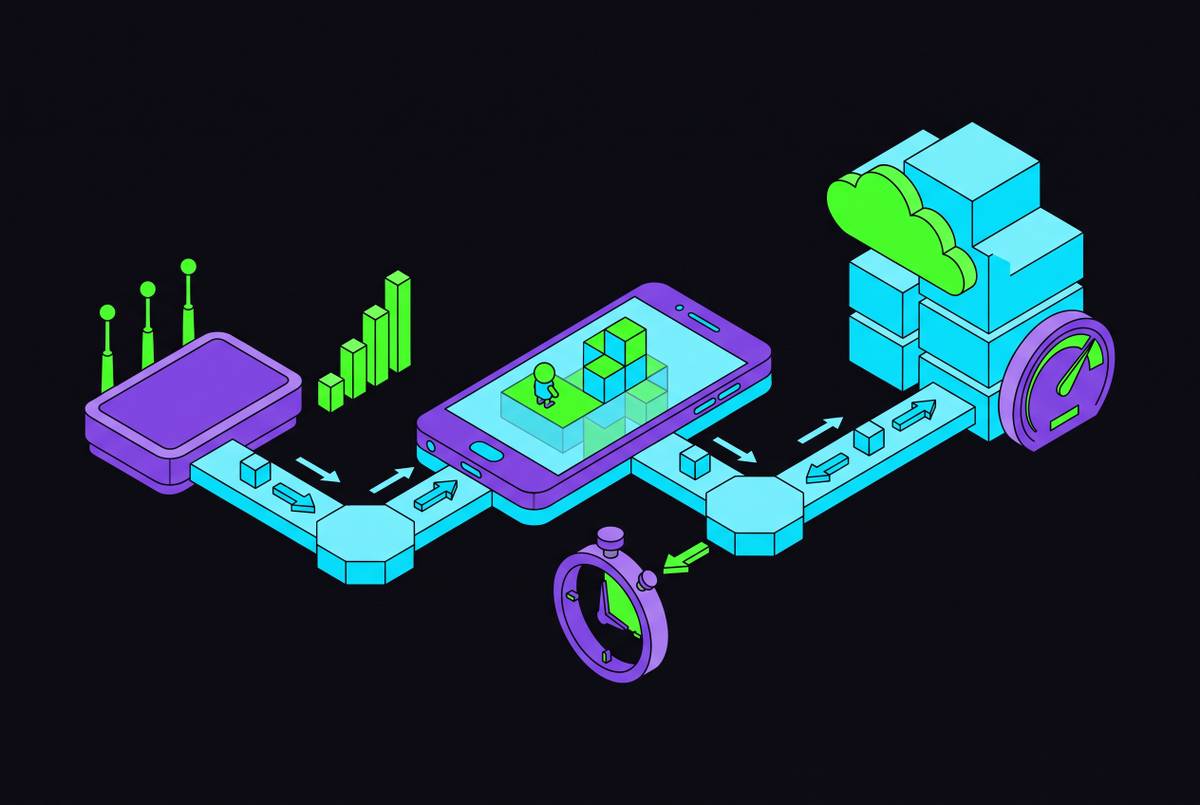
Nothing gets installed, which is the first thing that throws people off. The game runs on Xbox hardware sitting in a Microsoft data center somewhere, and your iPad just displays a video feed of it while sending your button presses back upstream. Think of it as a video call that happens to have a controller attached, and a fairly responsive one at that.
Here's the part that trips people up: there's no Xbox Cloud Gaming app on the App Store, full stop. You get it through Safari, and only Safari. That's not Microsoft dragging its feet on a port; it traces back to Apple's own rulebook.
Apple used to require every game in a streaming catalog to go through individual review, one by one. For a service carrying hundreds of titles, that's a paperwork wall nobody could realistically climb. Apple eventually loosened the policy, partly under pressure from the EU's Digital Markets Act, so one submission could cover an entire streaming catalog instead of forcing each game through its own gauntlet.
That doesn't fully fix things though, at least according to Microsoft. The company says App Store rules still create friction, mainly because subscription billing would need to run through Apple's in-app purchase system, cutting Apple in on a piece of Xbox Game Pass revenue. So a native app stays off the table, and the browser has quietly become the real product Microsoft keeps polishing. Session lengths have gotten longer as performance updates rolled out. People are sticking around in the browser version, not just tolerating it.
What subscription tier you need and what's included
Xbox Game Pass comes in a few tiers, and cloud gaming rides along on all of them, but the library shrinks or grows depending on what you pay. Ultimate is the top tier: hundreds of games deep, plus shorter queue times when servers get busy.
One exception worth knowing: Fortnite streams through Xbox Cloud Gaming with nothing more than a free Microsoft account. No subscription needed. This is actually how iPad and iPhone players got Fortnite back after Apple pulled it from the App Store entirely. If Fortnite's the only reason you clicked into this article, that's your answer.
Microsoft cut Ultimate's price in April 2026 under new leadership, worth flagging if you checked pricing a year or two back and walked away annoyed. If cloud gaming is going to be your main way of playing, Ultimate deserves a second look. If you're more of a once-a-week player, the cheaper tiers still cover a solid chunk of the catalog.
Getting the service running on your iPad, step by step
Before anything else: iPadOS 14.4 or later, a stable connection (more on that in a second), an Xbox account, and either a Game Pass subscription or, for the Fortnite crowd, just a free Microsoft account.
Open Safari specifically. It's the only browser with full compatibility on iPadOS, and this is where half the confusion in Xbox support forums comes from. Go to xbox.com/play, sign in, then tap the Share button and select "Add to Home Screen." That gives you a shortcut that behaves like a real app, no address bar cluttering the screen mid-game.
The most common failure at this stage isn't a server outage or a bad connection. It's someone opening Chrome out of habit and staring at a blank page for five minutes. Worth repeating: Safari, not Chrome, not Firefox. If sign-in loops without ever completing, check Safari's privacy settings; blocked cookies are usually the culprit, and the default settings work fine for most people once that's sorted.
The network conditions that determine whether streaming feels good or frustrating
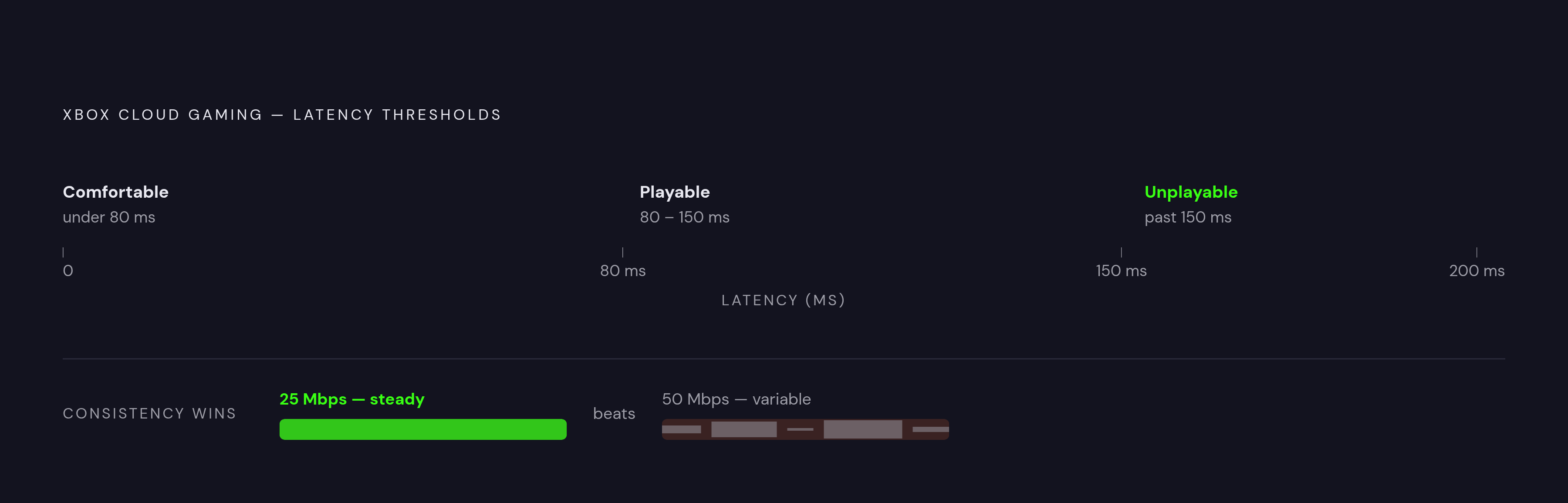
Microsoft lists a fairly modest minimum speed for the service to run at all, but "runs" and "looks good at 1080p and 60 frames per second" are two very different bars. Speed alone doesn't tell you much.
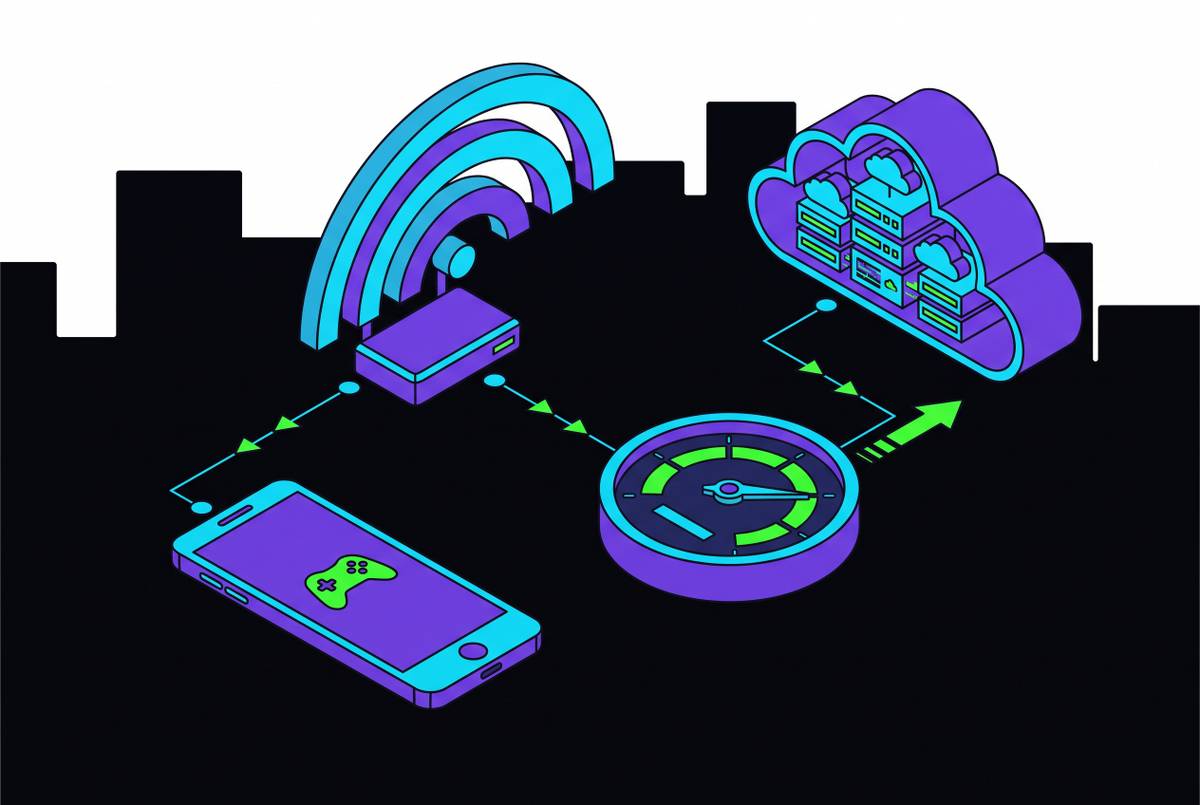
Three things actually matter here. Bandwidth first: Microsoft recommends around 10 megabits per second as a baseline, more if you want sharper resolution, and the service burns through a fair amount of data per hour, worth knowing if you're on a metered plan. Second, latency, the round-trip time between your iPad and the nearest Azure data center. Around 150 milliseconds is the rough ceiling for playability; under 80 milliseconds is where things start to feel genuinely comfortable. Past that ceiling, fast games start to feel delayed in a way you notice immediately, not just annoying but actually unplayable.
Third, and probably the most underrated factor, is stability. A connection that spikes and drops packets will feel worse than a slower, steadier one every time. A wobbly 50 Mbps line loses to a boring, consistent 25 Mbps line, which sounds backwards if you've spent years being told bigger numbers always win.
On Wi-Fi, use the 5GHz band over 2.4GHz whenever your router gives you the choice. It carries less interference and lower latency, and it holds up better at higher resolutions. Sit closer to the router if you can, since walls hurt 5GHz more than they hurt 2.4GHz. Cellular 5G works too, and it's genuinely useful for travel, though the latency swings around more than home Wi-Fi does, which makes it a decent backup and a shakier main connection.
Before assuming the service itself is broken, run a speed and ping test to the nearest server. Most of the frustration people blame on Xbox Cloud Gaming turns out to be their own router having a bad day. If you're not sure how your connection holds up under pressure, start with something slow, a strategy game or a turn-based RPG, before jumping into a fighting game that will expose every dropped millisecond.
Touch controls on Xbox Cloud Gaming — what works and what doesn't
A real, sizable chunk of Xbox Cloud Gaming players never touch a controller at all. Microsoft built custom touch overlays tuned per game, not some generic grid of buttons slapped over the screen, and the list of supported titles keeps growing.
Touch works fine for games that don't demand split-second precision: turn-based RPGs, card games, point-and-click adventures, slower strategy titles. Slay the Spire, Stardew Valley, Disney Dreamlight Valley, Unpacking, Hades, and Yakuza: Like a Dragon all hold up fine on a touchscreen. Fortnite has genuinely strong native touch support too, and plays without a controller just fine.
Shooters, platformers, anything needing fast simultaneous inputs falls apart on touch, and it falls apart fast. The overlay eats half the screen, your thumbs get tired after twenty minutes, and precision goes out the window. Touch is fine for checking in on a game during a coffee break. Three hours on a Saturday is a different demand entirely, and that's exactly where the controller conversation starts.
Choosing a controller that works with iPad and Xbox Cloud Gaming
Two ways to connect a controller to an iPad: Bluetooth through Settings, or a direct USB-C connection for clip-style controllers that attach right to the device.
The Xbox Wireless Controller is the obvious first pick. It's built for this exact service, pairs over Bluetooth, and maps buttons natively with zero setup. PlayStation controllers, both the DualSense and the older DualShock 4, also pair over Bluetooth and work fine here, a solid option if you've got one gathering dust from a console you barely touch anymore.
Clip-style controllers, the kind that sandwich a phone between two halves, are built with phones in mind first. An iPad is bigger and heavier, so most people end up propping one in a stand rather than clipping a controller onto it. A traditional Bluetooth gamepad just suits the tablet's size better.
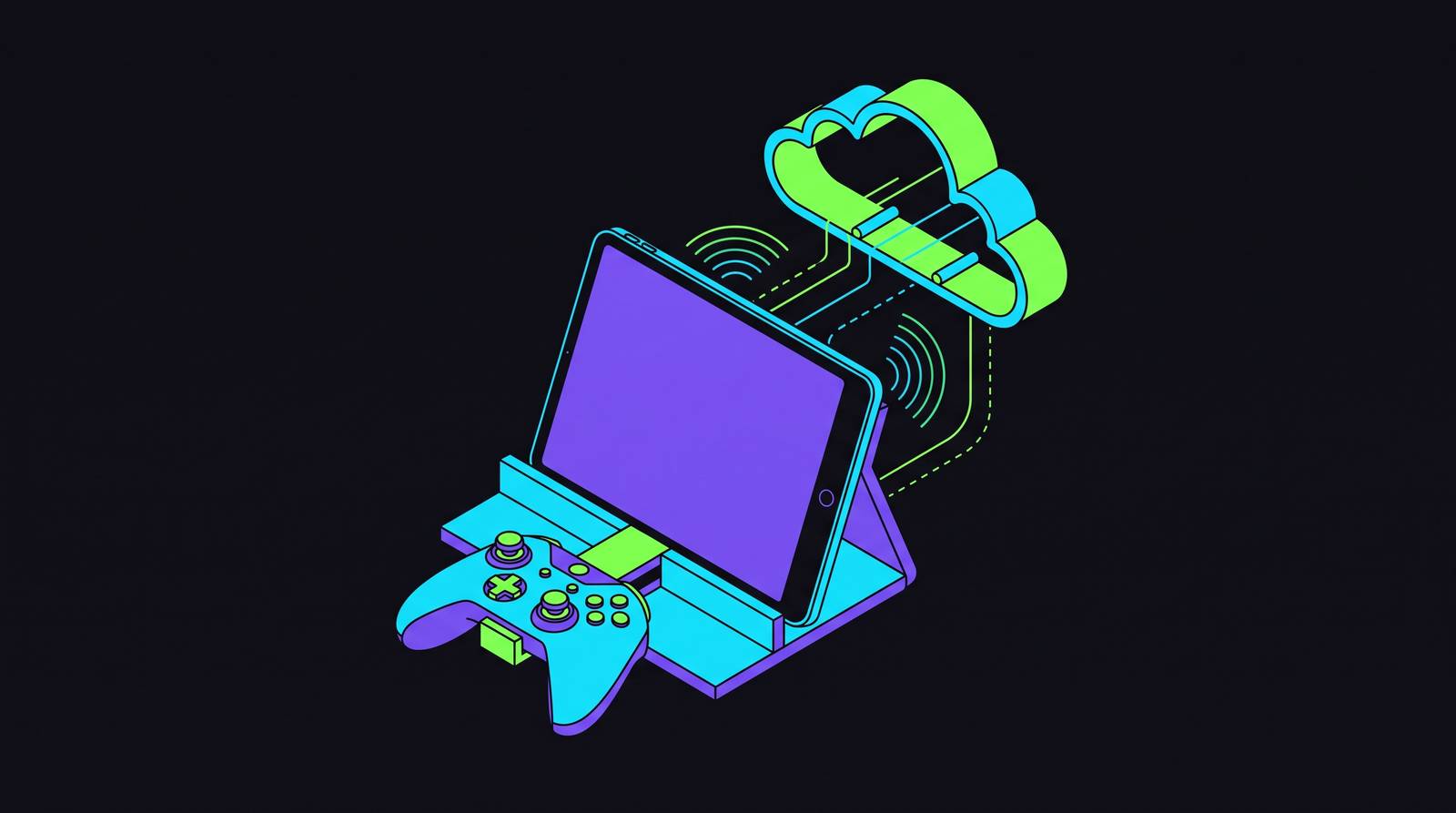
The setup that seems to work best for most iPad players: prop the iPad on a stand or table, hold a Bluetooth controller, and you've basically rebuilt the couch-and-console feel without a TV in the room. For longer sessions, grip shape, trigger travel, and stick resistance matter just as much as whether the thing pairs correctly on the first try. A controller that feels great for twenty minutes can start to hurt two hours in.
How Xbox Cloud Gaming on iPad compares to the other streaming options
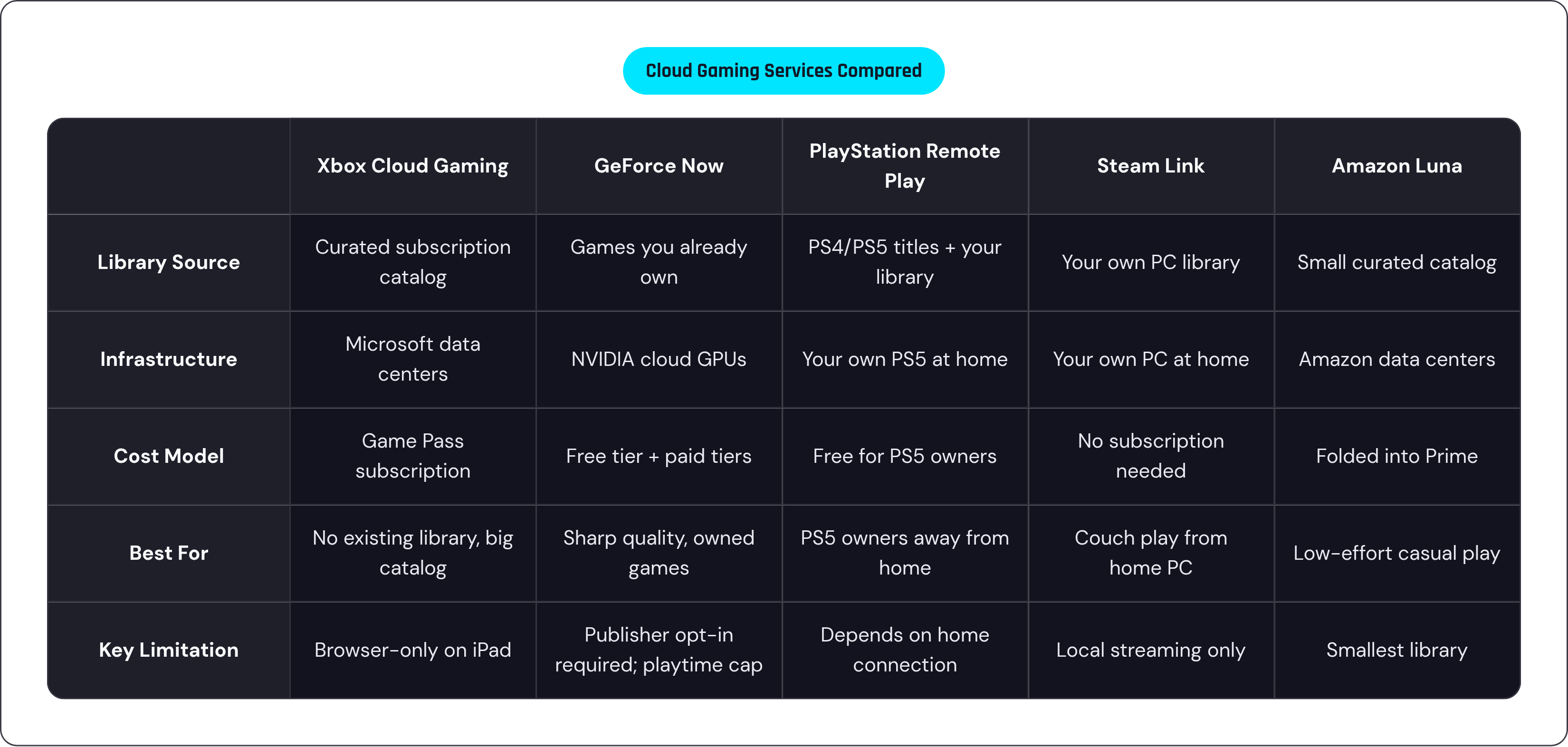
Four real alternatives exist, and each runs on a different model worth understanding before you pick one.
GeForce Now works like a compute rental: you stream games you already own across storefronts like Steam, Epic, and GOG, though only titles publishers have signed off on show up. It runs on high-end cloud GPUs, so image quality can look sharper, but NVIDIA added a monthly playtime cap on paid tiers in early 2026, worth factoring in if you play a lot.
PlayStation Remote Play streams from your own PS5 at home, so performance depends on your home connection, not a data center. It's free for PS5 owners, and PlayStation Plus Premium adds a catalog of streamable PS4, PS5, and older titles on top. Good if you already own a PS5 and want to keep playing your library from another room, or another city entirely.
Steam Link streams from your own PC, no subscription, no server infrastructure involved, best suited to playing from the couch while your gaming PC sits in the office down the hall. It's local streaming, not true away-from-home cloud play.
Amazon Luna has mostly folded into Amazon Prime as a casual perk at this point, smaller library, simpler setup, fine for someone who wants something low-effort without piling on another subscription.
Xbox Cloud Gaming's angle is a content rental model: a large, curated library bundled into one subscription, no need to own individual games, no downloads, access starts the moment you sign in. Xbox also holds the largest share of the cloud gaming market by a wide margin, so there's real infrastructure behind the pitch. For an iPad owner without an existing PC or PlayStation library sitting around, Xbox Cloud Gaming is usually the fastest way into a big catalog.
Settings and habits that improve the day-to-day streaming experience
A few small adjustments make a bigger difference than you'd expect. Use Safari in landscape, which the home screen shortcut handles automatically. Turn off auto-brightness before a session, since a screen dimming mid-boss-fight is more annoying than it sounds. Flip on Do Not Disturb so a text message doesn't steal focus at the worst possible moment.
On the network side, stick to 5GHz Wi-Fi, and if your router supports it, prioritize the iPad's traffic through QoS settings. Pause any downloads or video streaming happening elsewhere on the same network while you play; shared bandwidth is the single most common reason a session suddenly looks worse than it did five minutes ago.
Pair your controller before launching the game, not mid-session, since reconnecting partway through tends to interrupt the stream. Keep the controller's firmware current too; Xbox controller updates come through the Xbox Accessories app on Windows.
Sessions time out after extended inactivity, which is a server-side policy, not a glitch, so don't panic if the game disconnects while you're off answering the door. Progress saves to the cloud in most Game Pass titles, so a disconnection rarely means lost progress. Match your game choice to your connection: shaky Wi-Fi, lean toward slower genres; strong and steady, shooters and anything fast-twitch are fair game.
Where Xbox Cloud Gaming on iPad fits into a broader mobile gaming setup
So what do you actually get when you stack all this together: browser access, an understanding of your network, the right controller, a few habit tweaks? Something that looks a lot like a handheld console, minus the console part. The iPad was never built to be a gaming device first, but it has the screen size, the processing headroom, and the battery life to sit comfortably between a phone and a living room setup. Xbox Cloud Gaming is what turns that spare capacity into an actual library of hundreds of games you can pick up wherever your Wi-Fi, or a decent 5G signal, happens to reach.