USB-C Hub and Dock Compatibility With Mobile Gaming Controllers
Check your device's DisplayPort support before buying a hub to avoid connection failures.
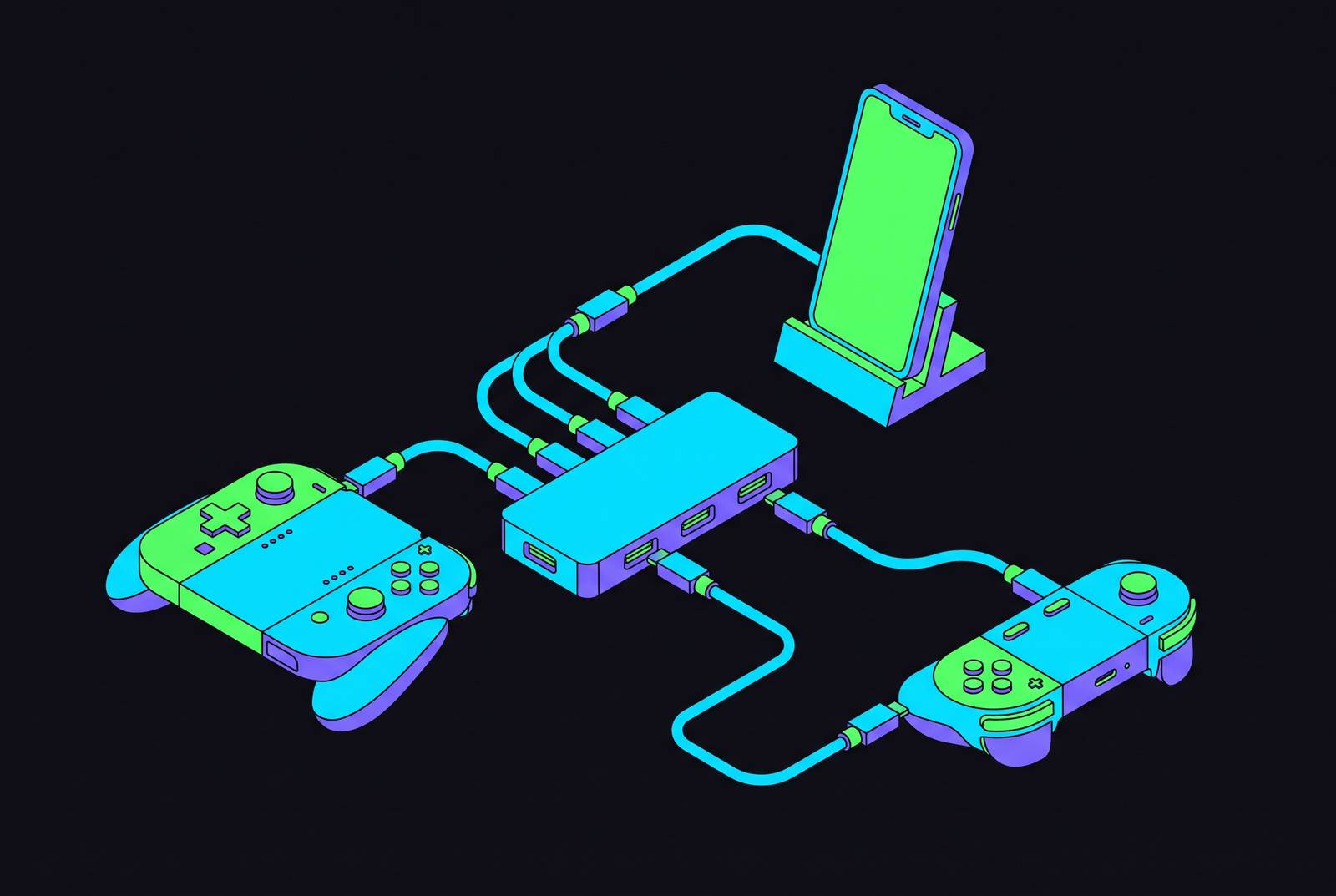
A USB-C hub or dock can turn a phone or handheld into a larger-screen gaming setup, but compatibility depends on more than a matching plug. The device, cable, hub, and controller must agree on video, power, and data. Understanding those separate requirements makes it possible to choose a working setup before buying, rather than treating checkout as the start of troubleshooting.
Why USB-C does not automatically mean "plug and play" for mobile gaming setups
A player buys a hub, connects a phone, plugs in the monitor, and gets a blank screen. The phone may still charge, making the failure seem especially puzzling. But charging shows only that power is getting through. USB-C describes the physical connection. The plug fits, but that is not a complete introduction.
The confusion comes from how much one port can do. USB-C can provide power, data, display output, and a controller connection, but a device need not support every function. Wired display output needs DisplayPort Alternate Mode, usually shortened to DP Alt Mode, which needs hardware built for that job. A port that works fine for charging and data may lack it. No firmware update can supply missing display hardware, so the device specification is the starting point.
How DP Alt Mode works and why the cable in the chain matters too
Alternate Mode lets a USB-C connection transmit non-USB signals through the same connector. DP Alt Mode is the display implementation relevant here, allowing video and audio to travel to an external screen while the connection also supports data and power. The hub must accept that DisplayPort input and convert it to HDMI or another display output. A hub that handles only USB data cannot do that job.
The cable is another possible break in the chain. A charging-oriented cable, including one bundled with earbuds, may handle power and data without supporting video, even when the phone and hub both support DP Alt Mode. Powered hubs also need their required wall adapter plugged in to run the display, along with charging and peripherals. For purchasing purposes, three checks follow directly. The device must output video, the connecting cable must support it, and the hub must accept that input.
Which gaming handhelds work with a USB-C hub and which do not
Steam Deck can send video through a USB-C hub that supports it. Dock compatibility lists name the handhelds that work with each dock, so support for one model does not cover every model with a similar name. Those distinctions deserve a close reading. Anker Steam Deck Dock (6-in-1), for example, lists Steam Deck OLED, ROG Ally, and Legion Go compatibility, but not ROG Ally X.
JSAUX 4-in-1 USB-C Gaming Dock is designed for Steam Deck, ROG Xbox Ally X, and Legion Go 2. These examples make the purchasing question more precise than whether a dock is “for handhelds.” It is whether the exact handheld appears in the supported combination. Similar product names are not interchangeable specifications.
Nintendo Switch Lite has no video output capability at all, while a hub that works with Steam Deck may produce a blank screen with Switch 2 because the required handshake differs. The required handshake creates a proprietary compatibility constraint. That still leaves room for some Switch-and-dock combinations to work. The practical distinction is between explicit support and an assumption based on the shared port shape.
Where phones stand: flagship support, mid-range gaps, and the iOS transition
Phones present a more fragmented picture because display support follows manufacturers’ hardware choices. A flagship and a mid-range phone from the same year can differ sharply. Price tier is still only a clue. The Google Pixel 9 lineup supports DisplayPort Alt Mode, and Pixel 9a does too, illustrating why a general rule about mid-range devices cannot replace the individual specification.
Display-capable phones can also offer more than simple mirroring. Samsung Galaxy S26, S26+, and S26 Ultra support Samsung DeX through USB-C DisplayPort Alt Mode, which gives them a desktop-style interface for gaming and work on an external monitor. Huawei Easy Projection and Motorola Ready For offer similar desktop-mode features. Apple’s move to USB-C gives modern iPhones the same physical connector, but some Android USB-C controllers may still fail to work reliably with them. Controller support still needs checking, including Apple MFi certification where it is needed for full iOS compatibility.
What happens when a phone has no DP Alt Mode? Software mirroring and wireless casting offer alternatives, but their latency and app-compatibility limits make them poor substitutes for wired gaming output. Before purchasing, look for explicit manufacturer language such as DP Alt Mode, HDMI Alt Mode, Thunderbolt, USB4 display support, or “external display output.” If none appears, treat wired video output as unsupported.
How the controller's own USB-C port changes what a hub can and cannot do
A wired USB-C clip-on controller creates a physical conflict before any video specification enters the discussion. It occupies the phone’s only USB-C port, which is also where the hub needs to connect. Both accessories cannot independently occupy that socket. A controller with passthrough charging provides another connection point, allowing a charger or hub cable to supply power through the controller while the controller communicates with the phone.
Charging and data ports can do different jobs on the controller, too. A charging passthrough port should not be treated as proof that the controller supports the hub’s video and peripheral functions. Its stated purpose is narrower than that. The full signal path still needs the capabilities described in the device and hub specifications.
Without passthrough, the immediate choice is between connecting the clip-on controller and connecting the hub. Bluetooth sidesteps that port conflict because it leaves USB-C available for the dock. It does introduce latency that a wired connection avoids. For services such as Xbox Cloud Gaming, PS Remote Play, and Steam Link, connecting a controller through wired USB-C keeps Bluetooth out of the input path.
Power delivery passthrough on the hub: why wattage numbers matter for gaming sessions
The battery can still drain while the charging symbol is on. If the hub passes through less power than the device needs during play, the battery can drain while the charger remains connected. That shortage of power matters most when gaming sessions run long. The useful specification is the hub’s PD passthrough wattage. Using the device’s own charger in the hub’s PD input is the reliable practice.
For gaming handhelds, 100W passthrough is the practical standard in the purchasing checklist. The JSAUX dock pairs that rating with high-resolution HDMI 2.0 and two USB 2.0 ports. The Anker dock combines 100W power delivery with high-resolution HDMI, 1Gbps Ethernet, two USB-A ports, and one USB-C data port. These are examples of different connection layouts around the same stated power rating. The lists of devices that work with those docks still need checking.
Gitfos C1 Pro 18-in-1 provides a USB-C PD input supporting up to 100W passthrough, as well as separate USB-C charging and data ports. It requires wall power and has no bus-powered mode. AVerMedia GC313 Core Go Dock instead combines 4K60 HDMI with 100W GaN charging and support for powering three devices. Built-in charging and a passthrough rating describe how power is supplied and how much can pass through, even when the headline wattage is the same.
Data port speed on the hub and what it means for wired controllers and storage
Controller input is not a demanding data workload. Wired USB controllers work through USB 2.0 hub ports without that connection becoming a responsiveness bottleneck. For local multiplayer, the number of available sockets is often the more useful specification. A hub with four USB-A ports can connect four wired controllers, one per port.
Faster connections help when games are stored on external storage. The Gitfos dock illustrates the division, with 5Gbps USB-A data connections for peripherals and two USB-C data ports plus one USB-A data port at 10Gbps for uses such as external SSDs. The dock also has ports just for charging, so a connector’s shape alone cannot show what the port does. For a purchase decision, the hub specification now resolves into three checks. Those are DP Alt Mode input, PD passthrough wattage, and data port speeds appropriate to the intended peripherals.
Cloud gaming over a hub connection and what changes for Xbox Cloud, PS Remote Play, and GeForce Now
Once those requirements line up, the hub enables a different way to use the same gaming device. Charging supports longer sessions, wired video moves the picture to a monitor or TV, and the controller connection determines how input reaches the phone or handheld. None of those functions substitutes for another.
On Android, Xbox Cloud Gaming, PlayStation Remote Play, GeForce Now, and other major services provide native apps and support wired or Bluetooth controllers, including Xbox and PlayStation pads. A wired controller removes the Bluetooth step, while wired display output avoids relying on software mirroring or wireless casting as the route to the screen. Power passthrough then supports the session without requiring the controller or display to be disconnected for charging, provided the chosen arrangement supports those paths.
On iOS, service access is another configuration detail. Xbox Cloud Gaming, GeForce Now, Luna, and Boosteroid use Safari-only browser access because of App Store restrictions, while Shadow has a native iOS App Store app. Browser access is something to plan around. Under the November 2026 Xbox Cloud Gaming policy, monthly cloud allowances are 5 hours for Essential, 10 for Premium, and 15 for Ultimate, with additional hours available to purchase.
A pre-purchase checklist for building a hub setup that works the first time
First, check the device manufacturer’s published specification for explicit display support, including DisplayPort Alt Mode, HDMI Alt Mode, Thunderbolt, USB4 display support, or “external display output.” If none is listed, treat video output as unsupported rather than expecting a hub to add the missing hardware capability.
Next, check the cable between the device and hub. It needs to be a full-featured USB-C cable or explicitly rated for display use.
Then compare the device’s stock charger wattage with the hub’s PD passthrough rating, which should meet or exceed it. For a gaming handheld, 100W passthrough is the practical standard, with the device charger connected to the PD input.
After that, check the controller’s connection arrangement. A clip-on model needs its passthrough behavior understood, while Bluetooth is the appropriate pairing when the wired controller would otherwise prevent the hub from occupying the device port.
Finally, match data ports to the peripherals that will be connected together. USB 2.0 is sufficient for controllers and keyboards, while external SSD game storage calls for USB 3.2 at 10Gbps, with enough sockets for simultaneous use.
The phone or handheld is already a capable gaming device, and the hub simply extends what it can connect to.