Setting Up a Mobile Gaming Desk Station With a Phone as the Primary Screen
A physical controller and proper cooling transform a phone into a capable gaming desk station.
The phone is not the problem. A modern flagship carries an OLED panel, a high-refresh display, and a processor that runs demanding titles natively or streams them from the cloud without breaking stride. The screen was never the bottleneck.
The bottleneck is everything around it. The gap between "phone on a desk" and "phone-first battlestation" is not hardware cost. It is deliberate component selection at each layer, and that is what this guide walks through.
Choosing the phone that anchors the station
The phone does triple duty here: it is the display, the processor, and the GPU simultaneously. That means its specifications set a ceiling no accessory can raise. The first decision is whether the phone itself is fit for the role.
On the processing side, chips in the Snapdragon 8 Gen series on Android and Apple's A-series on iOS deliver the sustained frame rates and thermal headroom that desk sessions demand. Mid-range chips throttle earlier under sustained load, which matters more in this context than in casual play. A desk station invites hour-long sessions, and the phone that heats up and drops frames after twenty minutes will frustrate regardless of what it is mounted on.
RAM and storage follow straightforwardly. 8 GB of RAM is the minimum for stable multitasking. With less, apps reload and games stutter when voice chat, a browser tab, and system overhead sit alongside them. Storage lands at 128 GB as the baseline for a library of any size, particularly once cloud gaming apps, native titles, and captured clips start accumulating.
Then there is the spec most buyers ignore and most regret: thermal design. You cannot see it on a spec sheet the way you can a chip name or a battery number, which is precisely why it gets skipped. It is the invisible ceiling on everything else.
The controller: turning a phone into a console at the desk
A physical controller is the single change that closes the gap between "gaming on a phone" and "gaming at a battlestation." Touch controls force you to cover the screen with thumbs, add latency between intent and input, and strain your hands in ways physical controls do not. A controller eliminates all three at once, which is why it feels less like an accessory and more like a platform shift.
iOS requires MFi certification for the tightest software integration. Android is more open, with most USB-C and Bluetooth controllers working without certification barriers. If you are on an iPhone, check for MFi before buying. If you are on Android, the field is wide, but that openness also means integration quality varies more.
Ergonomics at a desk differ from handheld play. Pick a controller whose trigger feel and stick tension match the genres you play most. A shooter player wants short, crisp triggers. A racing player wants progressive resistance. One piece of 2026 hardware worth knowing about: the MCON by OhSnap, a 2026 CES Honoree, is a compact, magnetically mounting wireless controller with auto-launch TMR joysticks, Hall-effect triggers, an adjustable phone mount supporting iOS, Android, and foldables, and flip-out handles designed to reduce hand strain.
Phone stand and desk positioning for a true battlestation feel
How the phone is positioned at the desk determines ergonomic comfort for the entire session, and most players underinvest in this layer. The controller handles input, but the stand determines viewing angle, neck strain, and whether the station looks intentional or improvised. A small ergonomic decision here has outsized impact over an hour or more.
Eye-level viewing is the target. Adjustable stands with a stable base and a wide range of height and tilt adjustment serve desk play better than rigid or single-position mounts. The flexibility matters because the right angle shifts between sitting positions and between games.
When using an attach-style controller, the controller itself holds the phone. A desk mat helps here too: a foldable desk mat keeps the controller stable on hard or uneven surfaces and defines the station's footprint visually. It is a small detail that makes the setup feel deliberate rather than ad hoc.
Lighting deserves attention because OLED panels are unforgiving. Soft, indirect light reduces screen glare. Harsh overhead light or direct sunlight hitting the panel washes out contrast and causes eye strain during long sessions. The controller, a small stand, a power bank or charger, and audio gear fit comfortably on a surface that could not fit a conventional monitor.
Power strategy: keeping the session alive without thermal damage
Power management at a phone-first station is a two-sided problem. Solving only one side defeats the other. "Just plug it in" is not a complete answer, because a phone that charges fast while cooking itself throttles just as surely as one that drains.
Cable quality is the hidden variable. Short, high-quality USB-C cables reduce resistance, heat at the connector, and power loss. A USB hub at the desk consolidates wired Ethernet, headset, and external storage connections through a single port, which is useful on phones with one USB-C port.
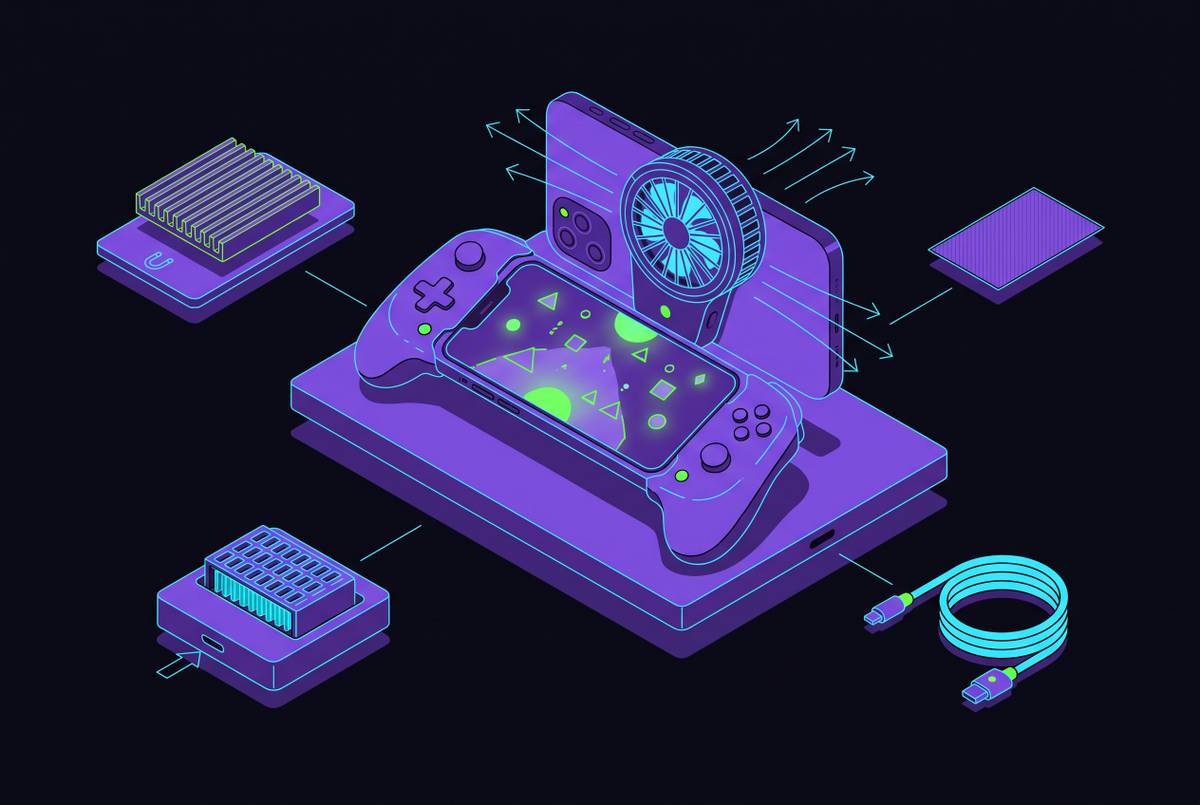
The thermal thread is the performance killer most guides skip. Sustained gaming at high brightness and high frame rate generates heat, and when the phone's thermal limit is reached, the processor throttles to protect itself. A clip-on cooling fan or small cooling pad applied to the phone's back actively removes heat during marathon sessions and can prevent throttling that a charger alone cannot fix.
On the software side, enable game mode or performance mode in the phone's system settings to prioritize CPU and GPU resources. Close background apps before you start a session to free memory and reduce thermal load. None of these costs money, and all of them shift the thermal equation in your favor.
Audio setup: headsets, spatial sound, and desk-friendly options
A desk station unlocks audio options that handheld or couch mobile play does not. The player is seated, stationary, and can use more than earbuds. The right choice depends on whether the priority is immersion, communication, or both.
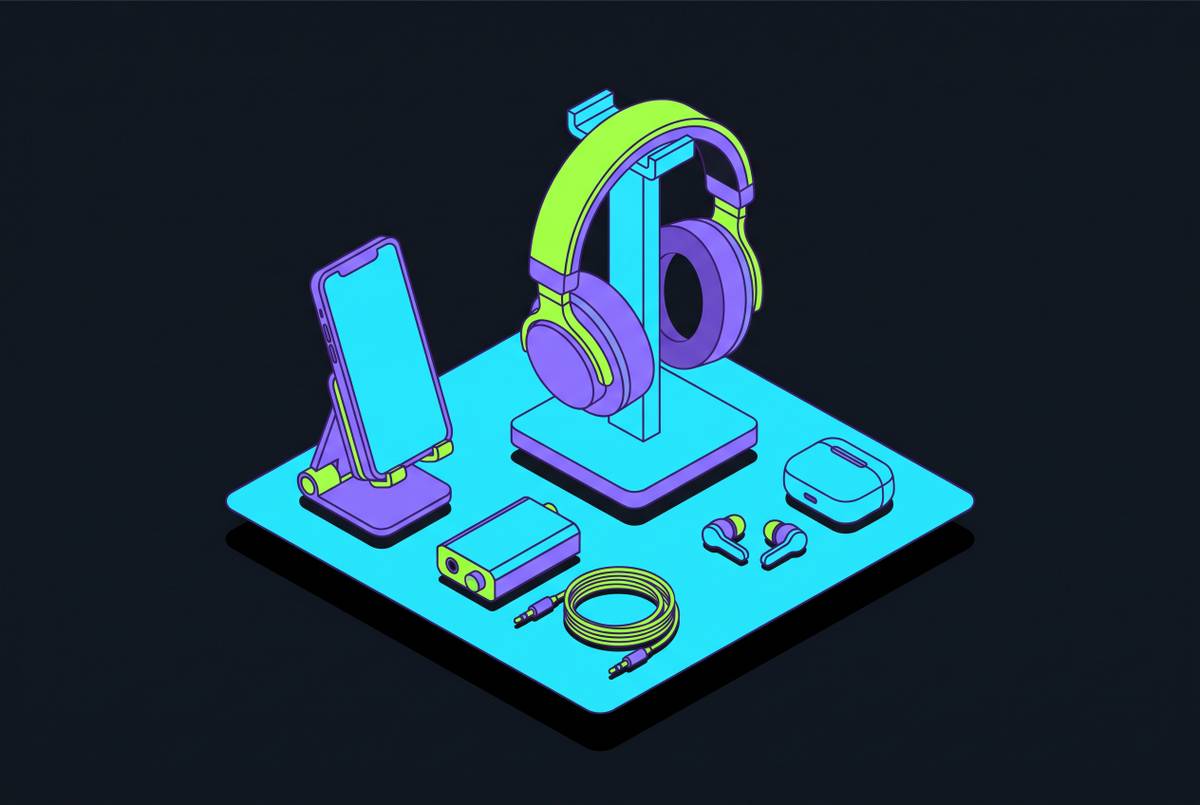
Lightweight over-ear gaming headsets with a clear microphone pickup are the desk-first choice. They provide sound isolation, better spatial audio representation, and mic quality that earbuds rarely match for multiplayer communication. Carry extra ear tips for long sessions. Comfort degrades faster with in-ear designs than with over-ear.
Noise-cancelling headphones reduce ambient noise at shared desks or coffee-shop setups where background sound competes with game audio. Many mobile games and cloud gaming services pass through the audio processing of the game engine to the headset. Enabling spatial audio or surround sound in the headset's companion app, where available, meaningfully improves positional awareness in shooters and open-world games.
For multiplayer, a small mic windscreen reduces breath noise during intense sessions. For players who also stream or create content, a clip-on LED or lamp for consistent lighting pairs with audio gear as the streaming accessory tier. The audio layer is where the desk setup quietly earns its keep: the same hardware that makes a native mobile title feel fuller also carries voice chat and game sound during a cloud session without compromise.
Network: wired and wireless paths to low-latency play
The network connection is the one component whose quality the player cannot compensate for with any accessory. A poor path to the server degrades every cloud gaming and multiplayer session regardless of how well everything else is configured. This is an engineered choice as much as the controller or the charger.
5 GHz Wi-Fi is the baseline for desk play. It delivers lower latency and higher bandwidth than 2.4 GHz, with less interference from neighboring networks and household devices. Router proximity matters too: placing the router near the play area, or using a travel router with 5 GHz support, can meaningfully reduce latency versus playing at the far end of the coverage zone.
The genuinely surprising tip for many players is that wired Ethernet via USB-C adapter is possible. It eliminates Wi-Fi variability entirely for the most latency-sensitive sessions. Selecting the nearest server region is another critical step.
Network hygiene during play includes pausing large downloads on other devices on the same network before a session to reduce bandwidth contention. Some routers support Quality of Service rules that can prioritize gaming traffic. And 5G mobile connectivity remains an alternative when Wi-Fi is unavailable. Expanding 5G coverage is pushing latency toward the threshold where real-time multiplayer becomes viable on cellular, though it is not a replacement for a well-configured home network at a desk station.
Cloud gaming services and what each one means for a phone-first station
Cloud gaming transforms the phone-first station from a device-limited setup into one that can run virtually any game. But the services differ in ways that materially affect which one fits a given player's library and habits. These are genuinely different tools for different player profiles, not a ranking.
GeForce NOW rents GPU hardware in the cloud, and the player must already own their games on Steam, Epic, GOG, or other supported storefronts. A critical 2026 policy change matters for heavy players: starting January 1, 2026, NVIDIA capped both Performance and Ultimate subscriptions at a monthly hour limit, ending previously unlimited access. On iOS, GeForce NOW runs through Safari. On Android, a native app is available.
Xbox Cloud Gaming bundles its library inside a Game Pass subscription. Starting November 2026, each Game Pass plan carries a monthly cap on cloud hours, with higher tiers receiving more hours and additional hours available for purchase. Cross-service integration adds flexibility: Xbox has partnered with GeForce NOW and Boosteroid, so supported Xbox games owned on Steam can be streamed from those services.
PlayStation Plus Premium, via PS Remote Play, streams from the player's own PS5 to the phone. Steam Link is similar in spirit: Valve's free app for Android and iOS connects to a PC running Steam, with the game running on the PC and the phone receiving video and sending inputs. It requires owning a gaming PC and keeping it running, and there is no subscription cost beyond owning the games.
The ownership trade-off is the sharpest practical distinction. GeForce NOW is the exception: cancel and every game in the Steam, Epic, or GOG library is still owned, just no longer streamable from Nvidia's hardware. A player with a large Steam library has different incentives than a player who wants a curated subscription library, and both positions are legitimate.
Games that reward the desk station setup
The phone-first desk station unlocks a library spanning native mobile titles, Apple Arcade and Google Play, and cloud-streamed console and PC games. The breadth of what plays well on it is itself an argument for building it properly. The following is a range, not a ranking, and each entry rewards the station's stable viewing angle and physical controls.
Diablo Immortal supports controllers on both platforms, and the hack-and-slash pacing translates well to desk play. Genshin Impact has controller support on iOS and Android, and its open-world scale benefits from the station's stable viewing angle and physical controls rather than a handheld grip that shifts mid-session. Minecraft and Stardew Valley both support controllers on iOS and Android. The desk station adds comfort for the long, unhurried sessions these titles invite.
On the iOS side, iPhone 15 Pro and iPhone 15 Pro Max users can play Resident Evil 4, Assassin's Creed Mirage, and Warframe with full controller support. These are console-caliber ports that justify the desk station's precision input in a way that touch controls simply cannot. Apple Arcade titles like Fantasian and Sneaky Sasquatch support controllers, but both were primarily designed around touch controls, so expectations should match that design intent.
Putting it together: the station as a system, not a pile of accessories
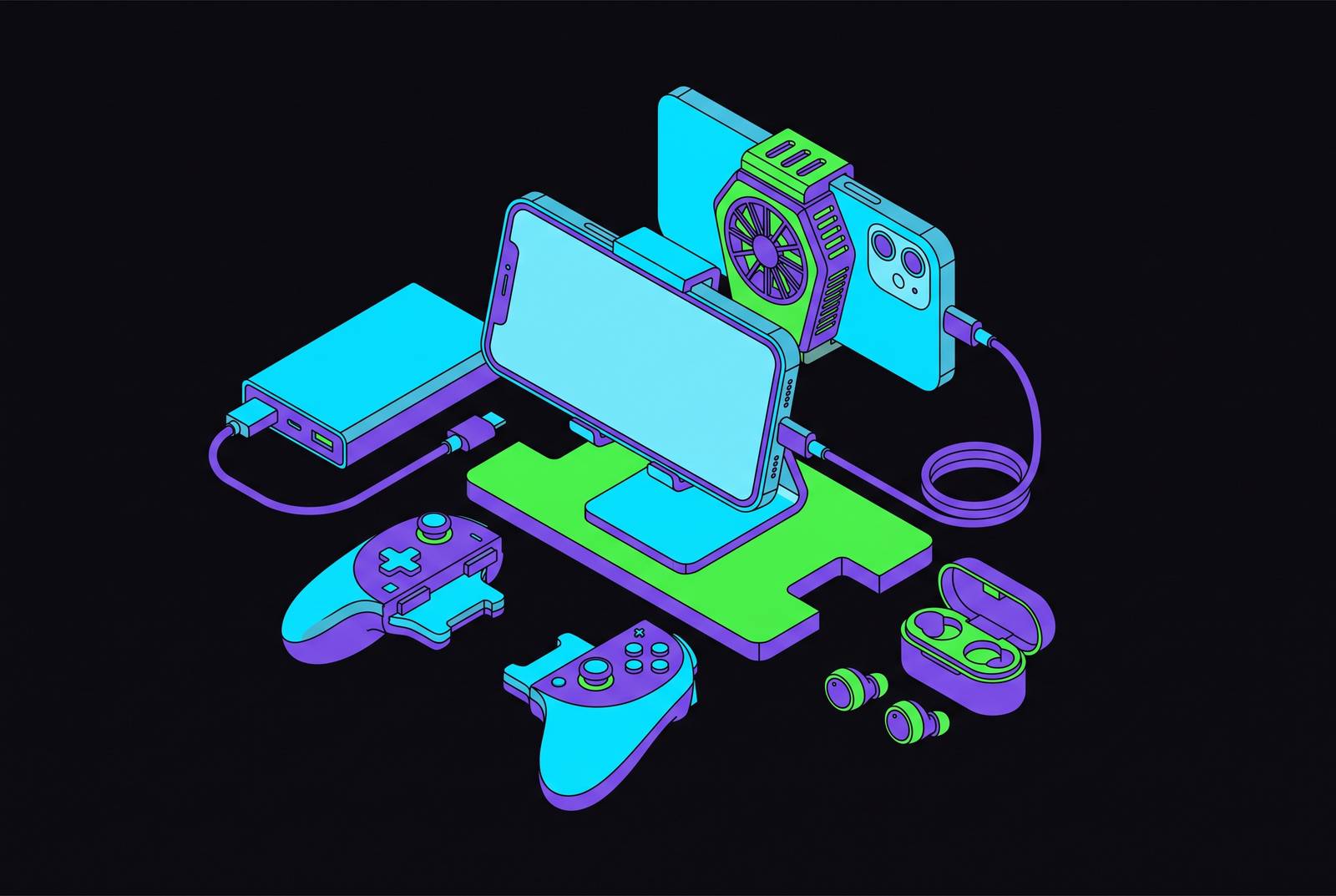
The phone-first desk station works as a battlestation when every layer, controller, stand, power, audio, network, and platform, is chosen to support the others. The test is whether the whole system feels intentional rather than assembled from whatever happened to be nearby. Confirm the controller pairs correctly, the charger sustains rather than drains during play, the network path to the chosen cloud service meets latency targets, and the audio is dialed in before a session begins.
The station's advantage over a traditional PC rig is not raw power. The same phone, controller, and power bank that sit on a desk at home can move to a hotel room, a coffee shop, or a friend's apartment without compromise, because the cloud layer travels with it. That is not a consolation prize. It is a different value proposition entirely.
As the setup evolves, whether through a better phone, updated cloud service tiers, or new game releases, the framework of deliberate per-layer choices stays constant. The phone-first station is the clearest expression of the idea that great gaming no longer requires a fixed location or a dedicated console: the screen is in your pocket, the controller clips on, and the games live in the cloud. That is worth building properly.