Does Shadow Fight 4 Support Controllers
Yes, it does, and here is how to pair one and fix glitches.
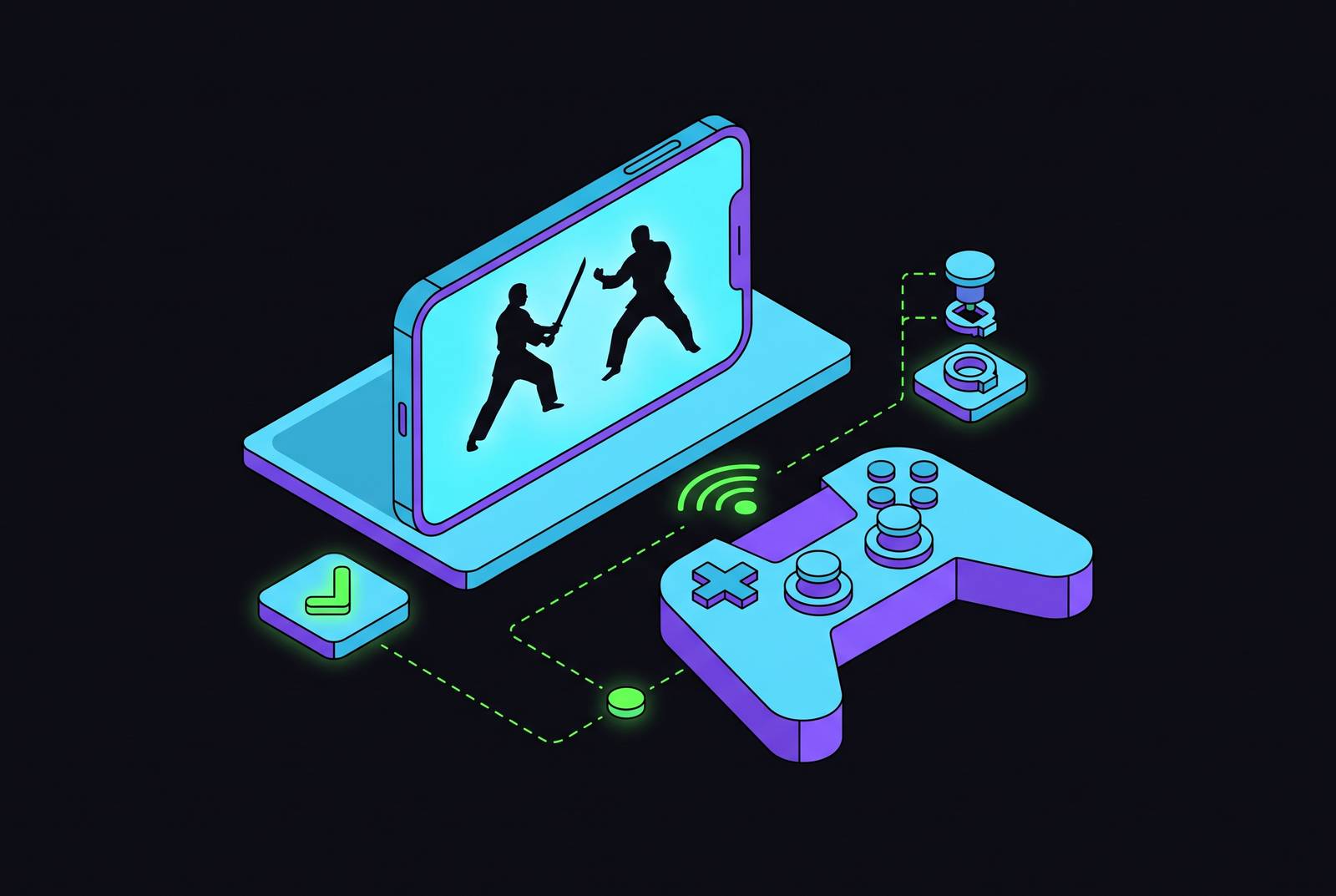
Shadow Fight 4: Arena officially supports controllers on mobile, and getting one working is a straightforward process once compatibility and the game’s detection settings are clear. The key is to treat Bluetooth pairing and in-game setup as separate steps. With both in place, a supported gamepad offers more consistent physical inputs for a fighting game built around precise timing.
Shadow Fight 4: Arena officially supports controllers on mobile
The App Store listing labels the game “Controller Supported” and names PlayStation, Xbox, and MFi controllers as compatible categories. Nekki’s own support guide also names the gamepad families the game supports and explains how to connect them. Players do not need to interpret a community experiment as evidence that the game accepts controller input.
The game’s marketing makes that support less surprising. Its description promises “a console-level battle experience on your mobile device,” placing familiar fighting-game controls within the intended experience. A physical controller fits that ambition. What matters, then, is not whether someone has found a way to make a gamepad work, but which hardware the official documentation covers. That distinction gives players a sound starting point before they reach for Bluetooth settings.
Which controllers are compatible and what that covers in practice
Nekki’s support FAQ names DualShock controllers, Xbox controllers, and other gamepads based on either of those designs. The wording extends beyond first-party hardware. It covers families of gamepads, so players who already own a compatible gamepad can check its design even if their model is not named. At the same time, “other gamepads” is qualified by the reference to those designs. It is not a promise that every device sold as a Bluetooth controller will work.
For iOS players, the App Store listing also names MFi certified controllers as gamepads the game supports. MFi means Made for iPhone/iPod/iPad and is Apple’s certification framework for these iOS-optimized gamepads. That is a platform-specific part of the answer.
Will a supported controller always connect without trouble? Nekki’s FAQ adds an important qualification here. Each device has its own settings, and extra software or device settings may keep a gamepad from working. Players choosing hardware should stick to the gamepad families the guide names, though they may still need to change settings to get one working.
How to connect a gamepad to Shadow Fight 4: Arena step by step
Nekki’s gamepad setup guide follows a consistent sequence across compatible controllers. For players setting one up, the first task is to turn on the gamepad and activate its pairing or device-finder button. Start with the controller. This puts the hardware into the state required for the next step, which takes place in the mobile device’s system settings.
Next, open the device’s system Settings and go to Bluetooth. Select the gamepad from the list of available devices to pair it with the phone or tablet. This completes the device-level part of the sequence. The distinction is useful because a Bluetooth connection and a working in-game controller are not the same milestone. Pairing establishes the connection that the game’s own detection setting will then use.
Once the gamepad is paired, open Shadow Fight 4: Arena. Use the side menu to reach the game Settings, then enable “Auto gamepad detection.” This is the in-game part of the process. The Bluetooth menu belongs to the device, while this option belongs to the game, so the two settings should not be confused. A player who stops after pairing has not yet completed the documented sequence.
Finally, restart the game with the supported gamepad connected. Nekki’s guide says on-screen controller prompts appear automatically once the gamepad is detected. Those prompts are the expected visible result. If the result differs from that description, the next useful step is to identify the symptom rather than repeat the entire process without a clear reason.
Fixing the two most common issues players run into after connecting
A white circle with a dot on screen has a specific documented fix. Nekki’s gamepad setup section attributes this symptom to a conflict between the connected device and the game’s “Automatically identify gamepad” option. To resolve it, open the game settings through the side menu and turn that option off. This is an exception to the normal setup path.
A gamepad that connects through Bluetooth but does not function in-game points to a different problem. Nekki’s compatibility FAQ acknowledges that additionally installed software or operating-system settings can interfere with gamepad operation. The appropriate troubleshooting approach is to check for third-party apps that intercept controller input, including accessibility apps and button-remapping apps, and disable or uninstall the interfering software. Device settings also deserve a check for gamepad or accessibility overrides that could affect the input.
These fixes address different symptoms, so they should not be treated as interchangeable. A white circle directs attention to an option inside the game, whereas an unresponsive paired controller directs attention to software and settings on the device. That separation keeps troubleshooting focused. It also explains why an officially supported controller can still need attention after Bluetooth pairing, without making the compatibility claim misleading.
Why a physical controller changes how the game feels, especially in PvP
Shadow Fight 4: Arena is a precision fighting game in which combo execution, parry timing, and directional inputs depend on consistent control. Physical buttons make those inputs steadier than touch controls do. Players get tactile feedback, which helps during fast PvP exchanges when they need to act and be sure of their input. In that setting, the controller is more than a different way to hold the game.
The game’s description says it aims for a fighting experience like Mortal Kombat, Tekken, and Street Fighter. Analog sticks and physical triggers fit that console-style play more naturally than tap gestures. The phone is still the screen, but players have physical controls in their hands. Put another way, the glass no longer has to do every job.
Does that make a controller a shortcut to winning? The distinction is between executing a decision and making a good one. More consistent inputs help a player perform a combo, time a parry, or enter a direction, but those benefits do not themselves supply the right choice during a fight. That is the limit of the claim. In PvP, a controller user has a tactile advantage over a touch-only player during twitchy exchanges.
Players learning a new gamepad can use the game’s offline mode to practice against machine-learning bots with less at stake before they enter ranked matches. Players can build muscle memory before they test a new button layout in a competitive match. The purpose is not merely to establish that the buttons respond, which the setup process addresses, but to become comfortable using them in a fight. A working controller and a familiar controller are different stages of the same transition.
How the PC launch and Nekki ID change the picture for controller players
Shadow Fight Arena launched on PC through Steam Early Access in October 2025, bringing the game beyond mobile. The unified Nekki ID system allows progress to sync across devices, including a player’s hero roster and progress between mobile and PC. That changes the cost of moving screens. A player can build a roster on mobile and take it to PC later, along with the habits learned while playing with a gamepad.
The PC release also includes improved gamepad and keyboard controls, with customizable keyboard binds in settings. Local multiplayer, described as local duels, adds another way to play on PC. These additions are independent of account syncing. Keeping those roles separate avoids turning “cross-platform” into a catch-all promise.
A later Steam patch added more ways to set up the controls based on feedback from players. Players could now bind combat actions to mouse buttons, give diagonal jumps and rolls their own buttons, and use arrow buttons for any action. These changes concern input configuration rather than controller compatibility alone. They show that the PC version’s control options reach beyond using a gamepad and include more detailed choices for keyboard and mouse play.
Crossplay between mobile and PC is supported, but the Android/iOS crossplay gap remains a qualification to that broader picture. Shared progression and crossplay answer different questions. One concerns where a player’s roster and progress can go, while the other concerns which players can meet in a match. The PC connection should not be read as complete convergence across every platform.
A supported gamepad can serve on both mobile and PC, while Nekki ID transfers the progress that would otherwise make changing devices a harder decision. The effort spent learning physical controls on a phone has a use beyond the phone, with a shared roster giving that move substance even where settings and features differ between platforms.