Mobile Gaming Controller Button Mapping and Customization on iOS and Android
Master controller customization across both platforms with the right tools and menus.
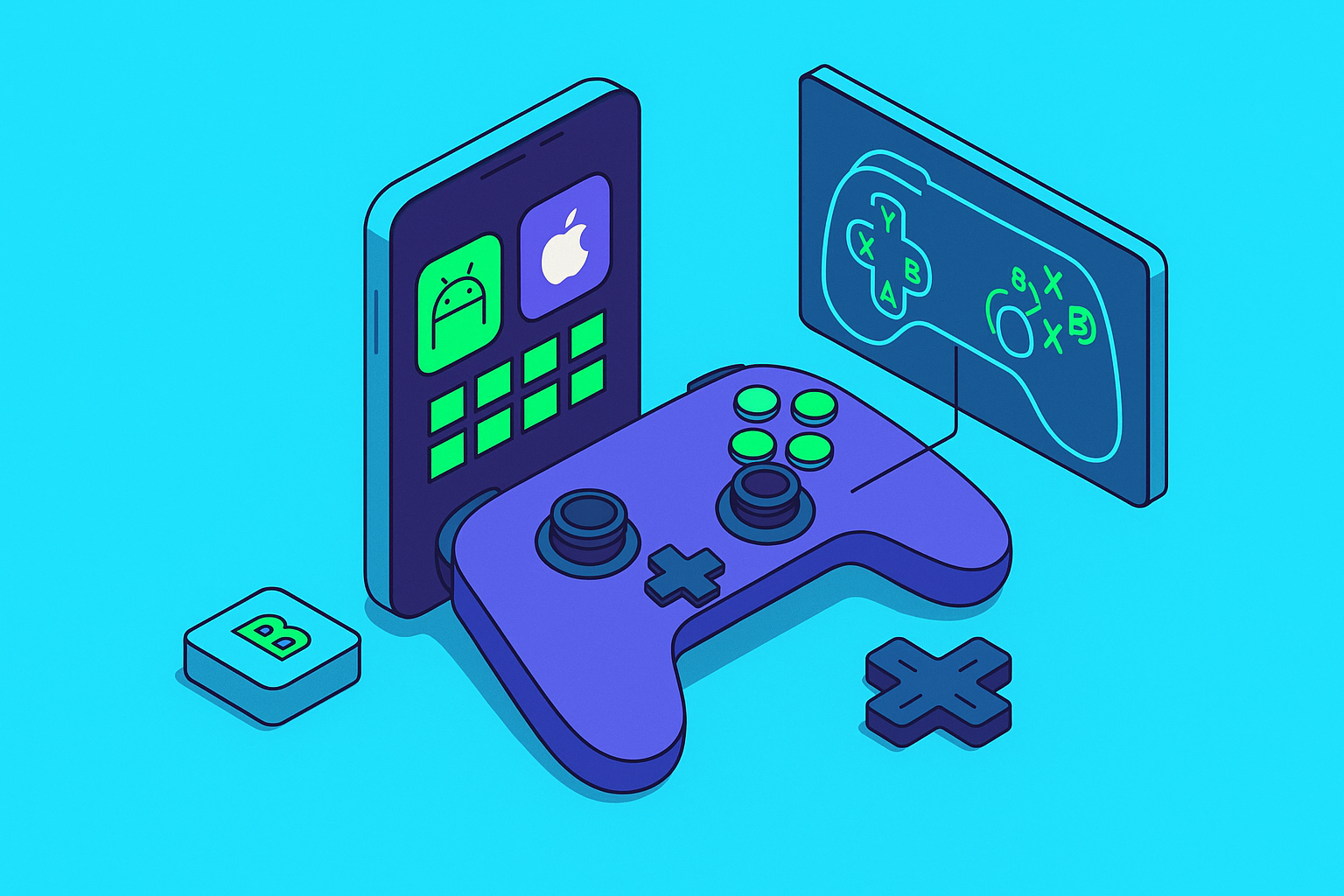
Button mapping is the reassignment of physical controller inputs to different in-game actions than the default layout. Simple definition, messy reality.
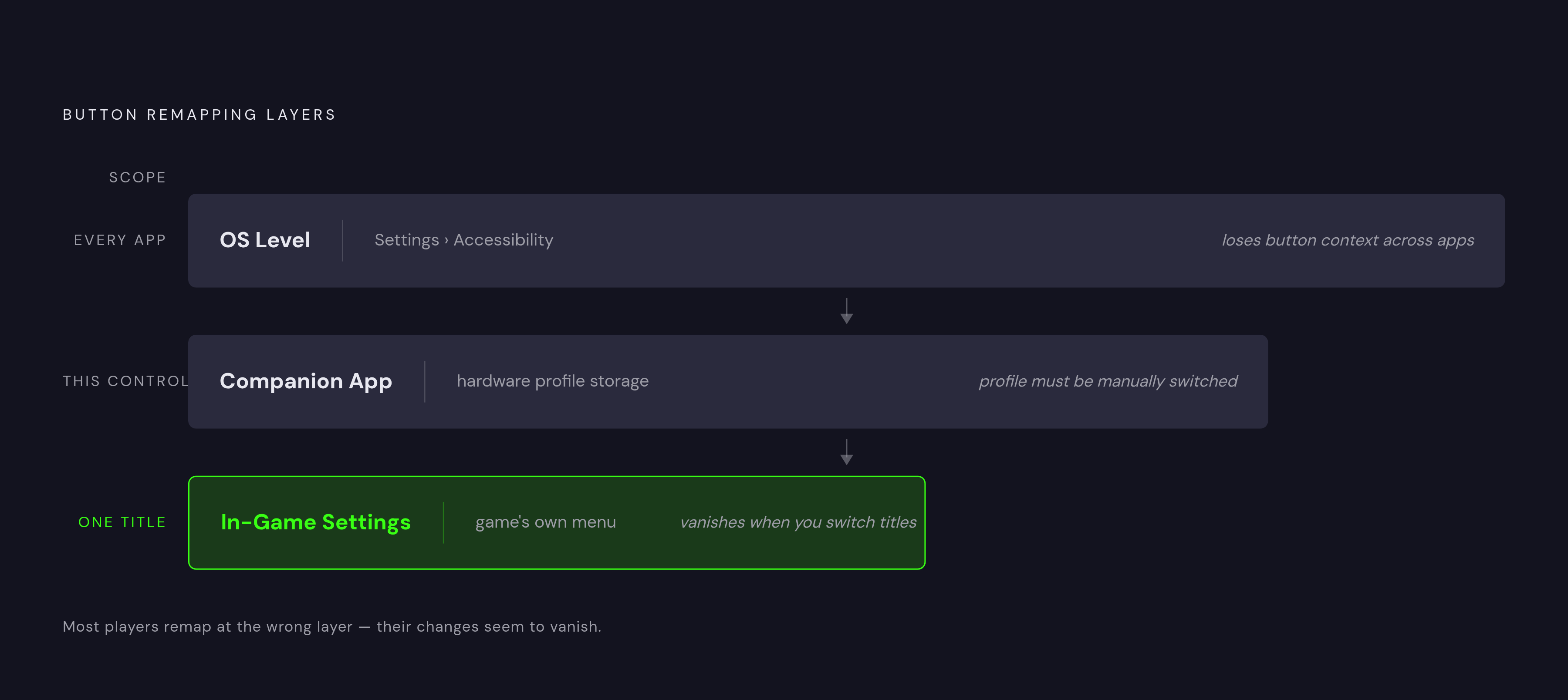
Remapping happens at three distinct layers: the operating system, the controller's companion app, and inside the game itself. Each layer has different scope. A remap at the OS level propagates everywhere, across every app on the device. One configured inside a game disappears the moment you launch something else. Most players who have tried button mapping and abandoned it in frustration were very likely working at the wrong layer without knowing it.
Beyond simple reassignment, customization includes dead zones (how far a stick must travel before the input registers), trigger sensitivity, macros (a single button executing a sequence of actions), and turbo functions (auto-repeating an input at set intervals). Dead zone tuning alone can transform precision aiming in a shooter. Most players never touch any of it, and that is not a failure of intelligence. It is a failure of discoverability. The options exist. They are just inconveniently distributed across menus designed to discourage curiosity.
How iOS handles button remapping through the MFi framework
Apple's approach to controller support is, characteristically, controlled.
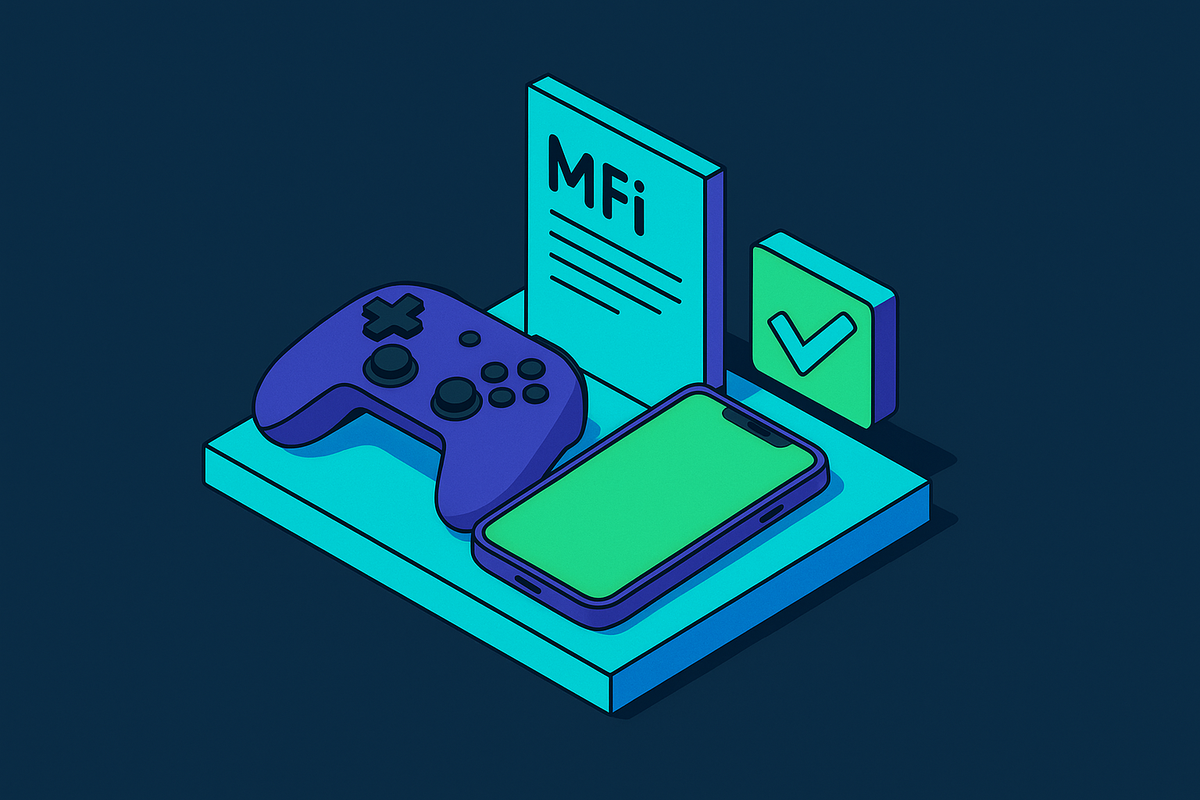
MFi, or Made for iPhone/iPad, is Apple's certification program for hardware accessories. For controllers, it is the gateway to the full remapping feature set available on iOS. Certification gives a controller access to Apple's Game Controller framework APIs, the official channel through which button remapping is implemented at the OS level. It also enables firmware updates through a companion app and, crucially, compatibility that tends to survive iOS updates because the controller communicates through Apple's official stack rather than through workarounds that quietly erode over time. Non-MFi controllers handle basic gameplay but cannot access the remapping APIs and are more susceptible to breaking when iOS updates arrive.
iOS 13 or later is the baseline requirement, which covers every currently supported iPhone. One hardware footnote worth catching before purchase: wired USB-C MFi controllers require iPhone 15 or later. Older devices need either a Lightning-compatible controller or an adapter.
Where do you actually configure the remapping? Three locations. The Settings app under Accessibility, via AssistiveTouch or Switch Control, handles OS-level reassignment. A controller's companion app manages profiles stored on the hardware itself. Individual games expose their own remapping within their own settings menus. Each location addresses a different scope of the same problem, and knowing which one to open first saves a lot of confused troubleshooting.
Apple Arcade deserves a direct mention. Every title in the catalog released since early 2020 includes official controller support, and the experience is coherent across the board. It is the most consistently functional controller gaming environment available on iOS, and that consistency is a product of Apple's certification requirements, not coincidence.
iOS 18 improved controller support meaningfully, but full native remapping depth and low-latency optimizations are areas where Android currently leads. iOS trades some configurability ceiling for consistency. Whether that trade is worth it depends entirely on how much time you want to spend in menus.
How Android handles button remapping through open APIs and third-party tools
Android operates on open HID (Human Interface Device) standards. Any Bluetooth gamepad can connect without certification. That openness is useful; it is also why behavior varies considerably across devices, manufacturers, and games.
As of April 2025, over 400 titles on Google Play offered verified native gamepad support, including Call of Duty: Mobile, Genshin Impact, Dead Cells, and Stardew Valley. That sounds substantial until you run into the gap between "controller-compatible" as labeled and "controller-compatible" as experienced. In testing across a range of Android devices, roughly four in ten games listed as compatible required additional configuration to work properly. That gap is exactly why a robust third-party ecosystem has developed around the problem.
Three tools worth knowing. Panda Gamepad Pro, a paid application requiring Developer Mode to be enabled first, adds virtual overlays and full remapping for games with no native controller support. Gamepad Space customizes Bluetooth controller button mapping, dead zones, joystick behavior, and motor properties through a private protocol connection. reWASD handles controller mapping on a connected PC and passes configurations to Android over a shared network, offering more power at the cost of requiring a computer in the loop.
Enabling Developer Mode requires tapping the Build Number field seven times in About Phone, which is either charmingly eccentric or mildly infuriating depending on your disposition. It unlocks Developer Options, opens additional configuration access, and is a prerequisite for tools like Panda Gamepad Pro. One-time setup, but worth knowing about before you wonder why a tool is not working.
One hard warning: PUBG Mobile dropped native controller support in June 2023. Using third-party overlay applications to compensate violates the game's Terms of Service, and account bans have followed. That risk is real and worth taking seriously before investing setup time in a workaround.
Android's emulator ecosystem is also a genuine competitive advantage. The platform has supported retro emulators far longer and more broadly than iOS. Apple opened the App Store to emulators in April 2024, which matters, but Android has years of infrastructure and community tooling built around it that do not appear overnight.
Where iOS and Android actually differ for controller users
This is not a verdict. Both platforms work well for controller gaming. The meaningful differences are in workflow, not ultimate capability.
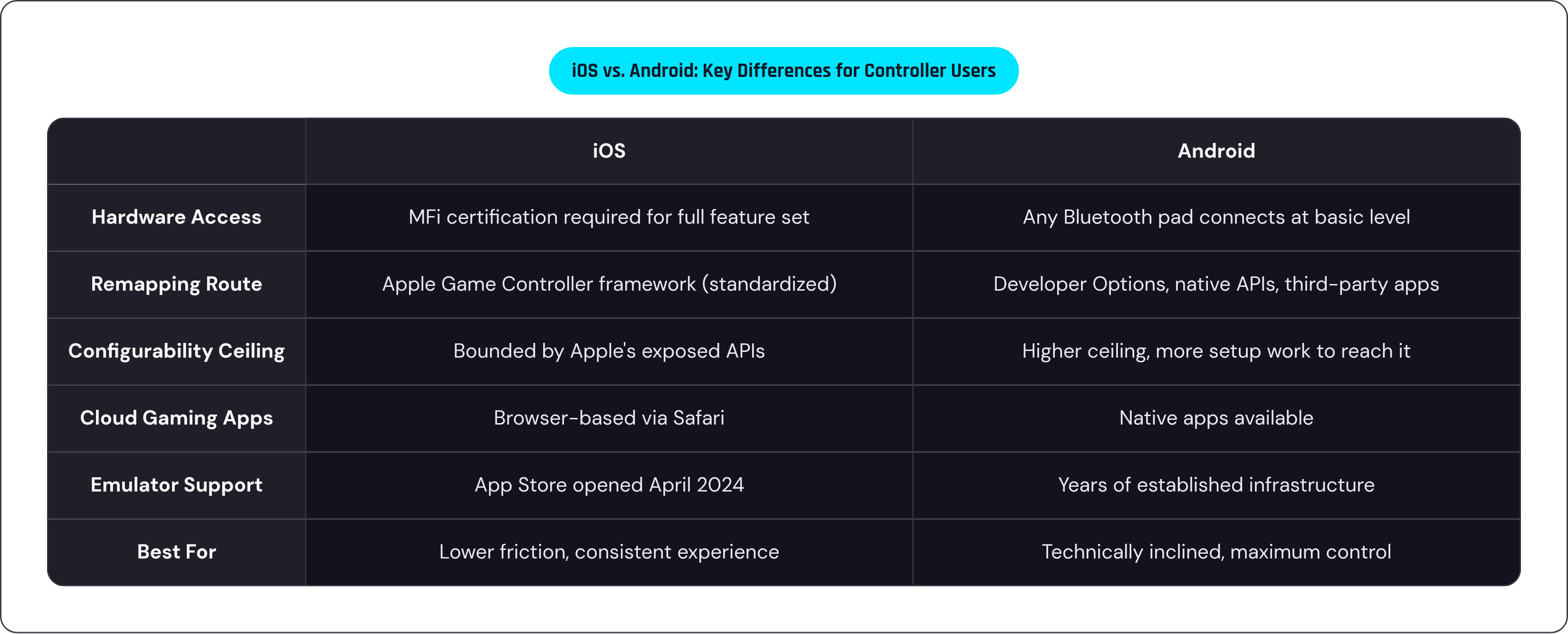
The certification-versus-openness trade-off shapes everything downstream. iOS's MFi requirement narrows compatible hardware but produces more consistent behavior across those devices. Android accepts any Bluetooth pad at a basic level, but "basic level" varies enough by device and game that the openness creates its own friction for players who expect uniformity.
Remapping access follows the same pattern. iOS routes remapping through Apple's Game Controller framework: standardized, reasonably clean, bounded by what Apple has chosen to expose through those APIs. Android offers more routes, including Developer Options, native APIs, and third-party applications, producing a higher configurability ceiling at the cost of more setup work to reach it.
Cloud gaming surfaces a specific, practical difference. On iOS, Xbox Cloud Gaming and GeForce NOW run through Safari rather than native apps, because Apple's App Store policies have restricted cloud gaming applications. Adding the service to the Home Screen from Safari produces a near-app experience, and controller input works, but the browser wrapper adds a step. On Android, native apps are available for both services.
Exclusive libraries diverge as well. Apple Arcade carries over two hundred titles, all with controller optimization built in. Google Play Pass has a smaller catalog with less controller-specific focus. For emulator users, iOS now has Delta, Gamma, and Provenance in the App Store, and MFi controllers like the Backbone One work immediately with them. Android simply has more of everything in this category, accumulated over more years.
iOS is the lower-friction path for players using a certified controller and staying within the Apple ecosystem. Android gives technically inclined players more control but requires meaningful setup investment to realize it.
Building a practical button mapping setup for the games you actually play
Map to how your hands already expect to work. Not to whatever the game defaults to. This is the principle most players ignore, and it is the reason most default setups feel slightly wrong even when nothing is technically broken.
Shooters are the clearest case study. A well-configured shooter layout puts the right trigger on primary fire, the left trigger on aim-down-sights, the left stick on movement, and the right stick on camera. Face buttons handle jump and crouch or slide. Shoulder buttons or the D-pad cover scope cycling and weapon switching. None of this is novel; it mirrors what console shooters standardized years ago. The point is to replicate existing muscle memory, not invent new habits under competitive pressure.
Dead zone tuning deserves deliberate attention. Lower dead zones reward precise micro-adjustments and suit players with steady hands targeting small movements. Higher dead zones filter out noise and help players whose sticks drift slightly. The only way to find the right setting is deliberate testing, not accepting defaults. Spend ten minutes in a practice mode adjusting incrementally. That investment pays back across every session afterward.
Trigger sensitivity follows similar logic. Lighter activation suits games demanding fast reaction inputs. Heavier activation is appropriate when accidental inputs carry real consequences, in racing games where half-press braking matters, or puzzle games where an errant trigger ruins a careful sequence.
Macros reward genre-specific thinking. In construction-heavy games, assigning a build sequence to a single button press eliminates multi-input chains that cost frames under pressure. In fighting games, a macro covering a precise input sequence can compensate for the reduced precision of a mobile controller versus a purpose-built fight stick. The key is identifying where speed is actually the margin in the games you play, then eliminating the extra inputs.
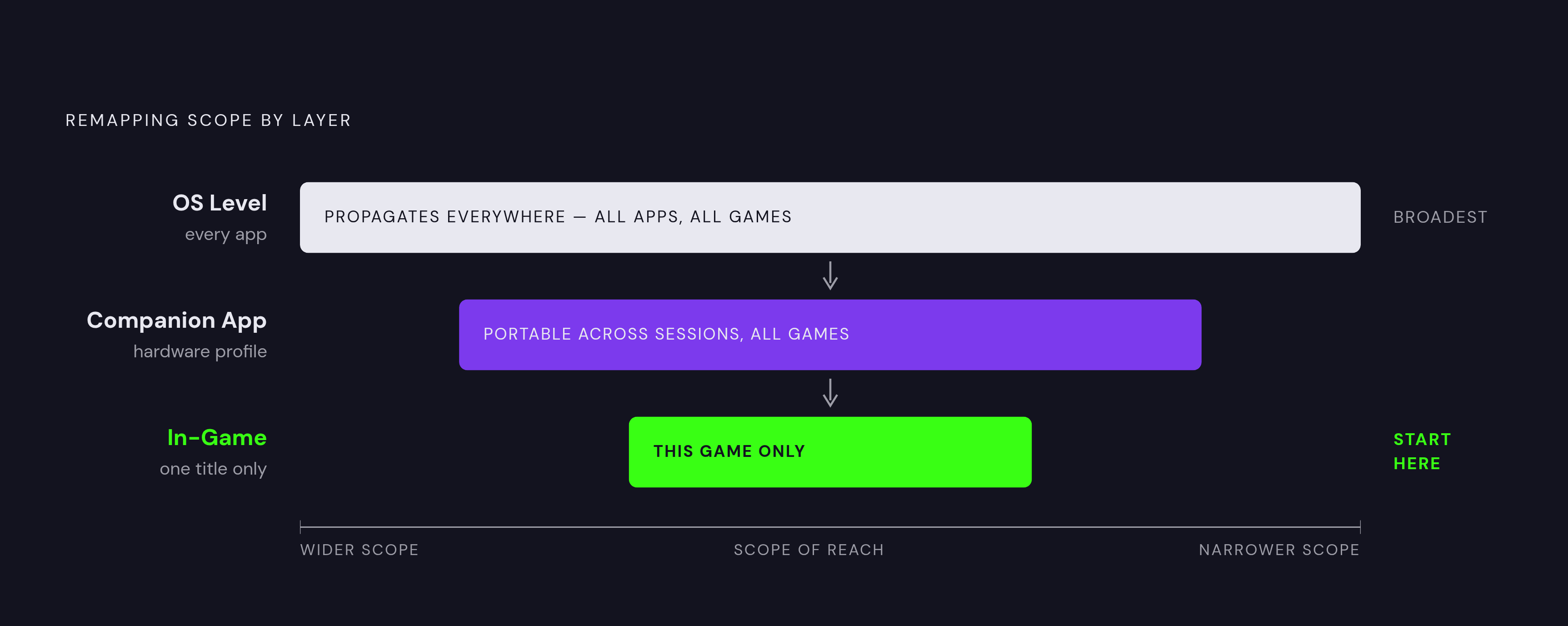
Layer the approach: set a base profile at the controller or companion app level, override specific buttons inside games that support in-game remapping, and use OS-level remapping only when neither option covers the gap. This hierarchy keeps the setup coherent. Multiple layers fighting each other is its own kind of problem, and it happens more than you would expect.
Test mapping changes in a low-stakes environment before taking them into competitive or ranked play. A new layout either feels natural after a few minutes or clearly wrong. Find out which before it costs a match.
How controller hardware design affects what mapping can actually do
Mapping a precise action to an imprecise button does not fix the underlying problem. Hardware quality is the floor on which software customization builds, and that floor matters more than any individual mapping choice.
Hall Effect sensors are the most consequential difference between controllers at different price points. Traditional resistive sensors wear with use and eventually produce stick drift: the phenomenon where a stick registers movement the player did not input. Drift makes dead zone calibration an ongoing exercise in managing a deteriorating baseline rather than a stable configuration. Hall Effect sensors use magnetic fields rather than physical contact, substantially reducing drift as a failure mode. If you are going to invest in configuring a precise setup, invest first in hardware that can hold that precision over time.
Button actuation quality compounds the issue. A mushy button with long travel and soft return is not equivalent to a tactile mechanical switch for rapid or sequential inputs. A macro mapped to a mushy button performs less reliably than the same macro on a switch with clean actuation. Button feel is not a luxury preference; it is an input reliability characteristic, and treating it as optional is how you end up blaming your configuration for a hardware problem.
Ergonomics and mapping interact in ways that are easy to underestimate until they are not. A button that is physically awkward to reach during sustained play will not be used well regardless of what it is mapped to. Controller shape determines which mapping choices are realistic during actual gameplay, as opposed to theoretical configurations that collapse the moment your thumb has to travel for them.
For mobile specifically, form factor creates distinct categories of experience. Clip-on controllers attach to the phone directly, adding physical buttons without requiring the player to hold a separate device. The Backbone One is a representative example; its companion app supports profile storage, quick-switching between game-specific layouts, and firmware updates that can add remapping features after purchase. Wireless controllers allow more flexible hand positioning but introduce a pairing step and place the phone at a slight distance from the input device. Neither is objectively better. They solve different problems for different play contexts.
Controllers with robust companion app integration earn their premium through that software layer. Hardware that stores profiles on the device itself, rather than relying entirely on in-game or OS settings, makes the setup portable across sessions without reconfiguration.
Making button mapping work across cloud gaming and remote play services
Cloud gaming introduces a variable that local play does not have to contend with: the controller input travels to a remote server, the frame renders there, and the image returns to the device. That round-trip inserts latency between intention and feedback, and latency erodes the precision that careful button mapping is designed to provide. The practical target is under 40 milliseconds for round-trip latency. Above that threshold, even a well-configured layout begins to feel disconnected from what is happening on screen.
Service behavior varies in ways that matter for controller selection. Xbox Cloud Gaming is optimized for Xbox-layout controllers and XInput mapping, making an Xbox-layout pad the smoothest path. It runs through Safari on iOS and through a native app on Android. GeForce NOW works with virtually any Bluetooth gamepad; its library exceeds 2,000 games drawn from titles players already own on Steam, Epic, and other storefronts, and its server infrastructure now supports 4K at 120Hz in markets where that tier is available. PlayStation Remote Play is optimized for DualSense and DualShock layouts, though newer app versions support other Bluetooth controllers as generic pads on some devices. Steam Link, backed by Steam Input's broad compatibility layer, handles most controller layouts reliably.
One pairing sequence consistently avoids common failures: pair the controller at the OS Bluetooth level first, then launch the streaming application. Attempting to pair from within the app itself frequently produces incomplete button recognition or inconsistent input mapping. The OS-level pairing is the stable foundation; the app reads from it.
For iOS users accessing cloud gaming through Safari, the workflow is: open the service's website, sign in, add the page to the Home Screen, and launch from there. The shortcut runs full-screen, controller input carries through normally. It works. Calling it elegant would be generous.
Bandwidth sets a baseline below which configuration choices become irrelevant. GeForce NOW requires at least 15 Mbps for 720p at 60fps and 25 Mbps for 1080p at 60fps. Below those thresholds, network inconsistency introduces its own latency, and a well-mapped layout will still feel sluggish. Connection quality is as much a part of the cloud gaming setup as the controller configuration, and it is often the part players check last.
Remote play through Xbox, PlayStation's app, and Steam Link is free at the base tier, which makes it a reasonable first step for anyone building a mobile controller setup around games they already own.
The setup that actually gets used is the one built around how you play
The barrier to button mapping is not technical complexity. Most of the tools are not difficult to use once you know they exist. The problem is that most players do not know the options exist, and the ones who do face a configuration process scattered across three menus on two different operating systems with no obvious entry point. That is a discoverability problem masquerading as a capability problem.
The right sequence for building a first custom setup: identify the games you play most and their genre. Check whether those games support native controller remapping within their own settings menus; if they do, start there, because in-game remapping is the most targeted tool available. Use your controller's companion app to set a base profile for inputs those games do not expose. Fall back to OS-level remapping only when neither option covers the gap.
That hierarchy is not bureaucracy. It is the difference between a configuration that makes intuitive sense across sessions and one that creates conflicts because multiple layers are working against each other without your awareness.
But what if you are not a competitive player chasing input latency? The same logic applies at a lower stakes level. An RPG player who maps quick-access menu navigation to the D-pad and confirms with a single face button has meaningfully reduced cognitive friction during long sessions, even if nobody is watching their input latency. Map to how you already think, not to what the defaults assumed about you.
Mobile gaming is now the largest gaming platform in the world by revenue. The average player is a mid-thirties adult with console gaming history and legitimate expectations about control quality. And most of them are playing on default settings, quietly concluding that mobile gaming just feels worse than console gaming, when the actual problem is a configuration process that requires knowing where to look. The tools are there. They have been there for years. The gap between capability and realized experience is largely a matter of knowing where to start.