Why Some iOS Games Ignore Controllers
Three separate layers decide whether your controller works.
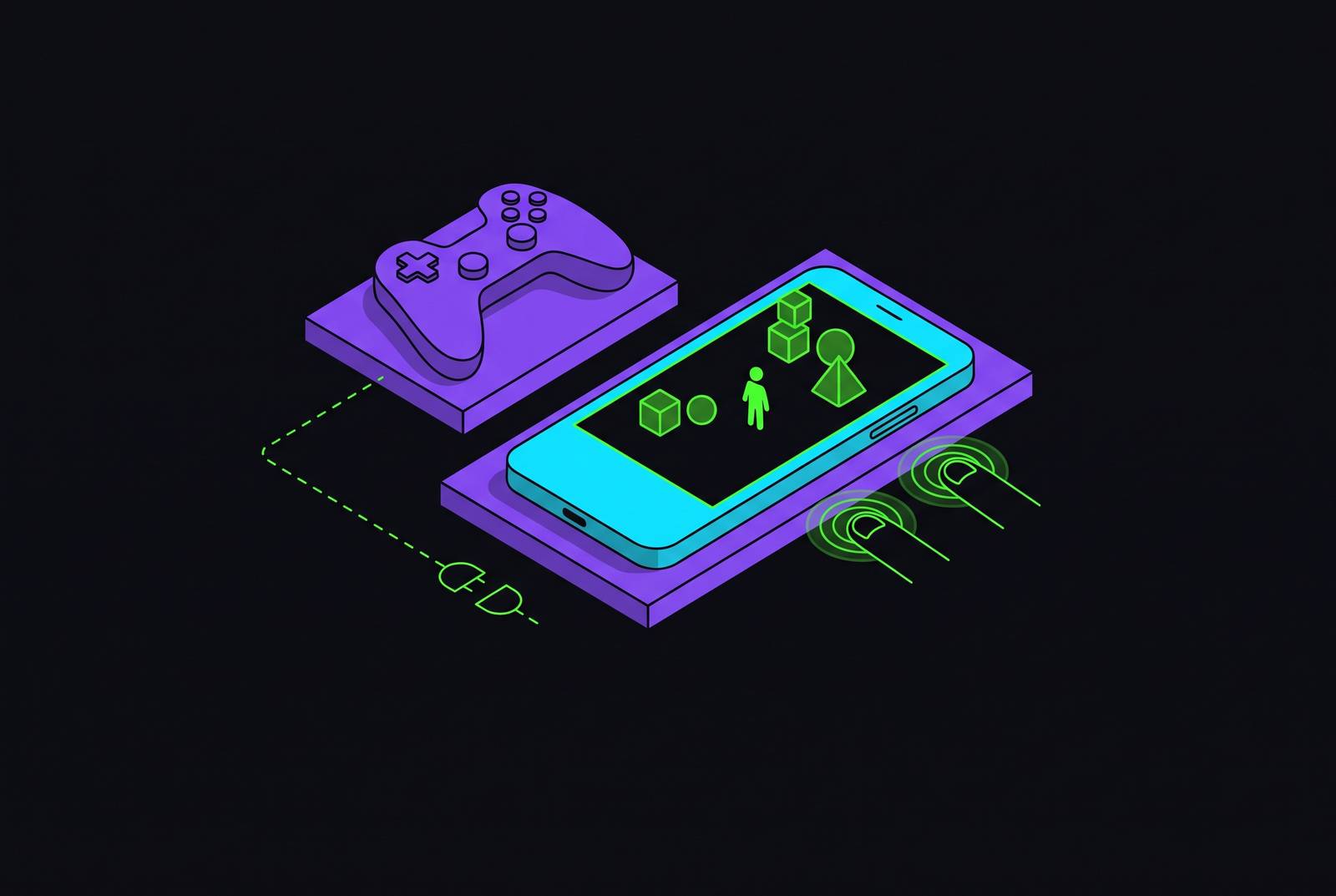
An iOS game that ignores a controller rarely proves the hardware is broken. Controller support depends on three independent layers lining up, namely the connection, iOS recognition, and the game’s own implementation.
Why a paired controller can still be ignored by an iOS game
The controller shows as connected, the game loads, and pressing a button does nothing. The touchscreen still works. It is reasonable to suspect a broken controller or an incompatible phone, because the device has apparently passed the only test visible to the player. Yet that connected status answers a narrower question than it seems to.
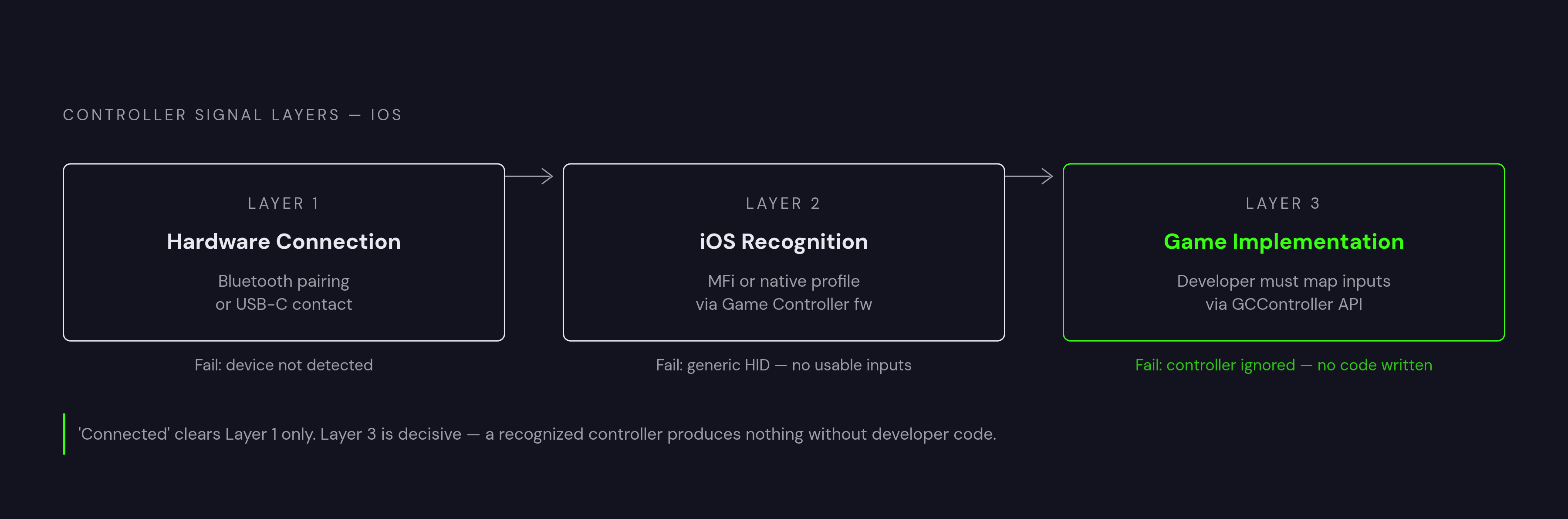
There are three separate checks between a button press and an action on screen. The hardware must connect, iOS must recognize its input profile, and the game must have code that handles controller input. Each can fail independently of the others.
What the hardware connection layer does and does not prove
A successful Bluetooth pairing confirms that the phone detects the controller as a device. It does not prove that iOS recognizes every button, stick, and trigger as a usable game input. Nor does it establish that the game has any instructions for those inputs. The distinction is small but consequential. A connection makes communication possible without deciding what either side will do with it.
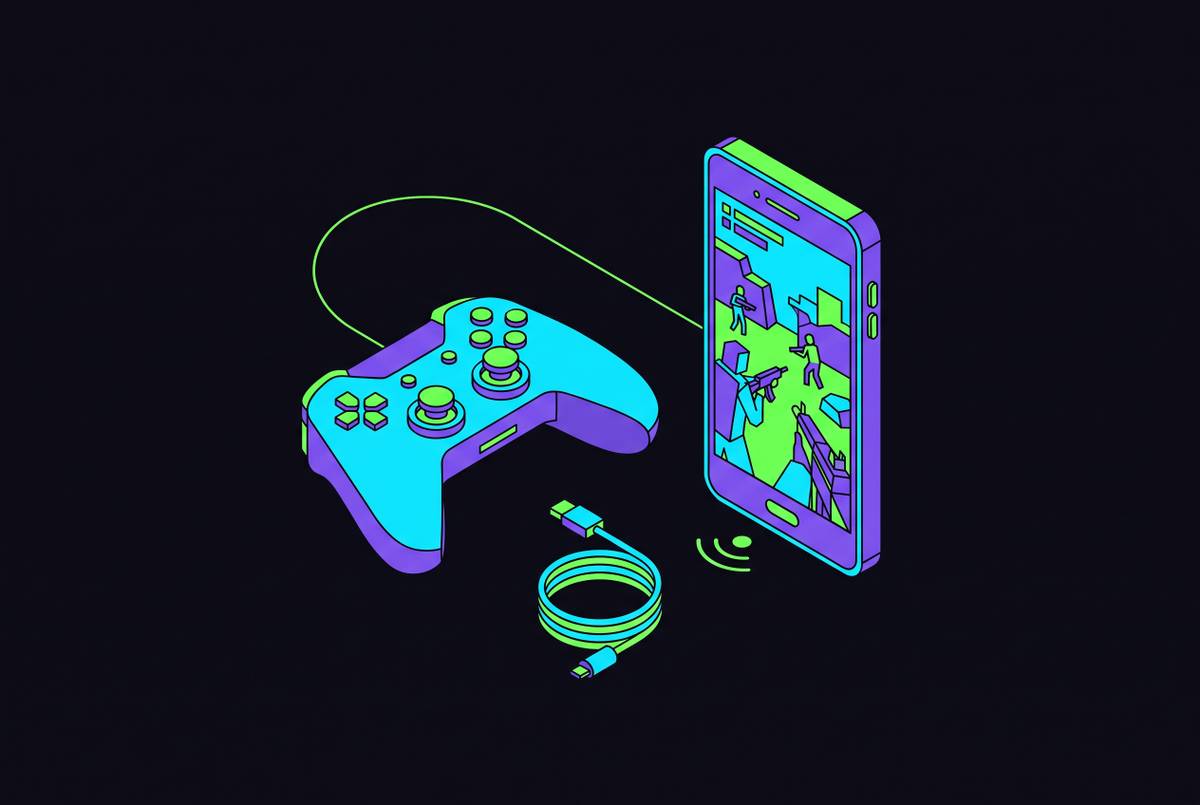
A direct USB-C link changes how that connection happens, but it does not supply missing game support. Removing Bluetooth pairing removes one possible obstacle while leaving other compatibility issues unresolved. Wired controllers also have a physical failure point. On a clip-on controller, connector depth, a thick phone case, or a large camera-bump lip can prevent the plug from reaching the port. An accessory can look properly attached while the contact needed for the first layer has not been made.
How iOS handles controller recognition at the OS level, and where it draws lines Android does not
Once the phone detects the device, the next question is whether iOS understands it as a controller. Android lets nearly any HID-compliant Bluetooth controller work at a basic level, but iOS has stricter rules. It needs either MFi certification or native support through Apple’s Game Controller framework before it can use the connected controller.
Apple introduced the framework in iOS 7 and significantly upgraded it in iOS 13 and iOS 14. Its role is to present a standardized input profile to games, so developers do not need separate accessory code for every supported pad. That profile is the bridge between device and game. Without it, a controller can appear in Bluetooth settings yet expose no usable inputs to the software waiting on the other side.
Apple added native support for DualShock 4 and Bluetooth-capable Xbox One controllers in iOS 13, then for the Xbox Series X|S controller and DualSense in iOS 14.5. DualSense Edge support arrived in iOS 16.4. These controllers do not carry an MFi badge. Its absence does not make them generic or unsupported, because Apple built their recognition directly into the OS.
An arbitrary Bluetooth gamepad presents a different case. It may pair as a generic HID device without offering a profile that iOS games can use, producing the silent failure that makes this layer so easy to overlook. There need not be an obvious pairing error. Recent iOS updates have also tightened MFi enforcement, with non-certified generic devices potentially failing system-level navigation during gameplay, including opening Settings or the App Switcher. These failures point to OS recognition, even if the game itself accepts controller input.
Why game-level implementation is the layer that determines whether a controller works at all
The game developer must explicitly integrate the Game Controller framework APIs, listen for controller inputs, and map those inputs to in-game actions. iOS cannot supply that implementation merely because it knows what a trigger is. Recognition provides a vocabulary, but the game must use it.
This is the decisive explanation for a supported controller going silent in a native game. App Store and Apple Arcade titles implement input individually, rather than inheriting universal controller operation from the phone. The App Store controller badge is therefore an important compatibility check. A game without native support will ignore the pad regardless of how cleanly the first two layers work.
Even the label “Controller Supported” needs interpretation. Support spans three levels, namely Full, Gameplay-only, and No native support. Full support covers menus and gameplay, while Gameplay-only leaves menus to the touchscreen. Rumble, motion input, back buttons, and platform-specific shortcuts may be unavailable even when ordinary play works.
That range explains why controller compatibility lists can disagree without describing the same experience. One may count successful gameplay, while another expects navigation without touching the screen. A further complication is whether support is enabled. Genshin Impact and Zenless Zone Zero require players to switch on controller mode in their mobile settings. In that case, apparent silence is not missing implementation but an implementation waiting behind a setting.
Why many developers choose not to build controller support in the first place
The framework is free, but implementing controller support takes engineering time, and studios may cut it under budget pressure. A game can be built for touch by choice even when its players own controllers that would work.
Competitive games face a second decision about input parity. Some leave out controller support to keep touchscreen players on equal terms, avoiding the need for separate matchmaking pools. PUBG Mobile’s tournament rules illustrate how strongly competitive policy can restrict peripherals. The PUBG Mobile Official Competition Rulebook V1.6.0 prohibits peripheral devices, including controllers, without approval from Tournament Officials, and prohibits emulator play on a PC or another non-handheld device.
Call of Duty: Mobile shows another approach. It supports controllers and matches pad players against pad players, but its support does not extend to menus or full button remapping. Fairness and controller support can therefore coexist, with limits. Fortnite also has controller pools for players who use controllers on console and mobile, while those who use them on PC stay in the PC matchmaking queue. The choice is not simply whether to recognize a button, but how that input fits the game’s competitive structure.
Giving one platform priority over another can lead to differences within the same game. Genshin Impact added Android controller support in version 5.5 on March 26, 2025, more than four years after iOS received it. The feature is off by default.
How cloud gaming and Remote Play sidestep the third layer entirely — and introduce their own constraints
A controller works in Xbox Cloud Gaming or console Remote Play, then does nothing in a native phone game. The destination of the input has changed. In the streamed session, the controller is operating a remote system already built around physical controls, rather than asking the native mobile release to interpret them.
The streaming client sends input to the remote system, where the game already has a console-style control scheme. That does not make compatibility universal. Each service has its own controller requirements, so success in one is not proof of support in another. Xbox maintains documentation for controllers tested with cloud gaming, while PlayStation specifies controller and OS requirements for PS Remote Play on mobile devices.
This route can make better use of controller hardware because button mapping, rumble, and trigger support already exist in the remote game engine. Their presence there is not a guarantee that every feature reaches every mobile setup. The service remains part of the chain. Cloud gaming can bring games including Halo Infinite and Forza Horizon 5 to mobile, but it needs a steady connection and adds streaming latency that local play does not have.
Diagnosing which layer is failing before assuming the controller or the game is broken
For a player facing an unresponsive game, the useful first move is to test the controller in a second game with confirmed controller support. If it works there, the phone and controller are communicating through a usable input path. Focus next on the original game. Replacing hardware is unlikely to explain why one title responds and another does not.
If the second game also fails, return to the connection. For a wired clip-on controller, check that the connector is fully seated and that the case or camera bump is not preventing contact. For Bluetooth hardware, check the controller’s input mode against its manual. Modes are not interchangeable labels.
Once the controller is connected, check whether the OS recognizes it. For Bluetooth controllers, check Settings > Bluetooth to see whether iOS shows a battery level, which is a sign of MFi or native recognition beyond generic HID pairing alone. A device name by itself is weaker evidence. If a generic, non-MFi controller also fails at system-level navigation during gameplay, its input profile may still be at fault.
If the controller works in another game, check the first game’s App Store listing for the Controller Supported badge. Then search its settings under Controls, Input, Gamepad, or Controller for an option that needs enabling. If support is present but still unresponsive, close the game, reconnect the controller, and reopen it. Some titles detect controllers only during launch. Try updating the game too, because app updates can add or change controller support or break it for a time.
If gameplay works but menus do not, establish the advertised support tier before treating that difference as a defect. The developer’s support page or recent player reports can help distinguish Full support from Gameplay-only support. Match the details carefully. Reports should concern the same phone OS, game version, controller model, and connection mode, because an old post or a result from another platform may describe a different implementation.
Choosing a controller that clears all three layers reliably for iOS play
For a purchase decision, the practical question is whether a controller has a recognized input path and works across the iOS games actually intended for play. MFi-certified and natively supported controllers are the safest OS-level choices. These include the Xbox Series X|S controller, DualSense, and DualSense Edge. Their advantage is a profile iOS recognizes beyond their ability to appear in Bluetooth settings.
MFi certification improves predictability by standardizing the control profile a game targets and covering Apple-authorized wired interfaces. It does not guarantee every advanced feature. For an iPhone 15 or later, a supported wired USB-C clip-on controller can also remove Bluetooth pairing and Bluetooth stack latency from the setup. Physical fit still deserves attention, and the wired connection must be paired with supported OS recognition.
For cloud gaming and Remote Play, check the service’s compatibility documentation when choosing a controller because input goes through its client. For native games, check the App Store badge, the developer’s controller-compatibility information, and whether support is Full or Gameplay-only before committing. Check that the evidence is for the exact platform version that will be installed. A PC or console edition supporting controllers does not establish that the mobile release does. The best hardware can make the first two layers dependable, but it cannot write the third layer into a game.