How to Connect a Controller to Call of Duty Mobile
Master Bluetooth pairing and in-game settings to play Call of Duty Mobile with a gamepad.
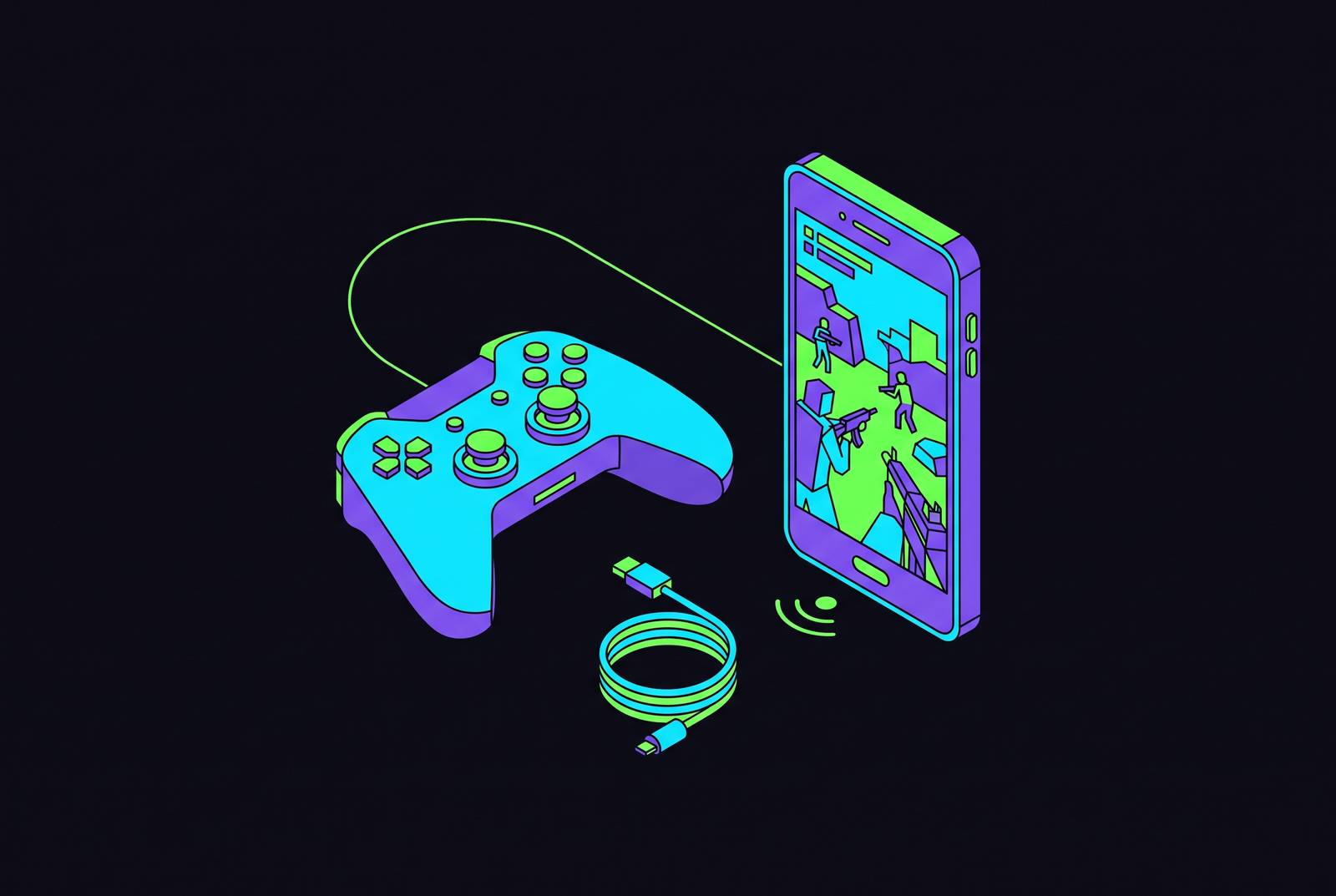
Connecting a controller to Call of Duty Mobile takes two kinds of setup, pairing the hardware with your phone and configuring it inside the game. The feature is officially supported, with Bluetooth pairing completing only the connection stage. The right pairing sequence, in-game settings and sensitivity tuning turn a connected gamepad into a useful one.
Why controller support in Call of Duty Mobile is a built-in feature, not a workaround
Activision built support for gamepads into Call of Duty Mobile on both Android and iOS. You do not need to side-load an app or install third-party mapping software to use supported hardware. When the game detects an active controller, it switches the on-screen control scheme to a controller layout and places you with other controller users. That separation keeps controller play from becoming an uninvited advantage against touchscreen players.
This support was a deliberate platform decision. Controller support was removed before the global launch and brought back about seven weeks later after the community pushed for its return.
What your phone and controller need before pairing begins
Before pairing, check the controller firmware, the game version and the order in which you connect. Update the controller firmware, since outdated firmware can cause compatibility problems. Get the latest CoD Mobile update too, because older versions have known controller bugs.
Then pair the controller with the phone before opening the game. Launching first and pairing afterward can cause detection failures on both Android and iOS. Your phone must also support the controller itself, so operating-system compatibility matters as much as the game’s support. A phone that accepts one gamepad does not automatically qualify for every other model.
Which controllers Call of Duty Mobile officially supports
CoD Mobile’s officially supported options are PlayStation and Xbox controllers. Third-party Bluetooth gamepads may work, but their compatibility is not guaranteed, and cheaper models commonly have input lag or unmapped buttons. The important distinction is between a phone recognising a controller and the game supporting it. Bluetooth pairing confirms that the phone recognises the controller.
Both generations of the PS4 DualShock 4 work with Android 10+ and iOS 13+. Xbox One and Xbox Series controllers are also options for the pairing process described below, as is the PS5 DualSense. The Nintendo Switch Pro Controller has native operating-system support on Android 10+ and iOS 16+, but that is separate from CoD Mobile’s official PlayStation and Xbox support. Before committing to third-party Bluetooth controllers, test whether they work with the game.
Bluetooth is not the only connection method. Android detects wired USB-C controllers without any extra setup, while MFi-certified controllers are recommended for iOS because they work reliably with it. Matching the hardware to the phone comes before choosing which shape feels best in your hands.
How to pair a PlayStation controller on Android and iOS
For a PS4 DualShock 4, put the controller into pairing mode before selecting it on your phone. On Android, open Settings, then Connected Devices, then Pair New Device. On iOS, open Settings and then Bluetooth. Select the controller name from the device list and wait for the light bar to turn solid. Once connected, launch CoD Mobile, which switches to the controller layout when it detects the gamepad.
For a PS5 DualSense, enable Bluetooth on the phone first. Hold the PlayStation button and Create button at the same time until the light bar flashes quickly. Select the controller from the phone’s Bluetooth device list. Open CoD Mobile only after the connection is established. The button combination is the key difference from the otherwise familiar process of selecting a nearby Bluetooth device.
If Bluetooth problems persist on Android, a USB OTG adapter with a cable provides a wired alternative. That fallback lets you use the same controller over a wired connection. Whether you connect wirelessly or by cable, the next stage remains the same. The game still needs its controller settings enabled and configured.
How to pair an Xbox controller on Android and iOS
For an Xbox One or Xbox Series controller, enable Bluetooth on your mobile device. Press and hold the Xbox button to power on the controller. Then press and hold the pairing button on top, near the USB port, until the Xbox button flashes rapidly. Select the controller name in the phone’s Bluetooth menu. The Xbox button stays lit once the connection is established.
Open CoD Mobile after pairing, rather than while the controller is still searching for a connection. The game should recognise the connected controller immediately. This is the same sequence used for PlayStation hardware, with a different route into pairing mode.
Xbox controllers sometimes disconnect at random on some Android devices. If that happens, forget the controller in Bluetooth settings and re-pair it from scratch. If disconnects persist, a USB OTG adapter provides a stable wired alternative.
How to enable and configure controller support inside CoD Mobile
Pairing gets the controller through the door, but the in-game settings give it a job. From the main menu, tap the Gear icon and open the Controller tab. Select Settings, then choose Enable Controller Support. Do this even if the game has already recognised the hardware and changed its on-screen layout. Recognition does not mean the controls are tuned for you.
To change button mappings, open Settings, then Controller, then Custom Layout. Activision’s controller help describes the Controller menu as the place to set or modify controls for each game mode. For customisation beyond the native options, the alternatives include a third-party controller or companion app, or an emulator. The emulator route changes matchmaking too, placing you with other emulator users only.
Controller sensitivity has its own settings, separate from those for touch controls. If you switch between the two, configure a profile for each. Keep the left-stick movement dead zone low, around 5–10%, to cut down on input lag. Set right-stick camera and aim sensitivity to suit how you play, with lower sensitivity for snipers and precision rifles and higher sensitivity for close-quarters combat and picking up targets quickly.
Try those values in practice mode or training grounds before playing ranked matches. Enable Aim Assist in settings and adjust its strength to complement controller inputs, sharpening target tracking without overriding manual aim corrections. This tuning is worth the time because pairing establishes communication, while sensitivity determines how useful that communication becomes. The aim is not merely to make the sticks respond, but to make their response suit the way you play.
Fixing the most common connection and in-game problems
If the controller keeps disconnecting after launch on Android, check the game’s permissions. Open Settings, Apps, Call of Duty Mobile and Permissions, then explicitly grant Bluetooth access, labelled “Nearby devices” on Android 12+. Android sometimes blocks that access when the app launches, so a pairing problem may actually be a permission problem.
If the phone recognises the controller but the game does not, close CoD Mobile fully. Confirm that the controller is paired at the operating-system level, then relaunch the game.
If a non-certified DualSense or Xbox controller is not registering on iOS, a saved MFi-certified controller may be taking priority. Remove the MFi controller from Bluetooth settings, then reconnect the controller you want to use.
If a DualSense refuses to pair, use a pin to press the reset button near the L2 trigger on the back of the controller. This clears stored pairing data. It addresses a different problem from the game failing to detect a controller that the phone has already accepted.
Stick drift comes from the hardware. Hall Effect joysticks use magnetic sensing instead of physical wipers to avoid the drift caused by wear that can lead players to replace a controller.
What changes about matchmaking and gameplay when you switch to a controller
Controller matchmaking uses a smaller player pool than touch matchmaking, so queues can be longer. That cost is most noticeable in higher ranked tiers and less-populated regions. You do not configure this separation or opt into it independently of your input method.
Party play makes the distinction especially important. Activision’s matchmaking FAQ states that a party containing a controller player is matched with other controller users. Your touch-control teammates therefore enter those lobbies too, which can put them at a disadvantage. Competitive squads often standardise on one input method to avoid that mismatch.
Other players have chosen the same precision advantage, so expect better centering, more accurate pre-aims and tighter movement than in touch lobbies. A controller changes the tools on both sides of the fight.
Those tools have their clearest edge in mid-to-long range engagements, Battle Royale final circles and weapons that benefit from analog tracking. LMGs, snipers and assault rifles fit that pattern when used at a distance, though fast touch players can still compete in close quarters. The downsides are longer waits and tougher opponents. For players who want consistent, precision-based competitive play, those costs can be worth accepting.
How a mobile gaming controller purpose-built for handheld play compares to a console controller paired over Bluetooth
A console controller paired over Bluetooth works well, but a purpose-built mobile controller meets different needs. Bluetooth introduces a small but measurable input delay. A wired USB-C connection removes that Bluetooth delay, which matters when reaction time is measured in milliseconds. This is an advantage of the connection method, with other parts of the game still subject to delay.
The physical arrangement matters too. With a console controller held behind a phone, the grips can interfere with the view. A clip-style or cradle controller that holds the phone between two grips keeps the full screen visible and your thumbs off the glass.
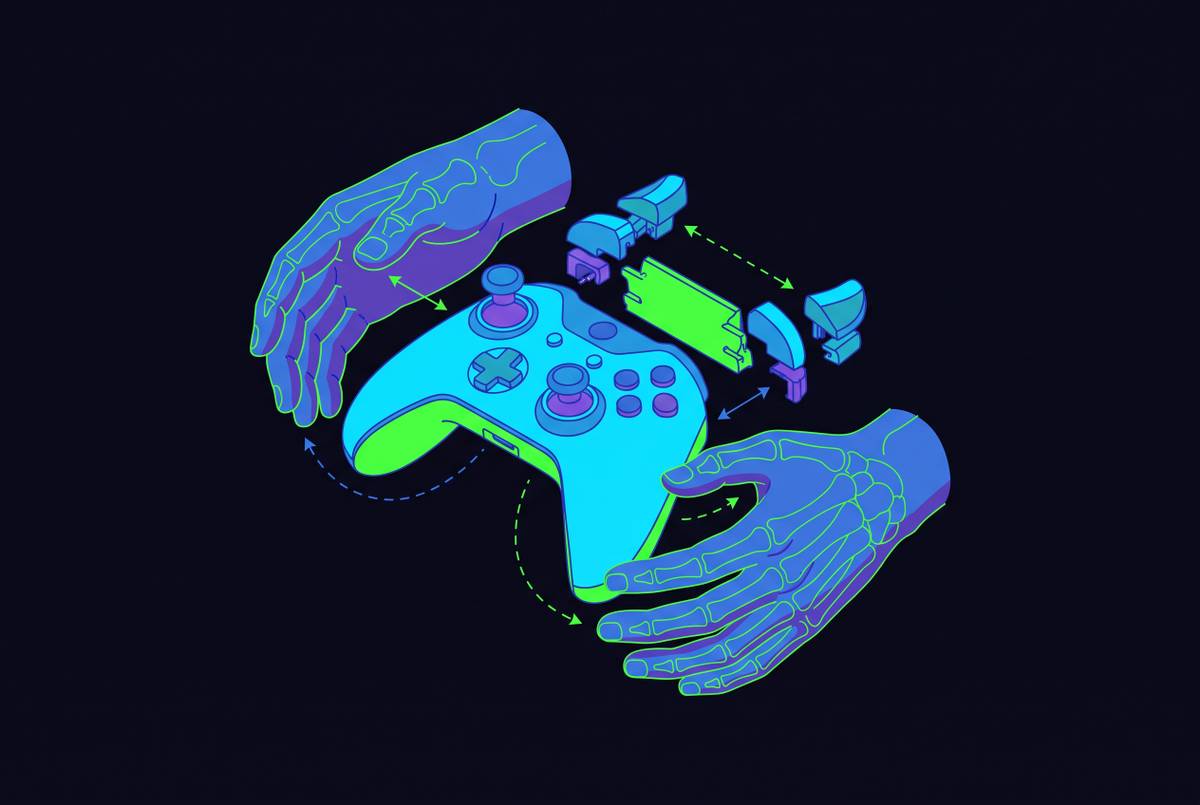
Some controllers built for mobile play also use Hall Effect joysticks. Their magnetic sensing avoids the wear on physical wipers that causes stick drift, which is a documented reason players replace console controllers within a year of heavy use. That feature belongs in a durability comparison, while compact size and low weight belong in a portability comparison. A dedicated mobile controller is designed for the same on-the-go sessions that make phone gaming useful.
The choice therefore depends on the friction you want to remove. An existing console gamepad offers a supported route into CoD Mobile without requiring a separate handheld design. A purpose-built mobile controller suits priorities such as wired input, screen visibility and portability. Those gains still have to be weighed against whether the controller works with the game, especially when third-party support varies.
Playing a full Call of Duty experience on mobile through cloud gaming
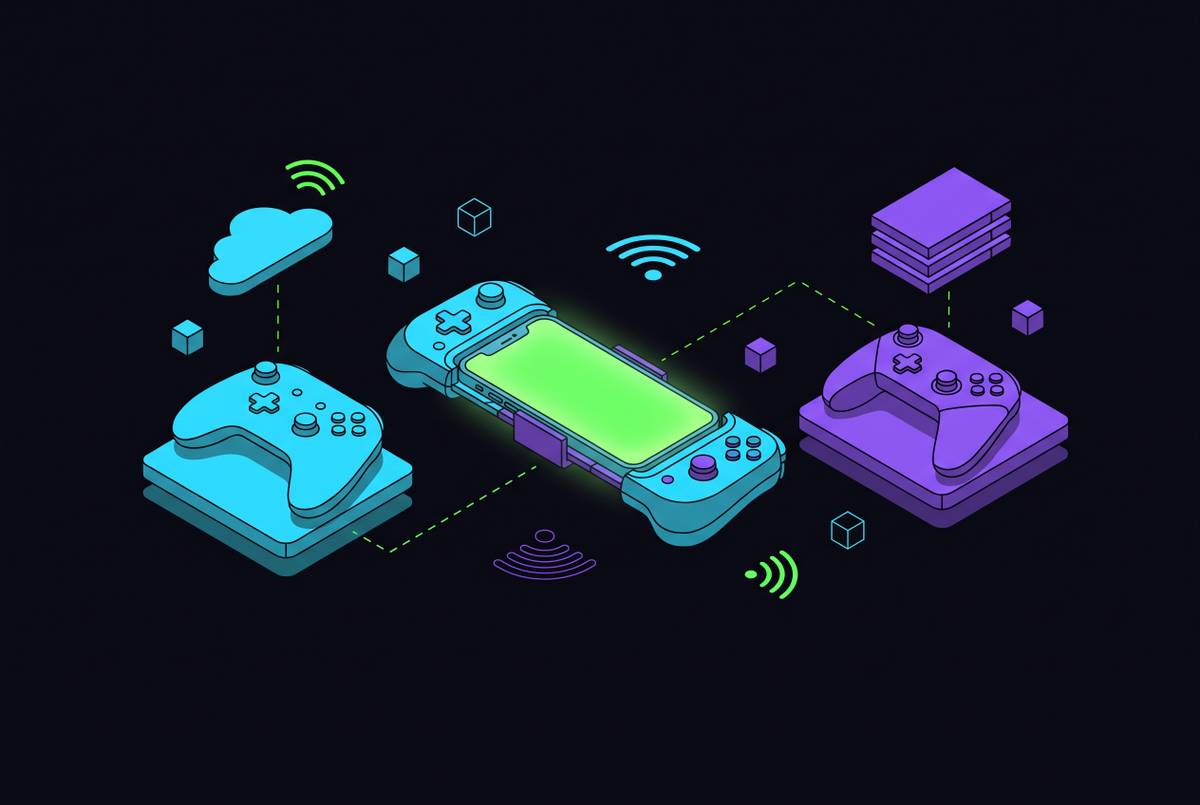
A phone with a controller can also play mainline Call of Duty through cloud gaming without a console. Call of Duty: Warzone 2.0 is playable on Xbox Cloud Gaming, GeForce Now and Boosteroid. Call of Duty: Black Ops 6 is available on those services too. This extends what the phone can play beyond CoD Mobile itself.
Cloud gaming does, however, add system latency. That makes it unsuitable for high-level competitive multiplayer and better suited to casual or story-driven play than ranked sessions where every millisecond matters. The controller already set up for CoD Mobile can double as the input for cloud gaming sessions.