Android Emulation Setup for PS2 and GameCube on Phone
Open-source emulators finally made PS2 and GameCube gaming viable on phones.
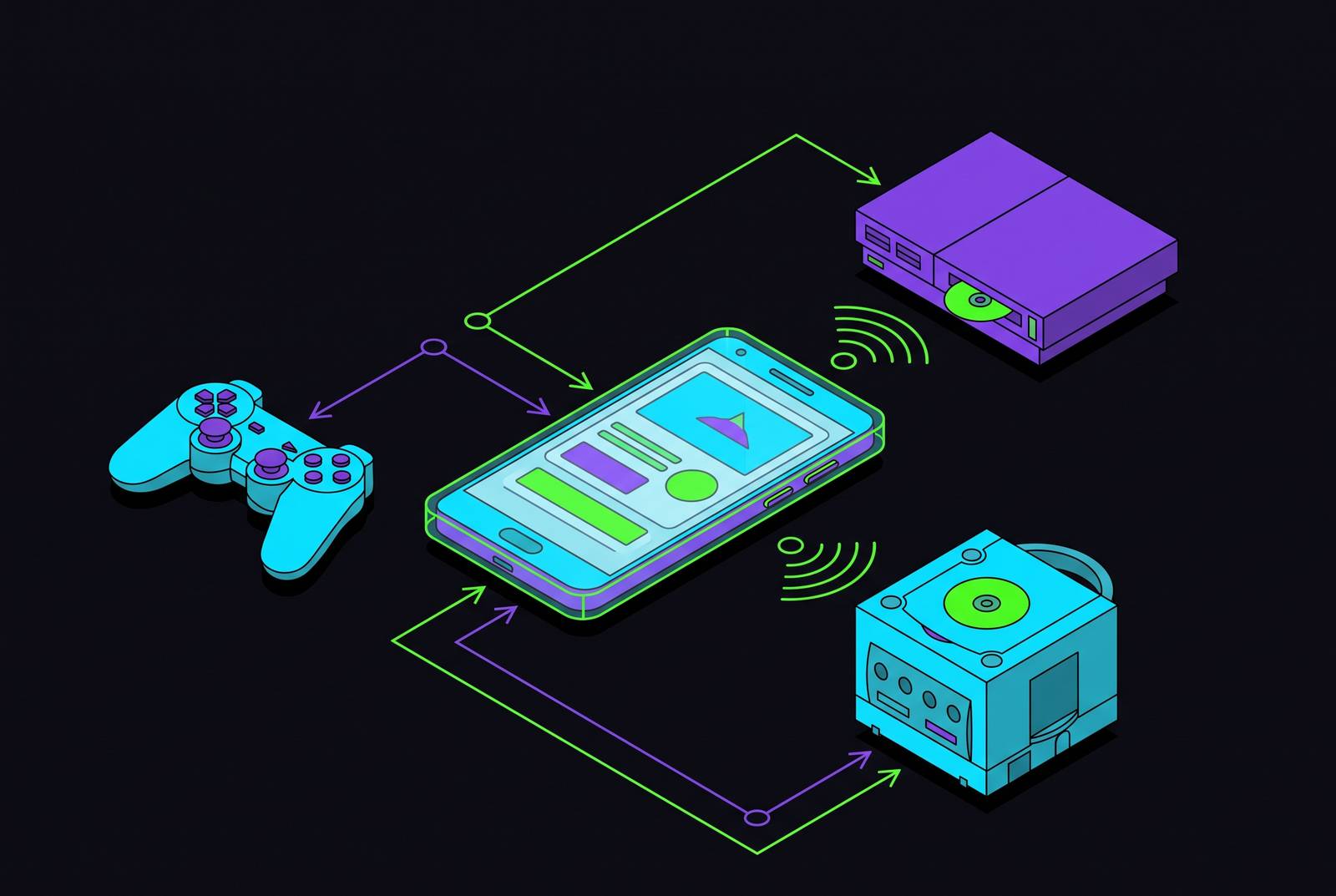
Running PS2 and GameCube games on a phone stopped being a novelty act and became something closer to a real hobby in 2026, and three things had to happen at once to get there. Mature open-source emulators reached a level of polish that no longer requires tinkering just to get a title to boot, chipset generations finally delivered the single-thread CPU performance both platforms are notoriously picky about, and the communities behind these projects kept working through circumstances that would have sunk a less stubborn crowd.
The PS2 side of that story has some real friction in it. AetherSX2 was discontinued in early 2023 and removed from the Google Play Store in March 2024 after its developer stepped away due to sustained harassment. Development did not die with it. A developer known as Trixarian picked up the codebase and kept it alive as NetherSX2 on GitHub, building on earlier work by Anon and EZOnTheEyes and shipping patches, bug fixes, database updates, and compatibility work on a rolling basis.
Dolphin, the GameCube and Wii emulator, had a comparatively smoother 2026. Its most recent stable build, version 2609, landed September 24, 2026, and the project has posted strong compatibility numbers across both the GameCube and Wii libraries. Add to that a cultural shift where major studios now treat mobile as a first-class platform, and emulating the PS2 and GameCube libraries becomes part of what makes a flagship phone a complete gaming device. The rest of this piece is the setup walkthrough: what your device needs, which controller to grab, and how to configure NetherSX2 and Dolphin from a blank install to a game actually running on screen.
What your Android device needs before you install anything
Before touching either emulator, it helps to know whether the phone in your pocket can even attempt this. Both platforms are unusually sensitive to single-thread CPU speed: a chip with fewer, faster cores will outperform one with more cores running slower, so chasing core count on a spec sheet is the wrong instinct here.
The baseline checklist looks like this:
- Android 7.0 or newer, though Android 9 or later is recommended for best driver compatibility
- An ARM64 processor
- At least 4 GB of RAM, with 8 GB the more comfortable target
- Vulkan or OpenGL ES 3.2 support on the GPU
- A flagship or near-flagship chipset, since both emulators lean hard on per-core speed
Budget hardware simply cannot fake its way through this. Devices built around chipsets like the Allwinner H700 lack the GPU horsepower for either platform, and Retro Game Corps has been blunt that these chips are not viable for Dolphin, full stop on that particular hope. iOS users get left out almost entirely, too. Apple blocks the just-in-time compilation Dolphin's recompiler depends on, and current iPhones do not have the raw power to handle PS2 emulation regardless.
A single PS2 ISO runs from a few hundred megabytes up to about 4.7 GB for a full single-layer DVD title, and a large collection benefits from a card in the 1 TB tier that storage has settled around in 2026. Retro Game Corps recommends reputable microSD brands, SanDisk or Samsung, for the fastest and most stable performance, with 1 TB options including the Samsung Evo Select, SanDisk Extreme, SanDisk Ultra, and Lexar Play.
One more item belongs on this checklist, and it is not optional: both platforms require a PS2 BIOS dumped from a console you personally own, since there is no legal substitute, and every game played needs to come from an ISO backed up off a disc you actually own. Dolphin requires no BIOS, since it uses high-level emulation, which makes GameCube setup faster.
Choosing a controller before the first game loads
Buy the controller before the emulator, not after. A physical controller is the single biggest quality upgrade available for PS2 and GameCube emulation on a phone, and settling on a form factor early means the button mapping only has to happen once instead of getting redone every time frustration sets in.
Touch overlays work fine for menu navigation or a quick five-minute session. They fall apart for anything longer, though, since they cover the game's own artwork with transparent buttons and offer zero physical feedback, which matters a great deal for the kinds of action games, racers, and platformers that make up so much of the PS2 and GameCube libraries.
That leaves two real hardware categories to pick between. Clip-on grips slide the phone directly into the controller body so the whole setup becomes one handheld unit, which tends to feel the most natural for long sessions. Standalone Bluetooth pads trade that unified feel for flexibility across multiple devices; the 8BitDo Ultimate 3 ships with drift-resistant TMR sticks, back buttons, Bluetooth connectivity for phones, and both 2.4 GHz and wired modes for other platforms.
Whichever category wins out, look for Hall-effect or TMR sticks specifically. They resist the stick drift that plagues cheaper analog sticks over time, and that durability question applies equally whether the controller in question clips onto the phone or sits apart from it. Skimping here is a bit like buying a nice pair of running shoes and lacing them with dental floss: the core idea is sound, the execution undercuts it.
NetherSX2 installation and first-launch configuration for PS2
NetherSX2 is the emulator to install for PS2 games, and for most people it is not a close call. AetherSX2's Play Store version was updated with ads before eventually being removed entirely, so anyone who wants a PS2 emulator that keeps getting patched without pushing advertising at them lands on NetherSX2.
Getting it installed takes an extra step that Play Store apps skip. Installation requires sideloading, since NetherSX2 is only available via GitHub and the project's official website, not the Google Play Store, creating a discoverability and trust barrier for non-technical users. Download from the project's GitHub page, then enable "Install from unknown sources" in Android's settings menu.
There is a fork decision to make right after that. Two maintained variants exist: the Classic build, Build 3668, based on an older AetherSX2 branch, tends to run more stably on lower-end phones and handles a handful of specific titles (NASCAR games among them) better than the newer branch. The Patch branch has climbed steadily, reaching v2.1 across eleven total releases by September 24, 2025, and a 2026 fork of it added Turnip-driver support with explicit detection for Snapdragon 8 Elite and 8 Gen 5 chips, treating both names as one driver target since they belong to the same chip family. For most people running a current flagship, Patch is the better starting point. Classic earns its keep on older hardware or when a specific game refuses to cooperate with Patch.
BIOS setup comes next, and there is no way around it. Dump a BIOS file from a PS2 console owned personally, using whatever current tool the project's own documentation recommends, since the specific method changes over time. Once dumped, drop that file into NetherSX2's BIOS directory inside the app.
Adding games from there is close to effortless. Pointing NetherSX2 at the folder holding the ISO files scans the directory and pulls in cover art automatically, turning a folder of cryptically named files into something that actually looks like a game library.
Renderer choice is the next decision, and it is a low-stakes one. Vulkan, OpenGL, or Automatic are all on the table, and Automatic generally picks whichever renderer suits the device best without requiring any guesswork. On supported Snapdragon chips, the Turnip driver fork mentioned earlier gives a real Vulkan performance boost and is worth switching on if the chipset qualifies. Start at native resolution before raising any enhancements: a clean, smooth native image beats a sharper one that chokes on a boss fight. For phones at the lower end of the supported range, Retro Game Corps suggests PAL region ROMs because they cap at 50 Hz instead of the NTSC standard's 60 Hz, an easier target for weaker hardware to hit.
NetherSX2 also supports per-title overrides, so a troublesome game can get its own renderer or speedhack settings without touching the global configuration that works fine for everything else. Two extras round out the package. NetherSX2 supports PS2 online play through community-run private servers, connecting via DNS settings pointed at services like PS2 Online or PSRewired, a feature plenty of rival emulators skip entirely. It also integrates with RetroAchievements, letting players earn and track achievements in PS2 games in a way that echoes a modern console's trophy system.
How a given PS2 title actually runs depends on the device, the chipset, the GPU driver, the renderer chosen, thermals, and the game itself, so a five-minute test at a cold start is not a reliable verdict. Run anything demanding for a full session before deciding whether it is playable.
Dolphin installation and first-launch configuration for GameCube
Dolphin's development has stayed active, with the most recent stable release, Dolphin 2609, dated September 24, 2026, and the project has cleared strong compatibility percentages with both the GameCube and Wii libraries. Other builds circulate in community forums, but most are outdated, unofficial, or built around narrow performance hacks that introduce glitches, broken saves, weak compatibility, or outright security concerns.
Dolphin's installation contrasts with NetherSX2 immediately. Dolphin is available directly from the Google Play Store, searchable as "Dolphin Emulator" from the Dolphin Emulator project. It also needs no BIOS file whatsoever, since it relies on high-level emulation, so setup begins the moment the install finishes rather than after a console-dumping errand. The current stable build is version 2609, dated September 24, 2026.
Getting games into the library takes one small extra step most people forget the first time. GameCube ISO files typically arrive compressed in.7z or.rar format, so extract them first using an app like ZArchiver from the Play Store to get the.iso or.gcm file Dolphin expects. From there, tap the folder icon inside Dolphin and point it at the directory holding the extracted files, turning on subfolder searching if the library is organized into subdirectories rather than one flat folder. Cover art populates automatically once Dolphin recognizes the games, the same convenience NetherSX2 offers on the PS2 side.
Review a few general settings on that first launch: turning on cheats if desired, enabling automatic disc change for multi-disc titles, and switching on save states before diving into anything long.
Go through graphics settings deliberately rather than accepting every default, since they affect performance more than anything else in the setup. Set the backend to Vulkan on any device capable of running it, since that consistently delivers the best performance. Start at native 480p resolution and test a demanding scene before pushing to higher upscaling multiples. Dolphin can upscale considerably, but the performance cost rises right alongside the resolution, so confirm stability at native before chasing a sharper picture. Turn on Hybrid Ubershader mode, which fills in a generic ubershader whenever a specialized shader has not finished compiling, then swaps in the specialized version once it is ready in the background, delivering dramatically smoother first hours of play, an underreported quality-of-life improvement.
Controller setup mirrors the flexibility of the Play Store install. Dolphin detects both Bluetooth and USB-C controllers automatically, and mapping a physical controller's buttons to the GameCube layout happens inside the controller settings menu. For anyone sticking with touch controls at least some of the time, the on-screen overlay is fully editable after launching a game, so the default layout is not permanent.
A couple of features push Dolphin past a straightforward GameCube emulator. A February 2026 update added Triforce arcade support, bringing F-Zero AX and Mario Kart Arcade GP into the same build used for standard GameCube titles, no separate download required. Netplay for online multiplayer has been part of Dolphin for a long time, well before that arcade update arrived. RetroAchievements support, meanwhile, landed for GameCube games back in 2024 and extended to Wii titles in March 2026, and it just needs flipping on in settings to start tracking progress.
Performance tuning that applies to both emulators after the first launch
Getting a game to boot is the easy part. Keeping it running smoothly for an hour without the phone turning into a hand warmer separates a good setup from a frustrating one.
Neither NetherSX2 nor Dolphin has a software setting that overcomes this. A phone case that traps heat, a session played while charging, or simply an ambient hot room can all push a device toward that ceiling faster than expected. Testing any demanding game for a longer session, not just a few minutes, is the only reliable way to know whether performance actually holds.
Resolution scaling is the next lever, and it applies almost identically across both emulators. Native resolution is the safe starting point on both platforms, and only after confirming stable performance there does it make sense to push upscaling higher. The temptation to jump straight to a sharper image is understandable, but a native-resolution game running at a steady, locked frame rate is a far better experience than an upscaled one that hitches every time the action gets busy.
Renderer choice deserves a second pass once a game is actually installed and running, rather than being set once and forgotten. Vulkan tends to be the stronger performer on both NetherSX2 and Dolphin when the chipset supports it properly, but "supports it properly" is doing real work in that sentence: driver quality varies enough between chip families that OpenGL occasionally wins on a specific device even when Vulkan wins on paper. Switching back and forth for a problem game costs nothing but a few minutes.
Background load matters more on a phone than it ever did on a PC or console, if only because phones run dozens of other apps competing for the same shared memory and thermal budget. Closing unused apps before a session, disabling any always-on overlay software, and keeping the screen brightness reasonable all shave a bit of heat and memory pressure off the total load. None of these changes feel dramatic individually. Stacked together, they help a game hold 60 Hz instead of dipping when something explodes on screen, and mature emulators and capable flagship chipsets make that steady performance achievable on both the PS2 and GameCube.
Sources
- Android Emulation Starter Guide – Retro Game Corps
- Play Gamecube Games on Android - Dolphin Emulator Setup Android 2026 - YouTube
- Dolphin (emulator)
- NetherSX2 vs AetherSX2: 60 FPS vs 0 Updates [2026]
- Best Android Emulators 2026: 4 of 7 Banned From Google Play
- NetherSX2 Android Guide 2026 – Download, Install & Best Setup - NetherSX2
- How to install and use Dolphin Emulator - Android Authority
- Dolphin Emulator Setup: GameCube & Wii [2026] - Tech Insider