Game Boy Advance Emulation on iPhone With Delta
Delta is now officially available on iPhone without jailbreak or sideloading.
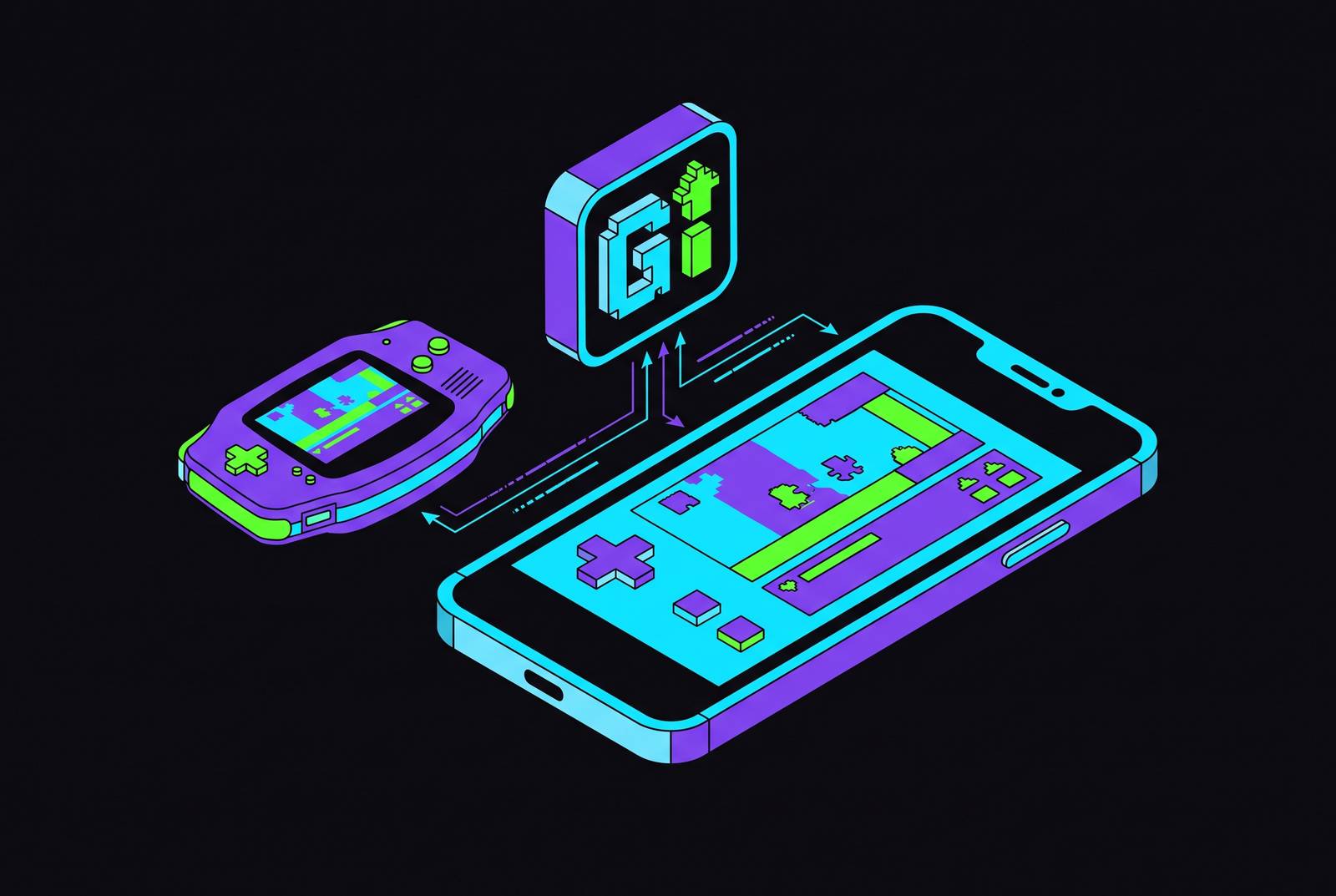
This guide shows you how to run Game Boy Advance games on an iPhone with Delta, the free emulator that made the whole enterprise legitimate. Riley Testut built the app's ancestor, GBA4iOS, in high school, then rebuilt the project from scratch as Delta and distributed it for years through AltStore, the sideloading tool that let iPhone owners install apps Apple hadn't approved. That changed on April 17, 2024, when Delta landed on the App Store itself, less than two weeks after Apple's revised App Store Guidelines §4.7 took effect on April 5, 2024 and explicitly permitted retro game emulators worldwide. Delta's App Store launch applies outside the EU, where regulatory rules took a different shape, so EU users are directed instead to AltStore PAL.
What matters for a reader holding an iPhone right now is simpler than the regulatory history behind it. Delta is free, needs no jailbreak, and runs on iOS 14 and later, so getting a GBA emulator onto a stock iPhone takes about as much effort as installing any other app from the store.
What the GBA Core Does Well
Delta covers more ground than just Game Boy Advance. The GitHub repository lists support for NES through the Nestopia core, SNES through Snes9x, N64 through mupen64plus, Game Boy and Game Boy Color through Gambatte, Game Boy Advance through visualboyadvance-m, Nintendo DS through melonDS, and Sega Genesis/Mega Drive through Genesis Plus GX, currently in beta. Each system rides on an emulator core with its own history and its own quirks, and not every one of them runs with equal ease on an iPhone.
That unevenness comes down to one technical constraint. iOS restricts JIT (just-in-time) compilation to apps with special entitlements or developer mode enabled, which is part of why emulating something as demanding as N64 on an iPhone can get complicated. The GBA core sidesteps the issue by running through AOT (ahead-of-time) compiled interpreter cores instead of JIT, since the Game Boy Advance hardware it emulates is modest enough that an AOT interpreter handles it without strain. GBA games run at full speed and full accuracy on current iPhones, free of the compromises that appear on systems with heavier processing demands. You come to Delta for GBA, so you aren't picking the emulator's hardest case to support; you're picking one of its easiest.
How to install Delta from the App Store
Getting Delta onto an iPhone is the first real step in this guide, and for most readers it's also the shortest. Open the App Store, search "Delta," and download the app listed under Riley Testut or Testut Tech. It costs nothing.
Readers in the EU, or anyone who prefers sideloading for other reasons, can use AltStore or AltStore PAL instead. You start that route by downloading AltServer for Mac or PC from altstore.io, connecting the iPhone by USB, installing AltStore on the device, then finding Delta under the Browse tab and tapping FREE. You need to refresh apps installed this way at least once every seven days, but AltStore will try that refresh automatically whenever the iPhone and the computer running AltServer share the same Wi-Fi network. The App Store version skips that maintenance step, which is one more reason it's the simpler path for anyone who qualifies for it.
Getting GBA ROM files onto your iPhone legally
Delta arrives empty. The app includes no games, and its design deliberately avoids pointing users toward any, which is part of why it passed App Store review in the first place: it doesn't host ROM files, link to them, or facilitate finding them anywhere in the interface.
The legally defensible path is dumping cartridges a player already owns, converting a physical copy of a GBA game into a.gba file. If you download ROMs for games you don't own, that's copyright infringement in most jurisdictions, and Delta's own legal standing doesn't transfer to the files you load into it. Once a.gba file exists, saving it to iCloud Drive or the Files app on the iPhone puts it somewhere Delta can reach directly. The rest of this guide assumes that file already exists on the device.
Importing GBA Games Into Delta
With a.gba file sitting in Files or iCloud Drive, getting it into Delta takes a short sequence of taps, and there are two ways to do it.
- From inside Delta: tap the + button, select Files, navigate to the folder holding the.gba file, select it, and tap Open. Delta installs the game to the library automatically.
- From the Files app: long-press the ROM file, tap Share, and choose Delta from the share sheet. The game appears in the library right away.
Either method gets you the same result, so you can just use whichever app is already open. Once a game is imported, Delta handles presentation on its own: the app pulls appropriate box art from a built-in artwork database and displays it automatically, though that art can be swapped out manually if a player wants something different. Games sort by system, and you move between them by swiping left or right in the library. If Delta can't read a ROM file that's clearly sitting on the device, go to Settings → Delta and toggle on Files and Folders access, then restart the app; that clears up the most common import snag.
Playing with touch controls and customizing the on-screen layout
Every system in Delta comes with a built-in controller skin matched to that system's original button layout, and GBA's is about as uncomplicated as these get: a D-pad, A, B, L, R, Start, and Select, arranged across the screen in roughly the places a player's thumbs expect them. N64's controller had a trident-shaped grip and more buttons than a touchscreen comfortably has room for, but GBA's seven inputs translate to glass without much loss.
Players who want something other than the default look can import skins built by the community or design their own to share. The in-game pause menu is where most of the functional work happens: save states, fast forward, rewind, cheat codes, and the Hold Button feature all live there, with Hold Button holding a chosen input down automatically for games that expect a button, like a run command, pressed constantly. 3D and Haptic Touch add a shortcut on top of all that, letting a player peek at a game, a save state, or a cheat code straight from the library without fully launching anything, the iPhone equivalent of checking a book's last page before committing to the whole plot.
Connecting a Physical Controller
Touch controls work, but they share one unavoidable trade-off: thumbs resting on the glass are thumbs covering part of the screen. A physical controller removes that problem entirely, and Delta supports a wide range of them, including MFi-certified controllers, PS4's DualShock 4, PS5's DualSense, Xbox One S and Xbox Series X controllers, and Bluetooth keyboards.
Pairing one is a matter of putting the controller into Bluetooth sync mode, opening Settings → Bluetooth on the iPhone, and connecting as usual. Delta recognizes the controller on its own and switches straight into full-screen play, with the on-screen overlay gone since there's nothing left for it to do. Button mappings can be set independently for each system and each controller, so a gamepad's layout for GBA doesn't have to match how the same buttons behave in NES or N64. Special actions, Quick Save, Quick Load, and Fast Forward among them, can be assigned to any button on the controller, turning a session into something closer to how these games would have played on a dedicated handheld, minus the AA batteries.
Save states, fast forward, rewind, and the features that make classic GBA games more playable
GBA games were designed as if players had unlimited time and unlimited patience. Some role-playing games spaced save points dozens of minutes apart; some platformers expected you to run perfect through long stages with no checkpoint in between. Delta's quality-of-life tools don't change the games themselves, but they do remove most of the friction that made those design choices exhausting back then and would make them exhausting now.
- Save states let a player save or load progress from any point in a game, not just at a designated save point, and Delta keeps automatic backups so a mistaken overwrite doesn't erase hours of progress.
- Quick Save and Quick Load, available with a physical controller, do the same job with a single button press, skipping the pause menu.
- Fast forward speeds through slow stretches, whether that's a long cutscene or a grinding session, and can be triggered from the pause menu or mapped to a controller button.
- Rewind undoes a mistake mid-game, which matters most in the moment right after a cheap hit or a missed jump, without forcing a full reload from a save state.
- Hold Button keeps a chosen input pressed automatically, useful in games like Mario Kart: Super Circuit, where holding the A button for extended stretches is standard technique.
- Cheat codes in Action Replay, Code Breaker, and GameShark formats can be added and toggled individually per game, for anyone who wants infinite rupees or similar conveniences their original cartridge never offered.
- Gyroscope support works with WarioWare: Twisted!, one of a small number of GBA cartridges built with its own tilt sensor, provided the ROM includes the gyro data correctly.
Delta Sync, iCloud backup, and keeping your GBA progress across devices
A long multi-hour run through a save-heavy adventure shouldn't live or die with a single phone, and Delta Sync exists to prevent that. Through Google Drive or Dropbox, Delta Sync keeps games, save files, save states, cheats, controller skins, and controller mappings consistent across an iPhone, an iPad, and a Mac, so switching devices mid-playthrough doesn't mean starting over.
iCloud Drive handles a separate but related job: it's the easiest way to get ROM files onto a device in the first place, keeping the game library itself consistent across devices even though the save data runs through Delta Sync rather than iCloud. Between the two, your progress and your library both survive a dead battery, a lost phone, or a mid-game upgrade to a new iPhone.
RetroAchievements and the Delta 2.0 Beta
Delta isn't a finished product sitting still. The first Delta 2.0 beta launched on October 1, 2025, and for GBA players specifically, it adds something closer to a second reason to replay games already finished a decade ago: RetroAchievements support. The community achievement platform originally arrived in Delta covering only NES, SNES, and N64; the 2.0 beta extends it to GBC, GBA, and DS, letting players unlock achievements, track progress, and climb leaderboards in games that never had any such system built in to begin with. So a familiar GBA cartridge suddenly comes with new goals attached, the kind of replay incentive the original hardware never offered.
The same beta brought a Liquid Glass UI redesign aligned with iOS 26, along with Sega Genesis support, a redesigned Settings menu with clearer navigation, a refreshed Cheats screen with customizable icons, and fixes for SNES audio crackling and occasional NES black-screen launches on startup. None of those fixes target GBA specifically, but they show you an app still under active development, not one coasting on its April 2024 launch. Patreon supporters can get the 2.0 beta now through AltStore PAL and TestFlight, so you won't find the fastest-moving version of Delta in the App Store yet. For a reader just getting a GBA library running for the first time, that's less a reason to wait than a reason to know what's coming next.