PSP and PS2 Emulation on Modern Android Phones With PPSSPP and AetherSX2
Two emulators let Android phones run entire PSP and PS2 libraries smoothly.
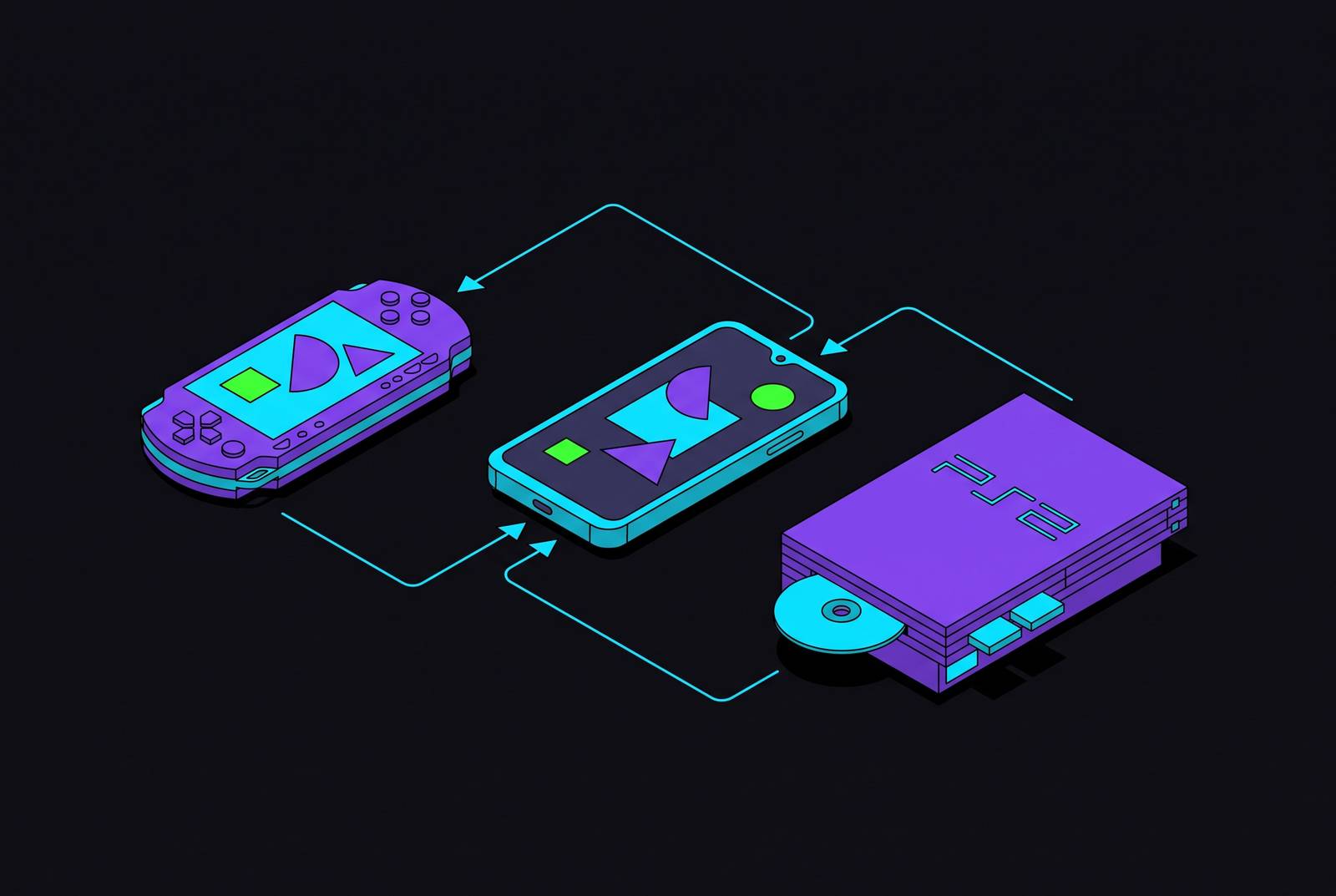
A modern flagship Android phone has enough processing power, RAM, and graphics capability to run the entire PSP library at full speed and to push through most of the PS2 library at speeds you can actually play on. The phone was never the problem. What stands between a player and a working setup is knowing which emulator to install, understanding what happened to the program that used to dominate PS2 emulation on Android, and then taking the time to match settings to the specific device in hand. PS2 emulation asks more of any system than PSP does, since it has to rebuild the PS2's Emotion Engine CPU, its graphics hardware, its timing behavior, and a long list of per-game quirks in software rather than silicon, so a fast chip alone doesn't guarantee a smooth game. That's a software and knowledge problem, not a hardware one, and the rest of this piece is spent closing that gap.
What happened to AetherSX2 and who filled the gap
The app that most Android owners think of first when they think of PS2 emulation is no longer officially available, and starting a new setup around it in 2026 is a mistake. The emulator was built and maintained by a single developer known as Tahlreth, who stopped work on it after facing sustained harassment: people impersonating him online, a stream of complaints and demands, and death threats. Development has not picked back up, and the app isn't distributed through any official channel anymore. Any copy floating around now comes from an unofficial mirror, and installing an APK from a source like that carries real risk to the security of the device it lands on. None of this means a player who already has the old app running and covering their library needs to tear it out. That's a reasonable situation to stay in. It's just not a foundation to build something new on.
The gap didn't stay empty for long. A developer named Trixarian picked up the codebase and built NetherSX2, a community-maintained fork that has kept moving forward while the original sat still. Development on it has continued steadily, and at the time of writing there are two distinct builds to choose between. For most people coming to PS2 emulation on Android fresh in 2026, NetherSX2 is the practical answer and the right place to start.
Other names come up when PS2 emulators on Android get discussed. ARMSX2 is newer and aims at better long-term emulation. Its early builds leaned on x86-to-ARM64 translation to get the job done, but newer Refresh builds now ship a native ARM64 recompiler, which is a meaningful architectural step forward. The project is still young, though, and its performance trails NetherSX2 for most users today. A few other names circle the edges of this conversation, among them RetroArch, PSX2, and EmuCoreX, each aimed at more specialized or niche needs rather than the general case. None of these are wrong choices for the right player. They're just not where most people should begin.
Installing NetherSX2
Get NetherSX2 from its official GitHub repositories, Trixarian/NetherSX2-patch and Trixarian/NetherSX2-classic, and nowhere else. Unofficial mirrors carry the same trust problems that made AetherSX2 APKs risky, and there's no reason to take that risk when the real source is public and free.
Installation itself is simple arithmetic: get the game files organized, and the emulator handles the rest. Disc images need a clearly labeled folder on device storage, and while compressed formats can save space, that only works cleanly if the emulator actually supports the format in question. Keep one untouched copy of each game archived somewhere safe, and store memory card data and save states separately from the game files themselves, so a mistake in one folder doesn't wipe out progress in another.
Performance on PS2 titles deserves an honest, methodical approach rather than a leap of faith. Start with games that ask less of the hardware: 2D titles, fighters, and a good chunk of the early 3D catalog run well and make a sensible entry point. Save the sprawling open-world games and the effects-heavy late-era PS2 releases for later, once there's a sense of what the phone can handle, since those are the titles most likely to produce audio crackle, dropped frames, graphical glitches, or slowdown from heat during a long session. A flagship phone doesn't guarantee a smooth ride through every one of these, and a budget phone isn't automatically locked out of the lighter end of the library either. The fairest test of any specific game on any specific phone is running it at native resolution first. Raising the internal resolution sharpens the picture, but it also adds GPU load, so it should come after native resolution has proven the pairing works, not before. Keep an eye on how the phone handles heat, too: if a session that started smooth starts stuttering twenty minutes in, the better move is to drop back to native resolution and let the device cool down rather than reach for aggressive speed hacks that paper over the symptom. Test with an actual slice of gameplay, like a combat encounter or a busy streaming area, rather than just the menus and intro cutscenes, which almost never reflect what the game demands once it gets going. And expect to tune per game. A single global preset is convenient, but the PS2 library was never built as one uniform target for emulation, and treating it that way is how good games end up abandoned over fixable problems.
Installing PPSSPP and loading PSP games on Android
PSP emulation on Android doesn't carry the same baggage. PPSSPP is open-source, under active development, sitting right on the Play Store, and capable of running close to the entire PSP catalog without the detective work the PS2 side requires. It's been around since November 2012, when Henrik Rydgård launched it, and the update pace since then has barely let up: a rebuilt sceAtrac (Atrac3+) audio implementation landed in 2025 and fixed a batch of long-standing music playback bugs, and the app reached the iOS App Store officially in 2024. It reads ISO files, CSO files, and the newer CHD format, which is lossless and compresses slightly better than CSO.
Getting it running takes a few minutes. Pull the free version from the Play Store, identifiable by its blue icon, and on first launch set up a dedicated folder, something like "PSP games," and give PPSSPP permission to access it. Build a second folder, "PSP saves," to hold save data and textures separately from the games themselves, following the same logic as keeping PS2 memory cards apart from disc images. PSP ROM files usually arrive as zipped archives, so extract each one to get at the actual ISO or CSO file before trying to load it, and delete the leftover zip afterward rather than letting duplicate copies pile up on storage.
Settings carried over from an old tutorial or a previous version of the app can cause crashes, black screens, or performance that makes no sense given the phone's specs, and a reset avoids chasing a problem that a stale setting created. That clean slate is also the right base to build from heading into the next section, where graphics settings get tuned on purpose instead of by accident. Beyond the core job of playing games, PPSSPP also supports RetroAchievements for players who want that layer on their PSP library, and it handles local ad-hoc multiplayer over Wi-Fi along with online play through built-in relay support that's been in place since version 1.20.
PPSSPP graphics settings that move the needle
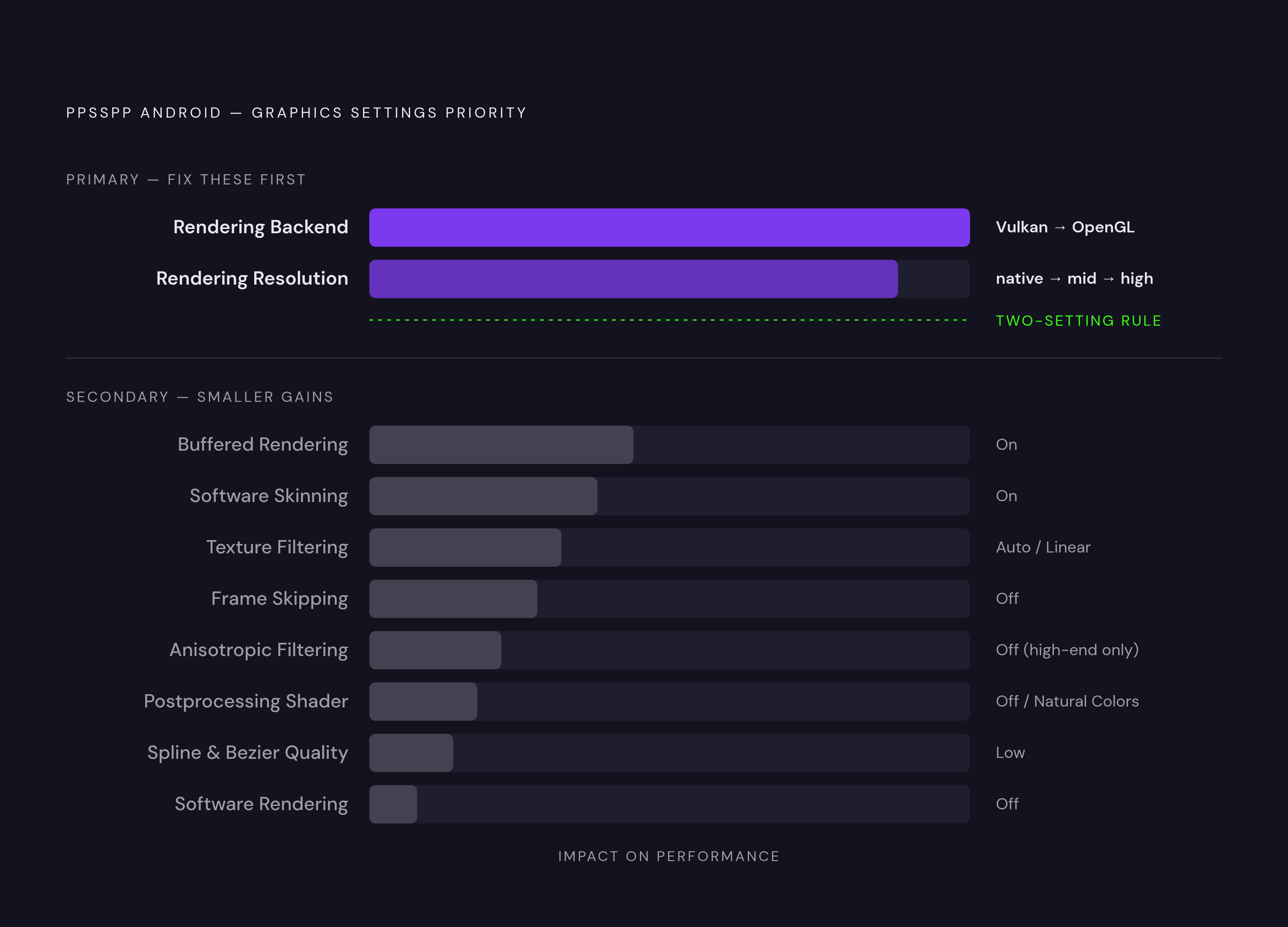
Two settings decide most of what a player will notice about PSP performance on Android.
The first is the rendering backend. Vulkan is the recommended choice on most supported devices, since it tends to run faster and puts less strain on the driver than OpenGL does on a lot of Android phones. OpenGL still matters, though, as the fallback option when Vulkan isn't available or starts causing trouble. The signs to watch for are specific: a black screen, textures that don't load, flickering graphics, the emulator crashing outright, colors that look wrong, or a game that simply refuses to launch on Vulkan. Switch to OpenGL when any of those show up. Some older Mali and PowerVR chips, along with a handful of budget GPUs, actually have more mature OpenGL drivers than Vulkan ones, so the only real way to know which is better on a given phone is to run the same two or three minutes of gameplay on each and keep whichever one stays smooth without visual errors.
The second is rendering resolution, and this is where a struggling phone usually finds its fix. Dropping to native PSP resolution solves lag in the large majority of cases on low-end or struggling hardware, and it's the first move worth making anytime a game runs poorly, before touching any other setting. Mid-range phones can usually push a bit further and land on a moderate internal resolution that balances sharpness against performance without strain. High-end phones have real room to climb, since PPSSPP supports a wide range of resolution multipliers above the default, though pushing that high on weak hardware just invites the same lag the native-resolution fix was meant to solve.
A handful of settings below those two are smaller levers, but each one has a real effect, and a player on a budget phone can stop after the first two above and already be in good shape. Buffered Rendering is the correct default for rendering mode, since it keeps graphics stable, and Skip Buffer Effects should only come into play on genuinely weak hardware that can't hold speed under Buffered Rendering, since it trades away certain visual effects for a speed bump. Frame Skipping should be set to Off, since the goal is a steady stream of frames rather than frames dropped to fake smoothness, though Auto Frameskip is a reasonable fallback on low-end hardware that can't hold full speed any other way, with the tradeoff being some visible choppiness. Software Skinning should be enabled, since it helps compatibility with older PSP titles that otherwise render incorrectly. Texture Filtering set to Auto or Linear strikes a fair balance between how the game looks and how fast it runs, without adding meaningful overhead. Anisotropic Filtering is worth leaving off unless the device is genuinely high-end. Postprocessing Shader should stay off for most phones, though Natural Colors is a reasonable pick on mid-to-high-end devices for a visual bump without a heavy GPU cost. Spline and Bezier Curves Quality, which governs curve rendering in certain games, should be set to Low, since pushing it higher adds real GPU cost for a subtle visual gain. Players on powerful phones who want sharper textures can turn to upscaling: xBRZ works well as the upscale type for most games, and a moderate upscale level tends to be the sweet spot between a cleaner image and a steady frame rate. Software Rendering should stay off in essentially every case, since it runs on the CPU instead of the GPU, caps out at native PSP resolution, and is dramatically slower, the kind of setting that only earns a test run when a game has serious visual bugs on both Vulkan and OpenGL and nothing else is left to try.
PPSSPP system and audio settings that affect speed and stability
Graphics settings get most of the attention, but a handful of settings outside that menu have just as much influence over whether a session runs clean. I/O on Thread should be turned on, since it lets the phone load files in the background instead of pausing to fetch them, and the still-experimental option for splitting work across multiple cores should be enabled on any phone with a multi-core processor so the emulator can actually divide its workload across cores instead of leaning on one. Lazy Texture Caching should be on as well, since it cuts down on redundant texture loads and gives a real speed boost with no visible downside. Disable Slower Effects is another one to leave on, since it stops the emulator from spending cycles on heavy visual effects that aren't worth their cost on most phones anyway. Force Real Clock Sync should be turned off, since tying emulation speed to the phone's wall clock can actually slow gameplay down on a lot of devices rather than helping it.
Audio needs far less fiddling. Confirm Enable Sound is actually on, set Audio Latency to Low to avoid the delay and echo that creep in when latency runs high, and otherwise leave the audio settings alone, since the defaults work fine for nearly every game in the PSP library. The 2025 rewrite of the Atrac3+ audio engine already cleared out a long list of music playback bugs that plagued older versions, so anyone running a recent build of PPSSPP is starting from a cleaner baseline than players had a couple of years ago, even if a small number of edge cases remain.
One habit applies to both emulators regardless of which settings menu a player is in: close background apps before starting a session. Freeing up RAM ahead of time costs nothing and removes one more variable from the list of reasons a game might stutter twenty minutes in.