Do MFi Controllers Work With Apple TV and Which Ones Pair Best
MFi badges don't decide Apple TV compatibility; Bluetooth and battery do.
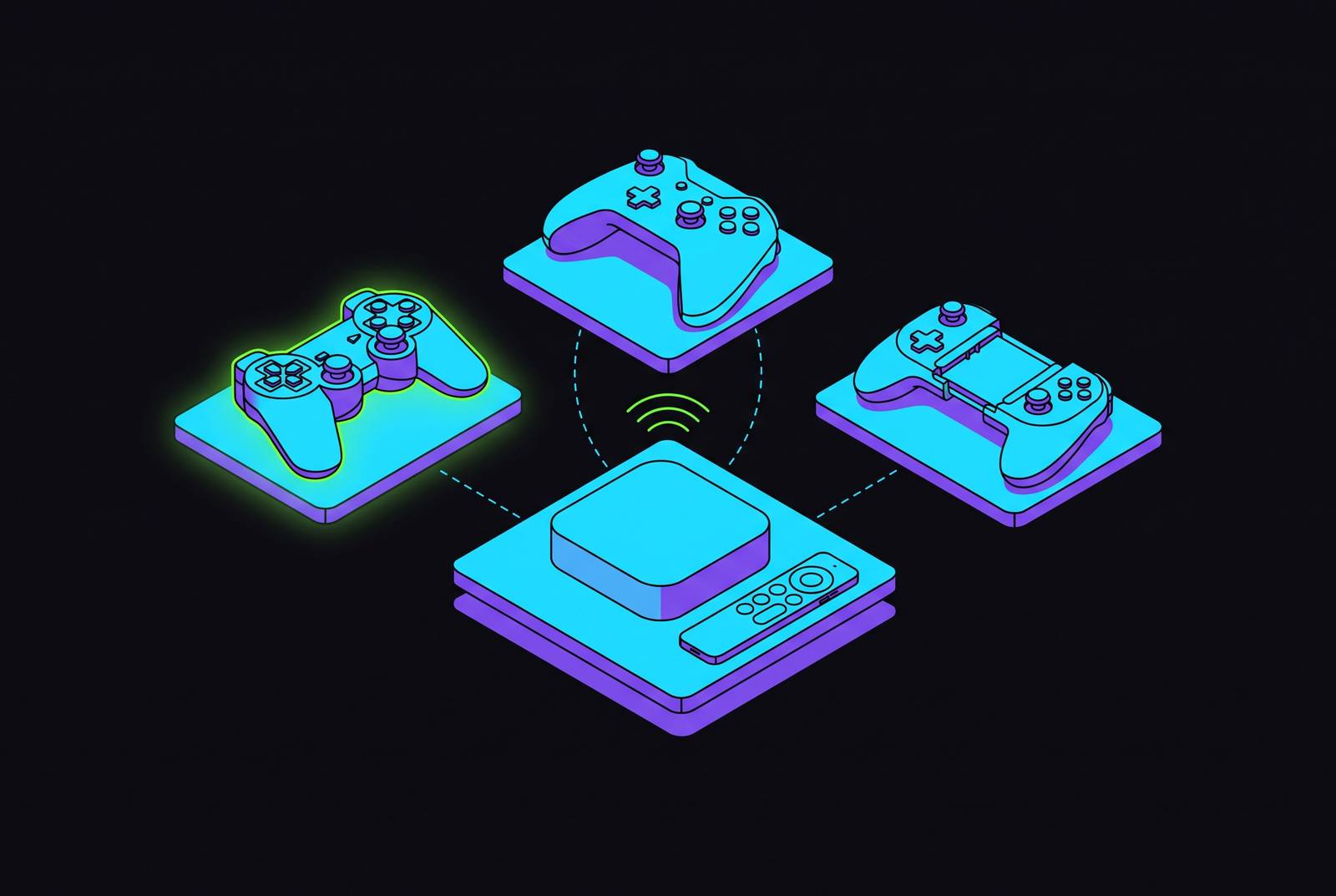
Some MFi controllers work with Apple TV, but the badge is not what makes them compatible. The controller needs its own power and support for Bluetooth wireless pairing. That makes the Xbox Wireless Controller the safest default, though the DualSense and compatible 8BitDo models can also work.
Why "MFi controller" is the wrong search term for Apple TV
A buyer searches “MFi controller Apple TV” and finds a wall of certified products. Which of them actually connects to the box beneath the television? The badge does not answer that question. MFi stands for “Made for iPhone/iPad/iPod,” a certification program tied to iOS devices and independent of Apple TV or tvOS compatibility. Yet guides and product listings often use the label as though a controller that works with one Apple device will work with another.
That is the false premise behind the search. MFi certification and Apple TV compatibility are independent properties, even when a product has both. A controller can be genuinely certified and still be physically incompatible with Apple TV.
The physical connection problem that rules out most MFi controllers on Apple TV
Many MFi controllers are built to plug directly into an iPhone’s port or draw power from the phone. They may have no battery of their own or wireless mode because the connection to the phone gives them what they need. A controller that requires that physical connection cannot function as a standalone wireless device, however thoroughly its iPhone compatibility has been established.
Apple TV has no port for a wired controller connection. That rules out controllers that need a Lightning or USB-C connection to a phone to work, including phone-mounted designs that rely on that connection. A connector cannot be persuaded by a certification badge. The disqualifying feature is the required wired connection, rather than the controller’s shape or its intended place in a mobile gaming setup.
There is an important exception within the MFi category. Some certified controllers include a built-in battery and full Bluetooth wireless capability, allowing them to pair with Apple TV through their Bluetooth HID implementation. For buyers, the first practical check is therefore whether a controller has its own battery and can pair over Bluetooth without being plugged into anything.
What Apple TV actually requires from a controller and which connections it supports
Apple TV pairs with controllers over Bluetooth through the standard HID profile. It requires no proprietary certification for that connection, and there is no wired fallback. Pairing takes place in Settings, then Remotes and Devices, then Bluetooth. With the controller in pairing mode, the user selects it from the available devices to complete the one-time setup.
Apple’s support guide says it supports Sony PlayStation DualShock 4, PlayStation DualSense, Microsoft Xbox Wireless Controller with Bluetooth, Xbox Elite Wireless Controller Series 2 and Xbox Adaptive Controller. It also lists MFi-compatible game controllers, which need to work wirelessly on their own to connect to Apple TV. These named devices provide a firmer starting point than a generic certification search. The distinction between “Xbox Wireless Controller” and the version “with Bluetooth” is part of that specification.
Once a supported controller is connected, tvOS has custom button profiles and per-app control customization. Apple also documents Buddy Controller mode, which lets two controllers act as one for a single player. A friend can assist with learning a game or getting through a difficult level without taking over the only controller. These features work after a controller connects, but each model still needs the right system version to pair in the first place.
How the Xbox Wireless Controller became the safest default for Apple TV
The Xbox Wireless Controller with Bluetooth earns its position through reliability and familiarity. It pairs with Apple TV through standard HID without an extra app or changes to its firmware settings. The same pairing steps apply across tvOS, iOS and macOS.
Its layout also reduces the adjustment for many console players. The asymmetrical thumbsticks and familiar trigger design fit players who have used Xbox or other consoles. The grip geometry and trigger travel are well suited to longer Apple TV gaming sessions.
A player can pair the same hardware with an iPhone for Xbox Cloud Gaming or remote play, saving the purchase of a separate mobile controller. “Safest default” therefore describes a dependable combination of pairing, familiar handling and reuse. Sony’s option makes that distinction especially clear.
What the PS5 DualSense gives up when it pairs with Apple TV
The PlayStation DualSense provides the core controls Apple TV needs. Its buttons, analog sticks and triggers register correctly over Bluetooth for navigation and gameplay. It needs tvOS 14.5 or newer to pair, so it will not work with an older system version. It may also appear as a DualShock 4 in Apple TV’s device list, a cosmetic identification quirk.
Ordinary Apple TV pairing does not bring the DualSense’s adaptive triggers and distinctive haptic features with it. Functional compatibility is not the same as feature parity. Compared with the Xbox controller’s dependable baseline, the DualSense presents a more conspicuous gap between what the hardware can do and what the connection ordinarily provides.
Does that make it a poor choice? Not for someone who already owns one for a PS5. It is still well built, and games on Apple TV remain playable without those special features. The buying lesson is narrower than a verdict against Sony. A buyer should not pay a premium expecting those features to work simply because the controller pairs, although app-specific support can change the result in remote play, as discussed below.
Where 8BitDo controllers fit and what their Apple compatibility requires
8BitDo’s Apple compatibility page documents support across iPhone, iPad, Apple TV, Mac and Vision Pro. Its listed models include Pro 3 Bluetooth Gamepad, Ultimate 2 Wireless, Ultimate MGX, Ultimate MG, Ultimate 3mode Xbox, Ultimate Wireless and Pro 2. The requirements are model-specific. Unlike a broad claim that a controller “works with Apple,” the page distinguishes the software versions needed for each group.
For Pro 3 and Ultimate 2 Wireless, the requirements are iOS 26, iPadOS 26, macOS 26, tvOS 26, and visionOS 26. Ultimate MGX and Ultimate MG require iOS 18.5, iPadOS 18.5, macOS 15.5, tvOS 18.5, and visionOS 2.4 or above. The model name alone is not the whole compatibility specification.
Ultimate 3mode Xbox requires iOS 18.2, iPadOS 18.2, tvOS 18.2, macOS 15.2, visionOS 2.2 or above. Ultimate Wireless and Pro 2 require iOS 16.3, iPadOS 16.3, tvOS 16.3, macOS 13.2, visionOS 1.1 or above. These model-specific requirements make the exact model and the Apple TV’s installed system version part of the same purchase decision.
There is also a pairing distinction from the Xbox and PlayStation options. These controllers must be placed in D-Input mode using the mode switch before Apple TV will recognize them. That step is not automatic. Once the relevant requirements are met, the cross-device appeal is clear, because the same controller can also pair with an iPhone. A player can therefore use one piece of hardware for television and mobile sessions, including uses that depend on more than the locally installed game.
How controller choice changes when Apple TV is used for cloud gaming and remote play
The app delivering the game also shapes the experience. For Xbox streaming, there is no official app on tvOS, so the route to play depends on a workaround. OneCast streams games from Xbox Cloud and local Xbox hardware to Apple TV, iPad and iPhone, with a 7-day trial followed by a one-time payment to buy it.
The controller has to pair with Apple TV itself even when the same hardware is compatible with both Apple TV and a phone used to initiate a stream, a distinction easily lost when a guide treats streaming as one continuous process.
The Xbox controller and DualSense can both provide full rumble in cloud and remote play sessions, but rumble does not establish support for every DualSense feature. The official Sony app route does not provide adaptive triggers or DualSense haptics through tvOS. Asobi, by contrast, advertises full DualSense haptics and adaptive triggers on Apple TV. That exception makes the app part of the feature decision, rather than allowing a blanket conclusion based on Bluetooth pairing alone.
Latency becomes more significant when a game is streamed over a network. For latency-sensitive play, a stable Bluetooth 5.0+ connection deserves more weight than it does for a locally running Apple Arcade title. It is one part of the streaming path. Meanwhile, the same standalone controller can pair with an iPhone for Xbox Cloud Gaming, GeForce Now or PS Remote Play on the go. The same controller can work on more than one screen, but each device still needs a connection and software that support it.
The one hardware trait worth checking before buying any of these controllers
Once the connection and software support are checked, how the sticks are built can help buyers choose a controller that will last. Traditional potentiometer-based analog sticks degrade mechanically with use, producing the stick drift that can retire an otherwise usable controller. The fault begins in the sensing mechanism. For players who put in regular sessions, that wear can become a more lasting inconvenience than the initial pairing procedure.
Hall Effect joysticks use magnetic sensing. They eliminate that wear mechanism and can significantly extend functional life compared with potentiometer designs. This is a durability distinction. It complements the earlier connection and software checks.
Availability varies by model and version among the controllers discussed. Check Hall Effect support for the exact SKU being purchased. For regular cloud gaming or remote play, where sessions can run long, that construction can reduce the total cost of ownership over two or more years. The purchase decision then rests on two concrete foundations, a wireless connection that works with Apple TV today and stick hardware built to withstand continued use.