Mobile Gaming Desk and Travel Setup Essentials
Adults are sinking 52 minutes daily into mobile games—here's how to set up comfortably.
Mobile gaming pulled in $113.3 billion in 2025, according to Newzoo. That's more than PC and console gaming combined, which sounds like a typo until you remember how many people have a phone in their pocket right now. This piece walks through what a mobile setup actually needs, whether it lives at your desk or folds into a carry-on, and why the same four problems keep showing up no matter where you play.
The scale explains the money. Around 3 billion people play games on mobile devices worldwide, against 645 million on console; that's not a niche, that's most of the planet with a thumb free. And the average player isn't a kid borrowing a parent's phone at the dinner table. The average mobile gamer is 36, and the single biggest age bracket, 29.5%, runs 25 to 34. These are adults with jobs, mortgages maybe, and increasingly strong opinions about frame rates.
They're also putting in real time: 52 minutes a day on average. Long enough for a phone to turn uncomfortable in your hand, long enough for a battery to take a real hit, long enough that a blurry, laggy touchscreen actually costs you something instead of just annoying you for a minute. Flagship phone chips now sit in the same range as mid-range gaming PCs from five years ago, and studios have built console-caliber games to match. So worth asking: if the hardware is that capable and the sessions run that long, why are so many people still hunched over a phone smearing two thumbs across glass? That gap is what this piece is trying to close.
The same four problems every setup has to solve
Every mobile gaming setup, fancy or minimal, is answering the same four questions. Nail these and everything else is just shopping.
Control comes first, because touch controls are a structural compromise, not a skill gap you can practice your way out of. Virtual buttons sit on top of the exact part of the screen you need to see, and there's no real analog precision when your thumb is guessing at pressure on flat glass. Comfort is problem two: phones are shaped for texting, not for gripping through a 52-minute raid, and holding one at arm's length that long puts real strain on your hand.
Power is problem three, and it hits differently depending on where you are but equally hard either way. Run out of battery on a train and the game just stops. Tether yourself to a wall outlet at a desk and you've traded portability for a leash. Screen real estate is the fourth. A 6-inch display is fine for a quick match on the subway, but cloud gaming and remote play were designed with a living room TV in mind, and a phone screen alone will always undersell that.
None of this changes whether you're at a desk or in seat 14C on a flight to Denver. What changes is the gear you use to solve it. Every section below fits into one of these four buckets, control, comfort, power, screen, and keeping that frame in mind is basically the whole trick.
What a controller actually changes about mobile gaming
Touch controls force a trade you never agreed to. Every virtual button covers part of the screen you're trying to look at, and every joystick is a guess at analog input drawn on flat glass. That's just physics, not a UI failure. A physical controller hands the screen back to you and gives every input a fixed, tactile spot your thumbs can find without looking down.
Backbone makes two versions worth knowing. The Backbone One plugs directly into an iPhone or Android device: no pairing, no separate battery, and it passes power through so you can charge your phone while you play. The Backbone Pro goes wireless over Bluetooth and works across both iPhone and Android, which suits players who bounce between devices or want the phone propped on a stand instead of clipped to the controller. Backbone has built these through more than 50 patents and over thousands of part iterations, which reflects real engineering behind the button travel and grip angle rather than a generic frame.
Latency is where this matters most for cloud gaming specifically. Input lag stacks on top of network lag, so if the controller itself adds even a few extra milliseconds, you feel it as a sluggish response that lags behind your inputs. That's why Xbox Cloud Gaming, GeForce NOW, PS Remote Play, and Steam Link all recognize compatible mobile controllers as standard Bluetooth or wired gamepads. The industry converged on this because low-latency input is the difference between a session that feels playable and one that doesn't.
At a desk, a mobile controller turns your phone into something close to a handheld console, no stand required just to hold the phone steady. On the road, it's the same controller and the same muscle memory, just crammed into a smaller bag.
Stands, mounts, and the desk setup that makes long sessions comfortable
Holding a controller-gripped phone at arm's length still wears you out after an hour, because the controller fixes precision, not gravity. A desk setup solves this by taking the phone out of your hands entirely and putting it on something else.
A phone stand or a clamp-style desk mount does the heavy lifting. It puts the screen at eye level, which takes the strain off your neck, and frees your hands to hold just the controller instead of the controller-plus-phone combo. Adjustable-arm mounts clip to the edge of a desk and give you more range; simple folding stands work anywhere there's a flat surface. Either one solves the same neck-angle problem, just with different amounts of engineering behind it.
Even if you're playing natively on the phone's own screen instead of streaming to something bigger, a stand lets you lean back in your chair instead of hunching forward for an hour straight. Add a desk mat underneath and you get one continuous play surface: less wrist abrasion during long sessions, and less clatter when you set the controller down between rounds. Small change, real payoff.
Cable management is where mobile setups quietly beat traditional console rigs. A wired passthrough controller charges through the phone, so you're managing one cable instead of several. Go wireless and you're down to zero cables for the controller itself. Lighting matters too, and not just for how the desk looks on camera. Even, diffuse lighting cuts eye strain over a long session, while colorful accent lighting is more about appearance than function.
Every accessory here is really answering one question: does it let you stay in the game longer without your neck, wrists, or eyes taking the strain? If not, it's decoration.
When to add a portable monitor and how to choose one
Your phone's screen is genuinely good, but cloud gaming and remote play were built around something much bigger. Streaming a PS5 game to a 6-inch panel technically works, but it undersells what the game was designed to show you.
Portable monitors in the 15 to 17 inch range have gotten light enough to toss in a laptop bag without thinking twice, and most run entirely off USB-C, pulling power through the same cable carrying the video signal. No separate brick, no second outlet to hunt for. At a desk, one of these on a small stand turns a phone session into something close to full-screen console play: no TV, no permanent setup, no extra cables running across the room. On the road, it connects over USB-C or an HDMI adapter and can be running on a hotel desk in under a minute.
A few specs actually matter here. Resolution should sit at 1080p minimum; Xbox Cloud Gaming pushes to 1440p on its Ultimate tier, so a monitor that can't hit that native resolution leaves quality on the table. Refresh rate matters less for cloud gaming, where 60Hz is generally plenty given network limits anyway, but it matters a lot for local play, where 120Hz is a real, visible jump. Brightness counts too, especially if you're gaming somewhere with big windows or unpredictable light.
Worth checking before you buy: does the monitor have a game mode that cuts input-to-pixel lag? For competitive titles, that display-side delay stacks on everything already in the pipeline, and it's easy to overlook when you're just comparing resolution numbers on a spec sheet.
Pair a portable monitor with a mobile controller and you've built the full phone-as-console setup: the phone does the actual computing, the monitor is the display, the controller is the gamepad. This isn't a purchase everyone needs, though. If you're mostly playing in 10-minute bursts on a commute, a portable monitor solves a problem you don't have. It's the upgrade that pays off once sessions cross the hour mark.
Power: batteries, hubs, and keeping the session alive
Cloud gaming is one of the most battery-intensive things you can ask a phone to do, right up there with recording 4K video. A serious session, bright screen, active radio pulling data the whole time, can drain a flagship phone in under two hours.
A wired passthrough controller helps specifically because it passes charging through: plug your cable into the controller instead of the phone, and you keep playing while the battery tops up. At a desk, that's basically a solved problem. On the road it's a different equation, and a power bank in the high-capacity range can carry you through multiple full sessions between outlets. Fast-charge compatibility matters here too; a power bank that trickles power in slowly leaves you short the next morning if you only had a couple hours to charge overnight.
GaN chargers are worth a specific mention. They're smaller and lighter than the bricks most of us grew up with, and a lot of them support multiple devices off one outlet. If you're carrying a phone, a controller, earbuds, and a portable monitor, that's the travel-smart swap: one compact charger instead of several individual chargers competing for outlet space.
USB-C hubs solve a problem that's gotten worse as phones have gotten thinner: when your monitor, controller, and charging cable all want the same single port, something has to give, and the hub is what gives. For travel, the power checklist is short but non-negotiable: power bank, GaN charger, USB-C hub, and cables actually rated for the wattage you're pushing, since charging a monitor and a phone together needs more than the thin cable that shipped in the box. At a desk, it's simpler: a multi-port charging station keeps everything topped off, and you're never hunting for the right cable late at night.
Audio: headsets, earbuds, and why wireless matters more in mobile
Most current flagship phones dropped the 3.5mm headphone jack years ago, so wireless audio is the default whether you like it or not.
The spec that actually matters for gaming is latency, not sound quality. Standard Bluetooth audio using SBC or AAC codecs can introduce delay that becomes obvious the moment a game speeds up, especially in a fighting game or a competitive shooter where a quarter-second of audio lag makes every reaction feel a beat late. Gaming-mode earbuds and codecs like aptX Low Latency close that gap, generally getting delay under 40 milliseconds, roughly where most people stop noticing it.
At a desk, over-ear headsets tend to offer better passive noise isolation and usually longer battery life than earbuds, and plenty now connect over USB-C directly, no separate soundcard or dongle needed. On the road, true wireless earbuds with a gaming mode make more sense: compact, no cable to snag on your controller mid-match, and active noise cancellation is genuinely useful on a plane or in a crowded café.
Spatial audio, the Dolby Atmos and DTS:X kind, shows up more often through cloud gaming platforms now, and it adds real dimensionality to games built to support it. Check platform compatibility before you buy hardware assuming it'll be there, though. And for anything multiplayer, a headset with a dedicated mic beats propping your phone on the desk and hoping your squad can hear you over the room noise.
Connectivity: Wi-Fi, hotspots, and what cloud gaming actually needs
Xbox Cloud Gaming, GeForce NOW, PS Remote Play, and Steam Link all run entirely over the internet, which means your connection is as much a part of the setup as your controller. Easy to forget that until the stream stutters mid-match.
The scale is worth sitting with: Xbox Cloud Gaming streamed hundreds of millions of hours of gameplay in fiscal year 2025, according to Microsoft's SEC filing. That's an enormous amount of play happening across every conceivable quality of home Wi-Fi and hotel internet, and the player controls their half of that equation, not the other half. Requirements shift by platform and resolution target; Xbox Cloud Gaming pushed its Ultimate tier up to 1440p in late 2025, and that resolution simply demands more bandwidth than the old 720p baseline did.
At a desk, the single biggest latency fix available costs about ten dollars: a USB-C to Ethernet adapter running a wired line straight to your router, which kills Wi-Fi interference with no app, no setting, no firmware update. On the road, hotel and café Wi-Fi is notoriously bad, so a 4G or 5G mobile hotspot, or an international data SIM, becomes your Ethernet-cable equivalent: bandwidth you own instead of bandwidth you're sharing with everyone else on the network. In apartments where running actual Ethernet isn't realistic, a 5G home internet setup or a dedicated hotspot device can stand in as your desk router too.
Here's the part that trips people up: latency, not raw bandwidth, is the real constraint for cloud gaming. A connection that tests fast on a speed test but routes to a data center hundreds of miles away will still hand you input lag, because the data has physical distance to cover no matter how many megabits per second you're paying for. Server location deserves more of your attention than download speed when picking a cloud gaming service. GeForce NOW's library, which passed thousands of games as of NVIDIA's July 2026 count, and Xbox Cloud Gaming's own catalog are only as good as the session quality behind them. The best library in the world doesn't help if the stream drops every three minutes.
Packing the travel setup without checking a bag
Traveling with a gaming setup means working inside real constraints: everything has to fit in a carry-on or a daypack, clear airport security without a hassle, and be ready to play within minutes of walking into a hotel room.
The core kit is short and non-negotiable: your phone, a mobile controller matched to your device, a power bank, a GaN charger, a USB-C cable. That's the whole list, and it solves three of the four core problems (control, power, comfort) by itself. If the trip runs longer than a weekend, or you know you'll be gaming in hour-plus sessions, add the optional tier: a portable monitor, a USB-C hub, a pair of travel earbuds with a gaming mode.
A wired passthrough controller has a specific edge for travel: nothing extra to manage, no battery to remember the night before, no pairing screen to fight with when all you want to do is play. A wireless controller flips that trade. Going wireless means no physical tether to the phone, handy if it's propped on a stand or wired into a portable monitor and you'd rather your hands stay free of cables.
One thing worth building into the routine: a small dedicated pouch for cables, adapters, and earbuds. Skip it and everything tangles at the bottom of your bag, costing you time at security and more time sorting it out on a hotel bed. And before you leave the house, back up your game saves, whether that's Steam Cloud, Google Play, or Game Center. Finding out a save didn't sync is annoying at home and much worse three time zones away.
The whole point of a travel setup is that it goes from bag to hotel desk in under five minutes and breaks down in zero. Add friction to either end and you'll just stop bothering to bring it.
Building the desk setup around how you actually play
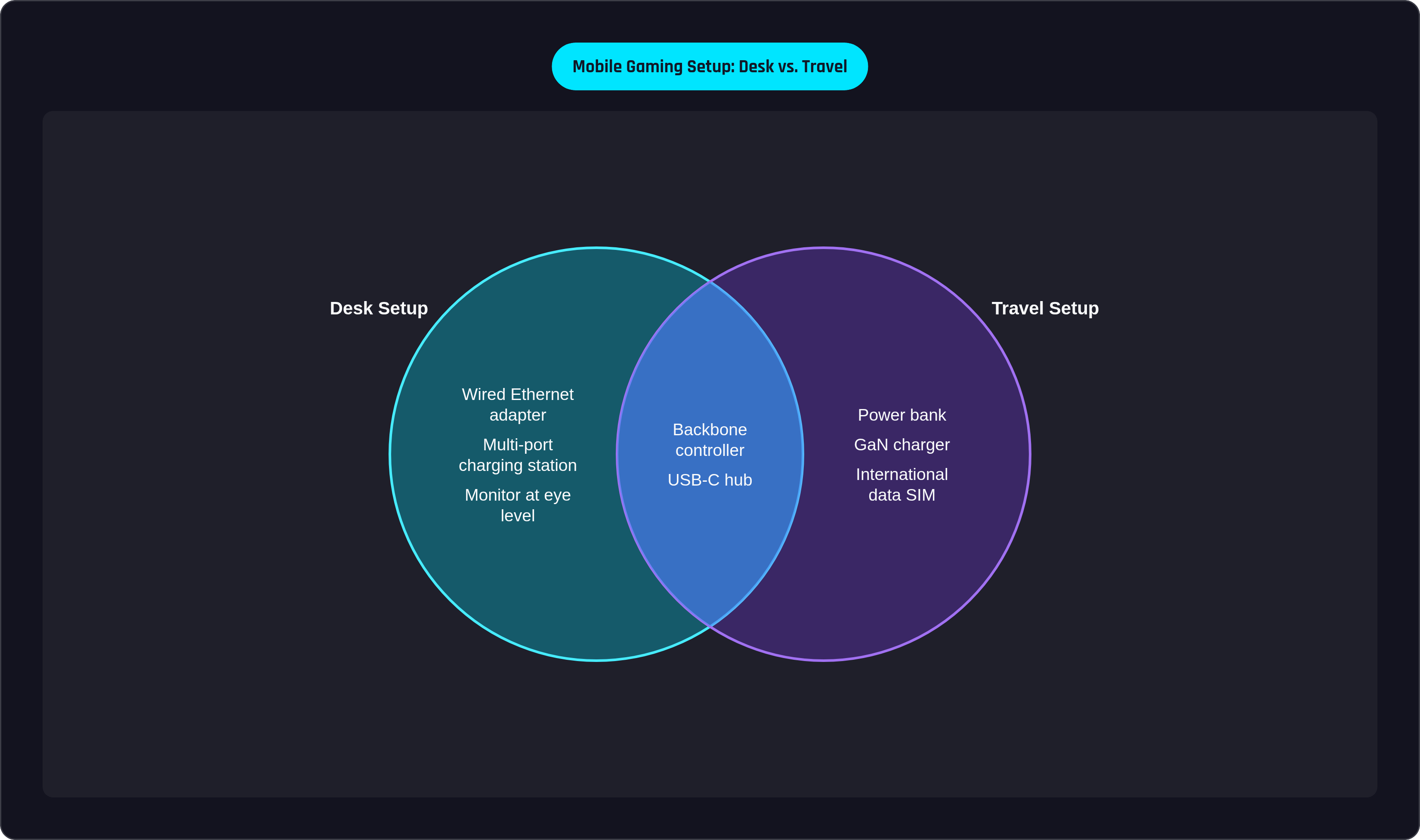
A desk has no weight limit and no size restriction the way a carry-on does, but piling on more gear doesn't automatically make for a better session. The goal is longer, more comfortable play, not a fuller desk.
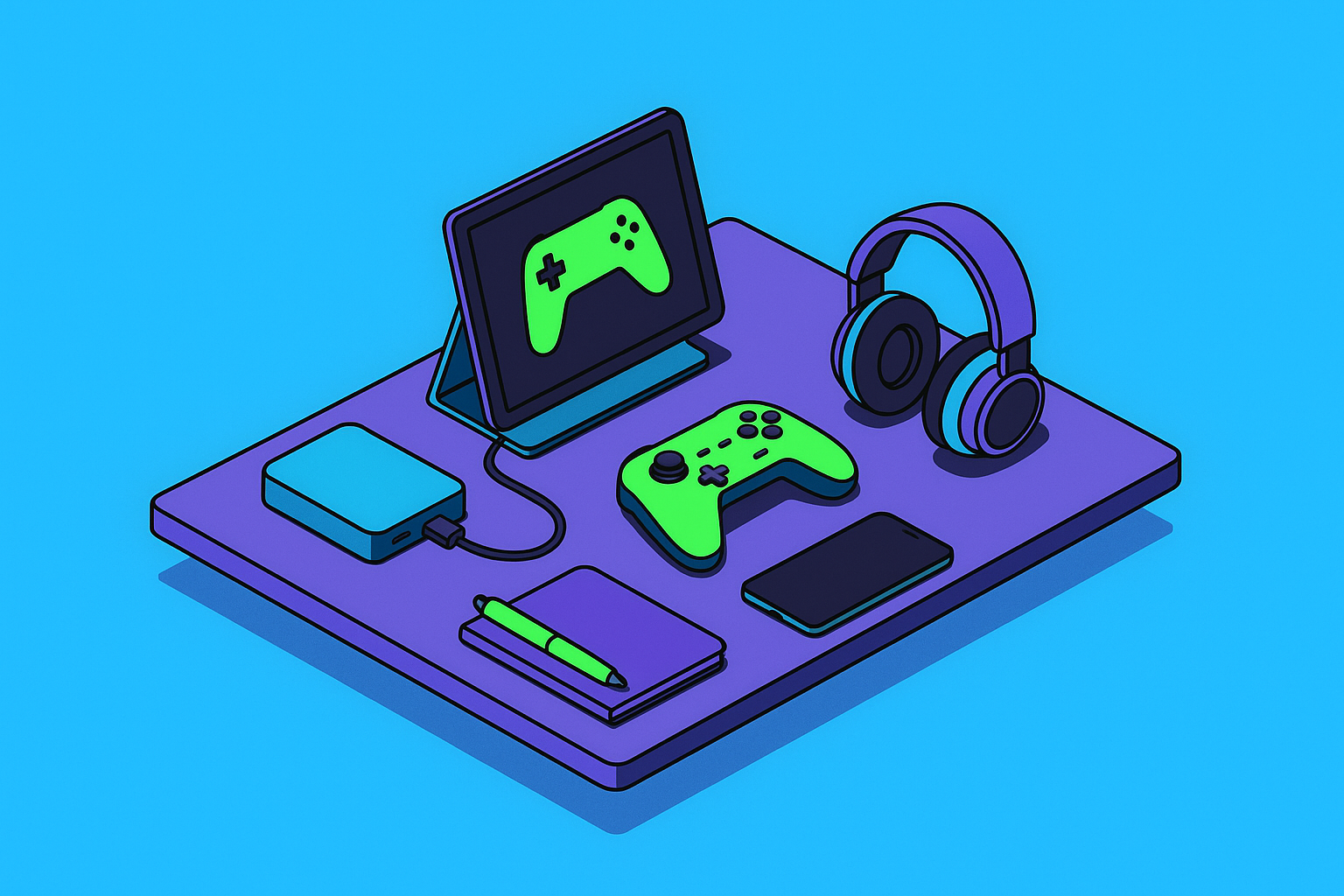
An entry-level setup is genuinely simple: a mobile controller, a phone stand, whatever headphones you already own, whatever lamp is already sitting there. The controller is your only new purchase, and it solves control and comfort immediately. From there, a mid-tier version adds a portable monitor on its own stand, a multi-port GaN charger, and a USB-C hub. At that point your phone has become the streaming box, the monitor is your screen, and the controller is your gamepad. A full console-at-a-desk experience, built entirely around a phone.
Cloud gaming is really where the desk setup earns its keep. Xbox Cloud Gaming streams up to 1440p on its Ultimate tier. GeForce NOW connects your existing Steam, Epic, or GOG library to GPU horsepower sitting in NVIDIA's data centers. PS Remote Play streams your own console's library straight from your PlayStation at home, and PS Plus Premium layers cloud streaming on top for select catalog titles. All three run through the same phone and the same controller sitting on your desk.
Ergonomics deserve one more mention: monitor at eye level, controller at a natural arm bend, audio that doesn't require sitting perfectly still to hear your teammates. That's a principle borrowed straight from office ergonomics, and it applies to a gaming desk just as much as any other workspace.
For a growing number of players, this is a legitimate, first-class way to play, and arguably the preferred one, precisely because it doesn't tie you to a TV or a fixed room. Back to where we started: whether you're at a desk or in a hotel room three time zones from home, you're solving the same four problems, control, comfort, power, screen, just with gear shaped to fit wherever you happen to be. The phone was already capable enough to handle this years ago. The setup is just what finally lets it prove it.