PS Remote Play on Android Setup and Which Controllers Actually Work
Choose the right Android version and controller to stream PS4 and PS5 games smoothly.
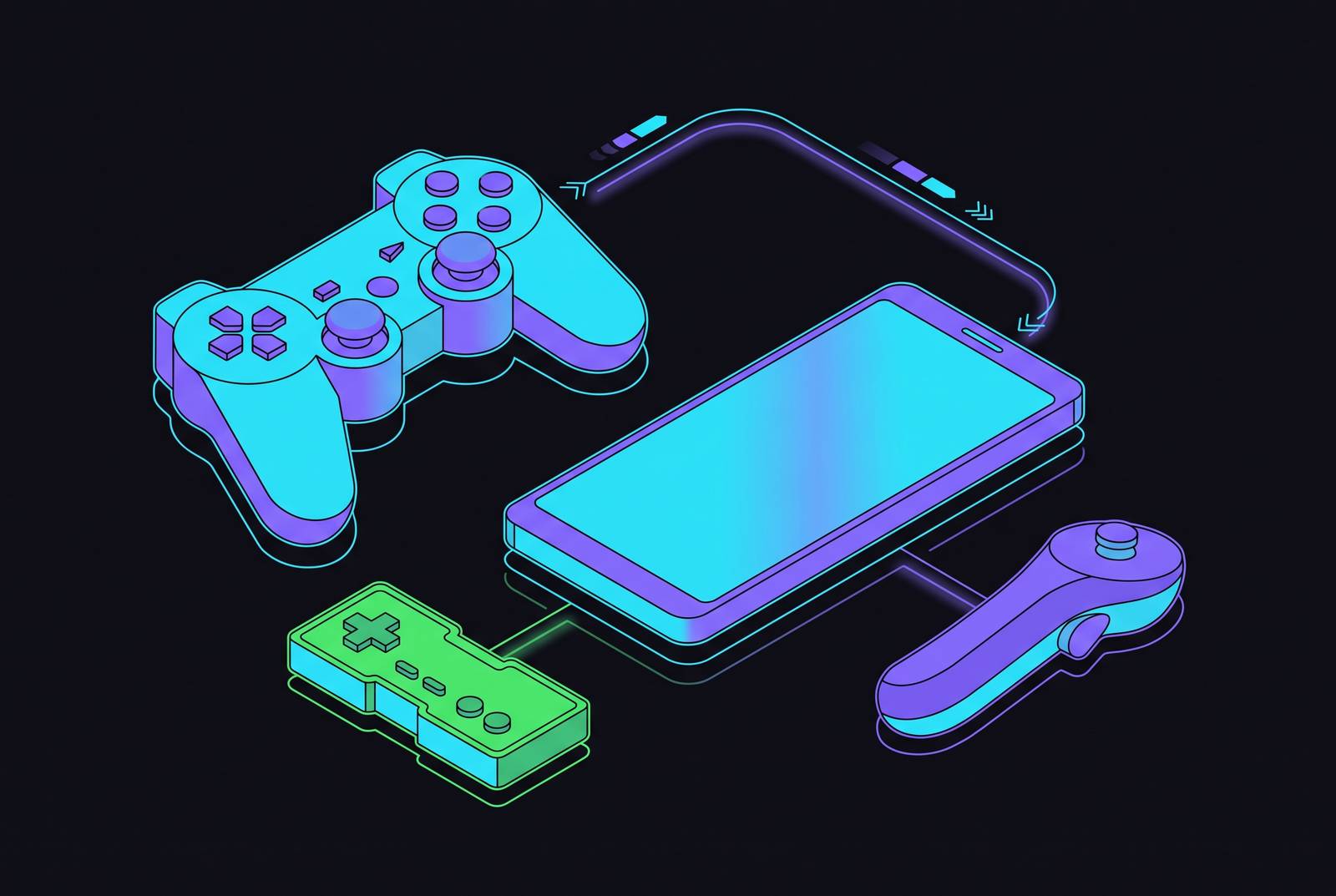
PS Remote Play on Android turns your phone into a screen for your own PlayStation, but a successful connection is only half the setup. This guide explains the console settings, network requirements and controller choices that make it playable. Controls that respond on time need as much care as a clear picture, because even console-quality video cannot make up for input lag.
What PS Remote Play actually is and why the Android setup differs from other platforms
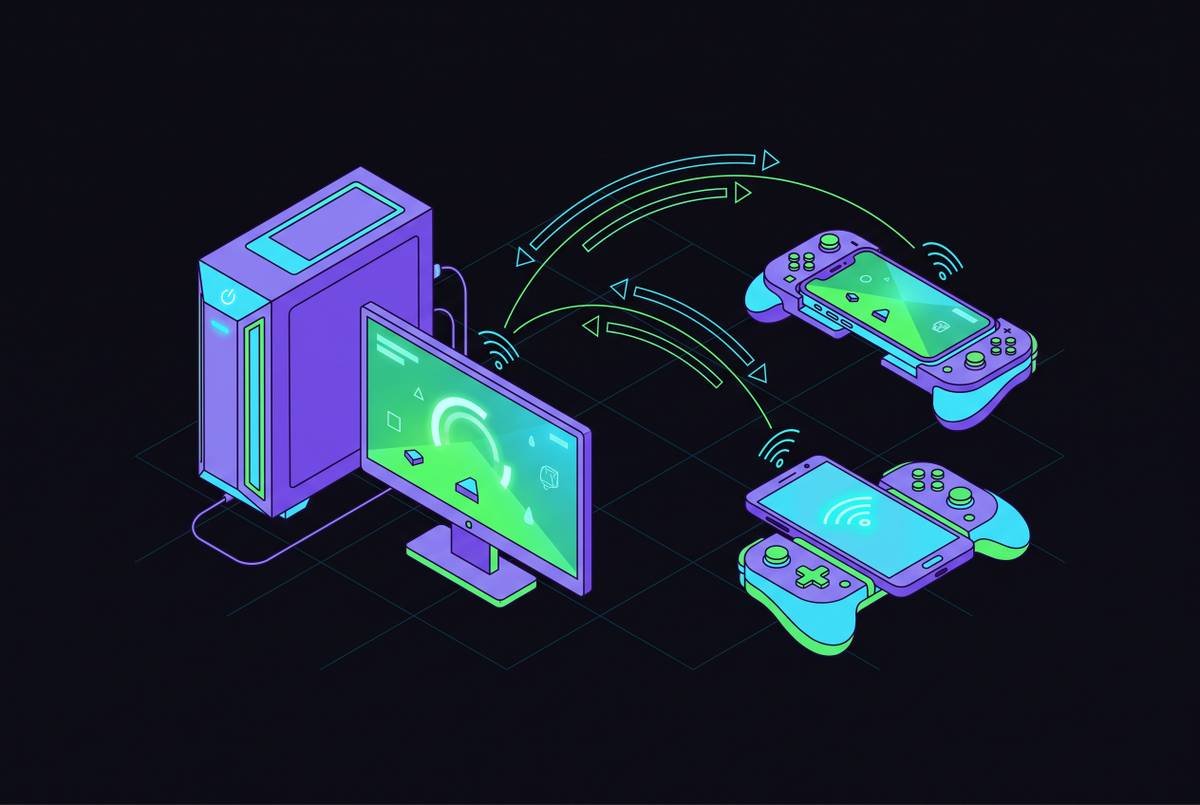
PS Remote Play streams games running on your PS5 or PS4 rather than running them on a distant cloud-gaming server. Your console does the rendering. That makes its upload connection a potential bottleneck, even when the phone has plenty of download bandwidth. It also means your existing game library, installed titles and save data remain the basis of the experience.
No PlayStation Plus subscription is required, but a PSN account, supported device and fast enough connection are. The console must also be reachable. There is no server-side substitute when it is off or inaccessible. Remote Play also works on Windows, Mac, iOS and Android TV/Google TV, but Android phones and tablets have their own rules for which apps and controllers work.
What your Android device and home network need before the app even opens
Before installation, check the console, Android version, account and connection. A missing prerequisite can look like an unexplained failure. For the console, a PS5 or PS4 should be running the latest system software, since outdated firmware can cause connection problems unrelated to the phone. For the app, the September 2, 2026 Google Play update dropped Android 10 support, making Android 11 or later the practical starting point. Controller support sets a separate threshold, with DualSense requiring Android 12 or later.
For the account, the console and Android app must use the same PSN sign-in. A family member’s profile is not interchangeable with yours. For the network, Sony states a minimum of 5 Mbps upload and download and recommends 15 Mbps for a better experience. Check both directions rather than relying on the download figure advertised for your home connection. The console must send the video that the phone receives, so a fast download service alone does not establish readiness.
The exact console and app setup sequence for Android
Start with the console, before installing the Android app. On PS5, go to Settings > System > System Software > System Software Update and Settings > Update Now. Once updated, go to Settings > System > Remote Play and turn on Enable Remote Play. This setting is adjustable per user. Enabling it makes Remote Play available, but does not by itself make the console reachable in rest mode.
For rest-mode access, open Settings > System > Power Saving > Features Available in Rest Mode. Turn on Stay Connected to the Internet. Then enable Enable Turning on PS5 from Network. These settings let the console remain reachable and wake for a session when it is not fully on.
On PS4, first update to the latest system software. Then open Settings > Remote Play Connection Settings and turn on Enable Remote Play. Next, go to Settings > Account Management > Activate as Your Primary PS4 > Activate. Only one PS4 can be primary per account. For rest-mode access, open Settings > Power Save Settings > Set Features Available in Rest Mode and enable both Stay Connected to the Internet and Enable Turning on PS4 from Network.
With the console ready, open Google Play and search for PS Remote Play from PlayStation Mobile Inc. Install the app, then open it. Select Sign In and use the same PSN account as the console. Choose PS5 or PS4, and the app searches automatically and connects. If you will play over mobile data, open Settings in the upper-right corner, then Mobile Data > Use Mobile Data > OK. That menu also lets you set video quality separately for mobile streaming.
Network and device settings that determine whether the stream is actually playable
A connected session is not necessarily a comfortable one. For standard 1080p streaming, treat 15 Mbps as the floor, with 5 Mbps as the basic connection minimum. The host console still limits the stream’s output even with more bandwidth. On PS5, sessions can reach up to 1080p/60fps, while on standard PS4 they reach 720p/30fps and on PS4 Pro they reach 1080p/30fps.
The phone must also decode that stream smoothly. Mid-range devices with Dimensity 700 or Snapdragon 600-series chips can drop frames at 1080p, so 720p is the better choice for them. Flagship phones such as the Samsung Galaxy S24 series, Google Pixel 9 and OnePlus 12 use hardware acceleration to handle 1080p without the same trouble with heat. So a sharper setting is not automatically the better setting.
What does low latency mean for the game itself? It means checking how long an action takes to show up on screen and whether that leaves room for the precise moves the game needs, even when the picture looks clean. Strong home Wi-Fi has the least latency, though 5G can work in metro areas covered by Verizon or T-Mobile. However, 1080p/60fps streaming consumes mobile bandwidth quickly, so capped plans call for a lower quality tier. Sessions over an hour also need battery planning, because video decoding, Bluetooth input and a high-throughput connection run together. A mount with pass-through charging can address that practical limit.
Which controllers officially work on Android and what each one gives up
Sony’s Android controller support spans DUALSHOCK 4, DualSense and DualSense Edge, but the phone’s OS determines which newer options are available. Begin with the Android version. DualSense needs Android 12 or later, while Edge needs Android 14 or later. DUALSHOCK 4 is also a supported controller family, but the version thresholds for the newer models should not be treated as interchangeable permissions.
For PS5 players on Android 12 or later, DualSense has the physical controls they know, but lacks the full range of PS5 effects they can feel. Sony’s documentation says adaptive triggers do not work with Android-based mobile devices. The official Android app also has no DualSense haptic feedback over Bluetooth or any other connection. This is a genuine trade-off for games designed around those effects. Pair the controller before starting the stream, because pairing during play can cause input lag while Android renegotiates Bluetooth.
For Android 14 or later, Edge adds customizable rear paddles and trigger stops, but does not restore the missing adaptive-trigger and full-haptic experience. Its advantage is in physical control options. Those DualSense effects do work over USB-C on PC, but they do not work on Mac. The useful distinction is therefore between the controls you can operate and the feedback you can feel.
How clip-on mobile controllers fit into a PS Remote Play setup on Android
A clip-on controller addresses a different problem from resolution or bandwidth. PlayStation games are made to use analog sticks, triggers and shoulder buttons. Touch overlays provide a fallback, but they are poorly suited to fast-paced or precision-dependent games. Physical controls give the phone a more appropriate form for the software it is displaying. A clear stream with touch controls that are hard to use is rather like a sports car steered through a spreadsheet.
A clip-on controller that plugs directly into USB-C bypasses Bluetooth, avoiding pairing latency and Bluetooth renegotiation. That does not, by itself, establish compatibility with the official app. Reliable connection and supported input are separate questions, so USB-C should not be read as a universal compatibility badge. A third-party controller also cannot add adaptive triggers when the app does not support them.
For longer sessions, ergonomics and charging become part of the same choice. Grips and physical triggers are less tiring for the thumbs than holding a flat phone. A wired design with USB-C pass-through charging can also keep the phone powered during play. These benefits address the handling and battery constraints that a video-quality adjustment cannot fix.
Android TV and Google TV as a second Remote Play screen in the same household
Android need not mean a phone in your hands. Sony’s Android TV Remote Play page says it works on Android TV OS 12 or later and lists Google TV Streamer and Chromecast with Google TV as devices it supports. That creates a second console display within the household without buying a PlayStation Portal. To set it up, search for PS Remote Play directly on the TV device. Sign-in uses a QR code scanned with a smartphone or tablet.
Sony’s official Android TV controller list includes standard DualSense and DUALSHOCK 4 and omits Edge, so phone support should not be assumed to transfer. HDR is also available when both the Android TV device and PS5 are connected to HDR-capable displays. To enable it, open PS5 Settings > Screen and Video > Video Output > HDR and choose Always On or On When Supported. Then select Settings > Video Quality for Remote Play > HDR > Automatic in the Remote Play app.
How PS Remote Play on Android compares to Xbox Remote Play and Steam Link for mobile players
The most useful comparison begins with the hardware you own. PS Remote Play, Xbox Remote Play and Steam Link all have remote play, with no ongoing subscription needed for the feature itself. PlayStation Plus and Game Pass are not required for their respective console-streaming services. For existing console or PC owners, the remote-play cost barrier is therefore near-zero. The available streaming library distinguishes these services more than cost does.
PS Remote Play is the natural fit for a PlayStation library, with a 1080p/60fps mobile limit and the most forgiving stated minimum network requirement at 5 Mbps. Xbox Remote Play is the closest functional counterpart for Android users who own both consoles. Its browser-based option at Xbox.com also allows access without installing an app, something PS Remote Play does not offer. That difference can simplify joining from another device. It does not, however, change which console hosts the games.
Steam Link serves PC libraries and is free and bundled with Steam. It offers the highest quality potential, including high-resolution HDR over a wired LAN, but requires more bandwidth and more router configuration for reliable access from outside the home. Steam Link has no official web portal, although Remote Play Together can stream to a browser through a WebRTC invite link without installation. That makes its browser option distinct from a general remote-access portal. Of these choices, PS Remote Play is the way to play PlayStation-exclusive titles, while Steam Link suits PC owners who are happy to do more setup work.
Troubleshooting the most common Android-specific Remote Play failures
If the app will not install or crashes at launch, start with the Android version. Android 11 or later is the required practical baseline after the September 2, 2026 update removed Android 10 support. An Android 10 device may receive no app or retain an older, unsupported version. That symptom points to compatibility before network quality. Faster Wi-Fi cannot repair an unsupported operating system.
If the app cannot find the console, check the account and console permissions. The PSN account must match on both ends. Confirm that Enable Remote Play is on, then check that the console is either powered on or in rest mode with Stay Connected to the Internet enabled. For waking from rest mode, the network power-on setting must also be enabled. These checks distinguish an unreachable host from a poor-quality stream.
If controller lag begins after a Bluetooth DualSense is paired during play, disconnect the session. Pair the controller before launching Remote Play, then reconnect. If the picture instead drops frames or becomes heavily compressed, test the home upload connection through the console’s network settings in addition to any phone test. Reduce resolution to 720p when upload speed is below 15 Mbps. The symptom determines which part of the setup deserves attention.
The official Android app does not provide the full haptic and adaptive-trigger feature set, so repeated pairing will not unlock it. For users comfortable with an unofficial client, Momiji is a free, open-source option built on the Chiaki lineage that supports DualSense haptics and adaptive triggers, plus optional super-resolution upscaling. It addresses a specific feature gap rather than serving as a general cure for Remote Play failures. The distinction is the same one that governs the whole setup, namely whether the obstacle is the network, the input connection or the app’s own support.